Let’s look at what elements you can apply your company’s branding to in the Salesforce app for Android.
Here’s what you provide for your Mobile Publisher project to brand your own Salesforce app for Android:

| Field | Description |
|---|---|
| Product Details | |
| App Name | The name under the app icon on the device. This name is different from the Google Play Title. Max 12 characters. |
| App Help URL | A URL with help information for your app. Your users can access this link from the bottom of your app's Navigation Menu. If you leave this field blank, it defaults to the standard Salesforce Help URL. |
| Google Play Default Language | The default language to display for your listing on the Google Play Store. |
| Google Play Title | A specific name that isn’t too similar to existing app names on the Google Play Store. Max 30 characters. |
| Google Play Long Description | This description is for your listing on the Google Play Store. The best descriptions are concise, informative, and highlight the main features of your app. Max 4,000 characters. |
| Google Play Short Description | A quick description of your app on the Play Store app. The quick description expands to your app's full description. Max 80 characters. |
| Authorized Domains | |
| Domain URL | The default set of domains to log in to are production and sandbox. If you don’t add an extra domain, production is the default domain. The URL must begin with https://. |
| Domain Label |
|
| Beta Tester Information | |
| First Name | First name of beta tester. |
| Last Name | Family name of beta tester. |
| Email Address | Email address of beta tester. Your beta tester receives an email when the beta version of your app is ready to test. The beta tester needs a Gmail or Google Workspace account. |
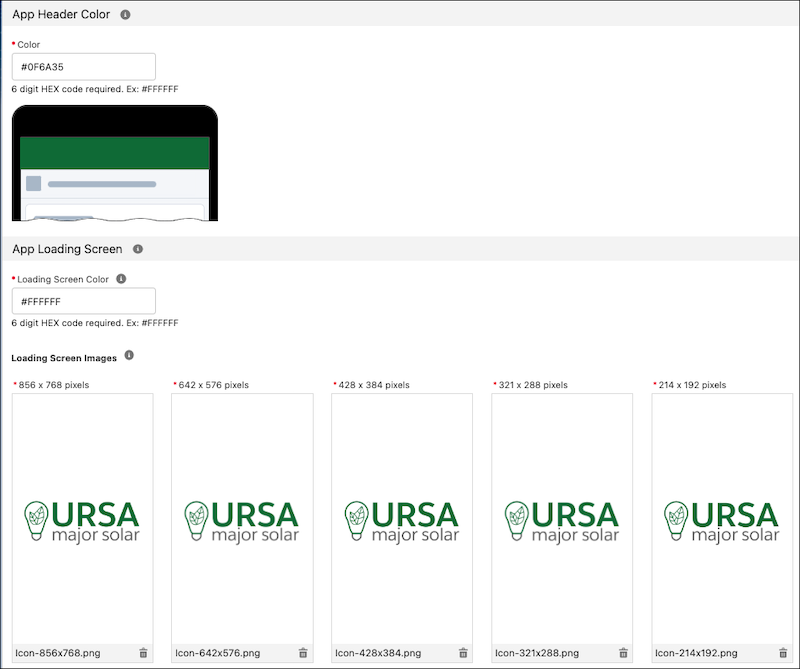
| App Header Color | |
| Color | The background color for the header of the app. The Color format is 6 HEX digits. Must start with #. *See below for example |
| App Loading Screen | |
| Loading Screen Color | The background color for the loading screen of the app. The Color format is 6 HEX digits. Must start with #. *See below for example |
|
Loading Screen Images:
|
Image with the logo on the loading screen. 32-bit transparent PNG. *See below for example |
| Icons | |
|
Google Play Store Icon:
|
The Google Play Store icon shows up in your listing on the Google Play Store. Make your Google Play Store Icon the same design as your mobile device icons. Max 1,024 KB. 32-bit PNG with alpha channel for transparency. |
|
Mobile Device Icons:
|
The mobile device icons show up on the mobile device itself. Make your mobile device icons the same design as your Google Play Store Icon. |
|
Mobile Device Icons - Round:
|
For devices running Android 7.1 or later. If you don't provide these icons, devices running Android 7.1 or later display the icons you've uploaded in the "Mobile Device Icons" section. |
|
Push Notification Icons:
|
Push notification icons display in several areas on an Android mobile device. Notifications provide short, timely, and relevant information about your app when it’s not in use, and the icon you upload is visible next to those notifications. |
| Salesforce External Client App | |
| Name | The name displays when your users log in to your app for the first time. If possible, make the name the same as your App Store name. 5–40 characters. English only. |
|
Icon:
|
The external client app icon shows up when your users log in to your app for the first time. Make this icon the same design as your app icons. PNG format and max 100 KB. |
| Google Play Screenshots | |
| Screenshot |
Screenshots show up on your Google Play Store listing. The order of screenshots is the same in the store listing. 24-bit PNG (no alpha). 2–8 screenshots. Minimum 320 pixels. Maximum 3,840 pixels. The maximum dimension of your screenshot can't be more than twice as long as the minimum dimension. If you don’t have access to your branded app to take screenshots, use the Publisher Playground app. Avoid using a mobile browser for screenshots, as it can lead to your app being rejected. |
| Google Play Feature Graphic | |
|
Feature Graphic:
|
To be featured anywhere in Google Play, a feature graphic is required. The feature graphic shows up at the top of your store listing in the Play Store app. 24-bit PNG (no alpha). |
| Google Play Promo Video | |
| Promo Video URL |
The promo video lets users know about current features of your app.
|
| Country Availability | |
| Country Availability | Choose the countries where you want your app to be available. Default is all countries. |
*Example