
Review the information that you gather and provide to Mobile Publisher when you configure push notifications for your app.
Use these fields in your app's Setup for Mobile Publisher project to enable Marketing Cloud Engagement Push Notifications for Mobile Publisher Apps.
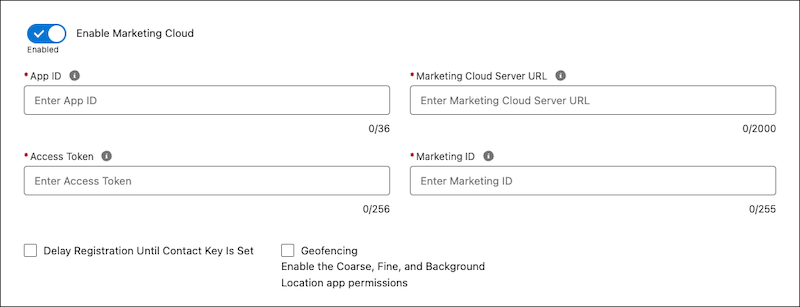
Android
iOS
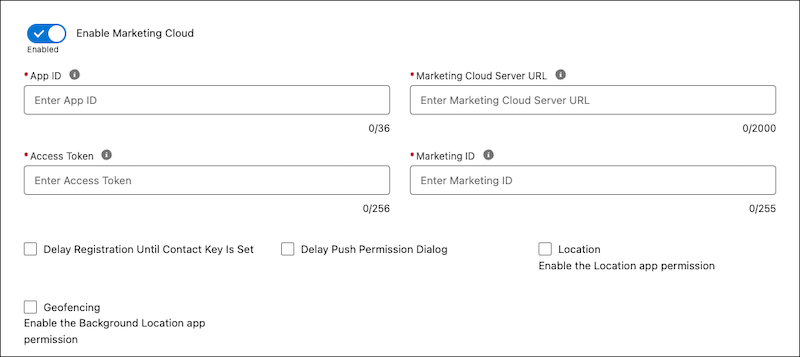

- App ID
- The app ID from your MobilePush account.
- Access Token
- A string that the OAuth client uses to make requests to the resource server.
- Marketing Cloud Server URL
- The URL of the Marketing Cloud Engagement server. In your MobilePush account, this field is labeled as App Endpoint on the Administration tab.
- Marketing ID
- The account ID associated with your MobilePush account. Also known as MID.
- Delay Registration Until Contact Key Is Set
-
Delays registration until the application sets a contact key. Use this setting in implementations where the device running your app is tied to a specific contact key in Engagement and not to a generic device contact.
When this setting is enabled, push registration occurs after the user logs in.
When this setting is disabled, registration occurs when the app starts with an ID that’s generated on the device. If a contact ID is available when the user logs in, the registration is updated with the contact ID. If a contact ID isn’t available, the app uses the generated ID.
- Delay Push Permission Dialog (iOS only)
-
Delays push notification permission alert until an in-app message is presented.
The Delay Push Permission Dialog (iOS only) setting is set for the entire app. In addition to your app’s Engagement notifications, the setting is applied to all of your app’s notifications, including its platform push notifications.
Always use the same values for production and sandbox configurations in the same app.
If your production configuration is enabled, you can’t enable or disable Delay Push Permission Dialog (iOS only) for your sandbox configuration.
- Location (iOS only)
-
Uses the location capabilities of the user’s device to trigger location-based notifications.
If you enable Location for an iOS app, always enable the Location app permission for device capabilities in your Mobile Publisher project. See Configure the SDK in MarketingCloudSDK iOS Documentation.
Location access requirements are set for the entire app, including the production and sandbox configurations. When writing the Location app permissions request, always describe all of your app’s use cases for location access.
When your production configuration is enabled, you can’t enable or disable Location for your sandbox configuration.
- Geofencing
-
Uses the location capabilities of the user’s device to trigger notifications when the device enters or exits a specific location boundary (geofence).
If you enable Geofencing for an iOS app, always enable Location for push notifications from Engagement. Then, enable the Location and Background Location app permissions for device capabilities in your Mobile Publisher project. See Configure the SDK and Background Location Updates in MarketingCloudSDK iOS Documentation.
If you enable Geofencing for an Android app, always enable the Coarse, Fine, and Background Location app permissions. See Add Geofences in SFMCSdk Android Documentation.
Engagement must enable your account with access to MobilePush and Location Services to use this functionality successfully.
Geofencing access requirements are set for the entire app, including the production and sandbox configurations. When writing the app permissions requests, always describe all of your app’s use cases for geofencing access.
If your production configuration is enabled, you can’t enable or disable Geofencing for your sandbox configuration.