
After you set up MobilePush in Marketing Cloud Engagement, you can enable push notifications for your Mobile Publisher apps. You can specify different configurations for production and sandbox orgs.
Required Editions
| Available in: Lightning Experience |
| Available in Enterprise, Performance, and Unlimited Editions |
| User Permissions Needed | |
|---|---|
| To create and modify a Mobile Publisher project to enable Marketing Cloud Engagement push notifications: | Manage mySalesforce Apps |
| To create and modify a site: | Create and Set Up Experiences |

Note A Marketing Cloud Engagement license is required to access this feature. Contact your
account executive to enable Engagement.
Before you set up push notifications for your Mobile Publisher app, create a MobilePush account.
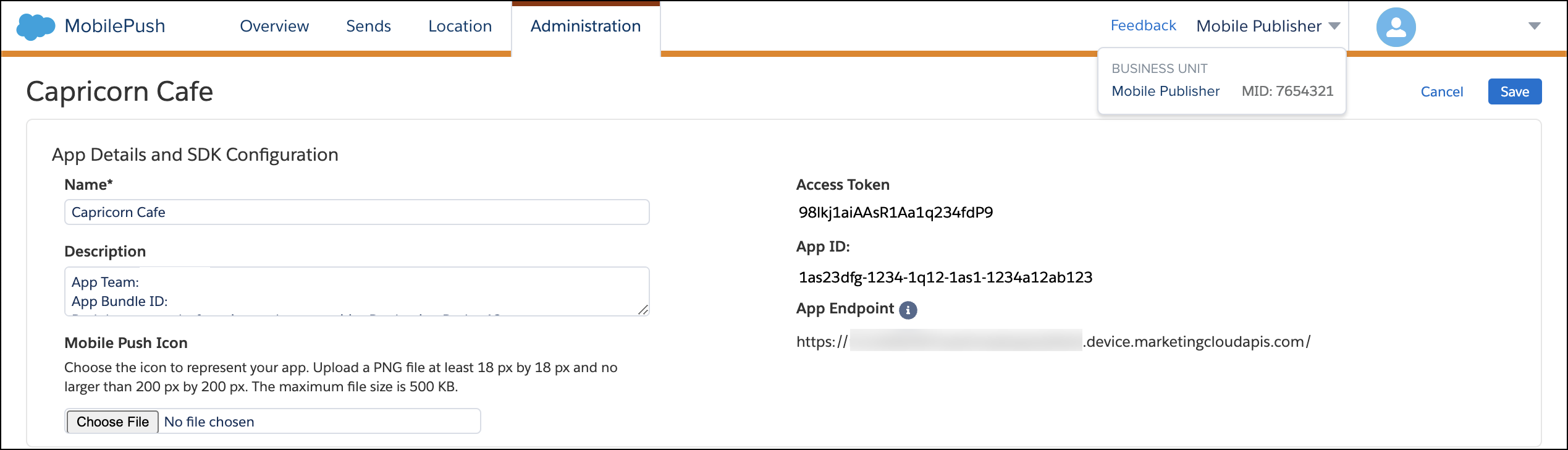
- In your MobilePush account from Engagement, select the Administration tab.
- Locate your app, and in the Actions column, from the dropdown list, select Settings.
- Record the values in these fields.
- App ID
- Access Token
- App Endpoint
- Account ID (Also known as MID)
- From Setup, in the Quick Find box, enter Mobile Publisher, and then select Mobile Publisher.
- Open your app’s Setup for Mobile Publisher project. Select Enable Marketing Production Site or Sandbox Site.
- Complete the required fields. Enter the information that you collected from your
MobilePush account.
See Mobile Publisher Fields for Push Notifications for more information on each field.