
Install a managed package for your app.
Required Editions
| Setup for Mobile Publisher available in: Lightning Experience |
| Setup for Mobile Publisher available in: production only (not sandbox) |
| Available in Lightning Experience in: Enterprise, Performance, and Unlimited Editions |
| User Permissions Needed | |
|---|---|
| To create and modify a Mobile Publisher project: | Manage mySalesforce Apps |

- From Setup, in the Quick Find box, enter Mobile Publisher, and then select Mobile Publisher.
- Click Continue next to the listing for the iOS app.
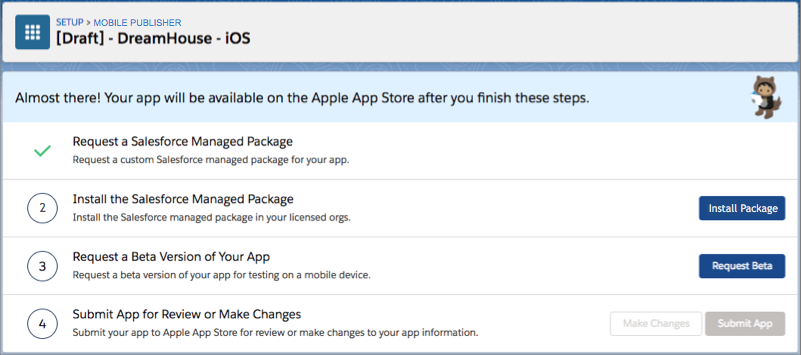
- Click Install Package.
A pop-up window lists the steps to take to install the managed package. It also includes the installation URL for the package.
Sometimes when you install a package, you see the message: "You're installing a non-Salesforce Application that is not authorized for distribution as part of Salesforce's AppExchange Partner Program." This message is expected because the managed package isn’t from the AppExchange repository. To verify the package that you intend to install, review the details below the message such as the App Name, Publisher, Version Name, Version Number, and Description. Before installing the Managed Package, acknowledge that you read and agreed to the message.
When prompted, select All Users, not Admin Users Only.
- To copy the URL, click Copy link.
- Log in to where you want to test.
- Paste the URL into your browser’s address bar.
- To install the managed package, follow the on-screen instructions.
- Be sure to install the managed package for all the licensed orgs that run your branded app.
- Repeat these steps for the Android version of the app.
After you install the managed packages, you can begin beta testing.