Create a smart app banner that shows your branded Experience Cloud app when users visit your Experience Cloud site in a mobile browser.
Required Editions
| Setup for Mobile Publisher available in: Lightning Experience |
| Setup for Mobile Publisher available in: production only (not sandbox) |
| Available in Lightning Experience in: Enterprise, Performance, and Unlimited Editions |
| User Permissions Needed | |
|---|---|
| To create and modify a Mobile Publisher project: | Manage mySalesforce Apps |
| To create and modify a site: | Create and Set Up Experiences |
If your Experience Cloud app is already installed on a user’s device, tapping the smart banner opens the app. If the user doesn’t have your Experience Cloud app on the device, tapping the smart banner takes them to the App Store to download and install your app.
- To add a smart app banner, select your Experience Cloud site in Setup and launch the Experience Builder.
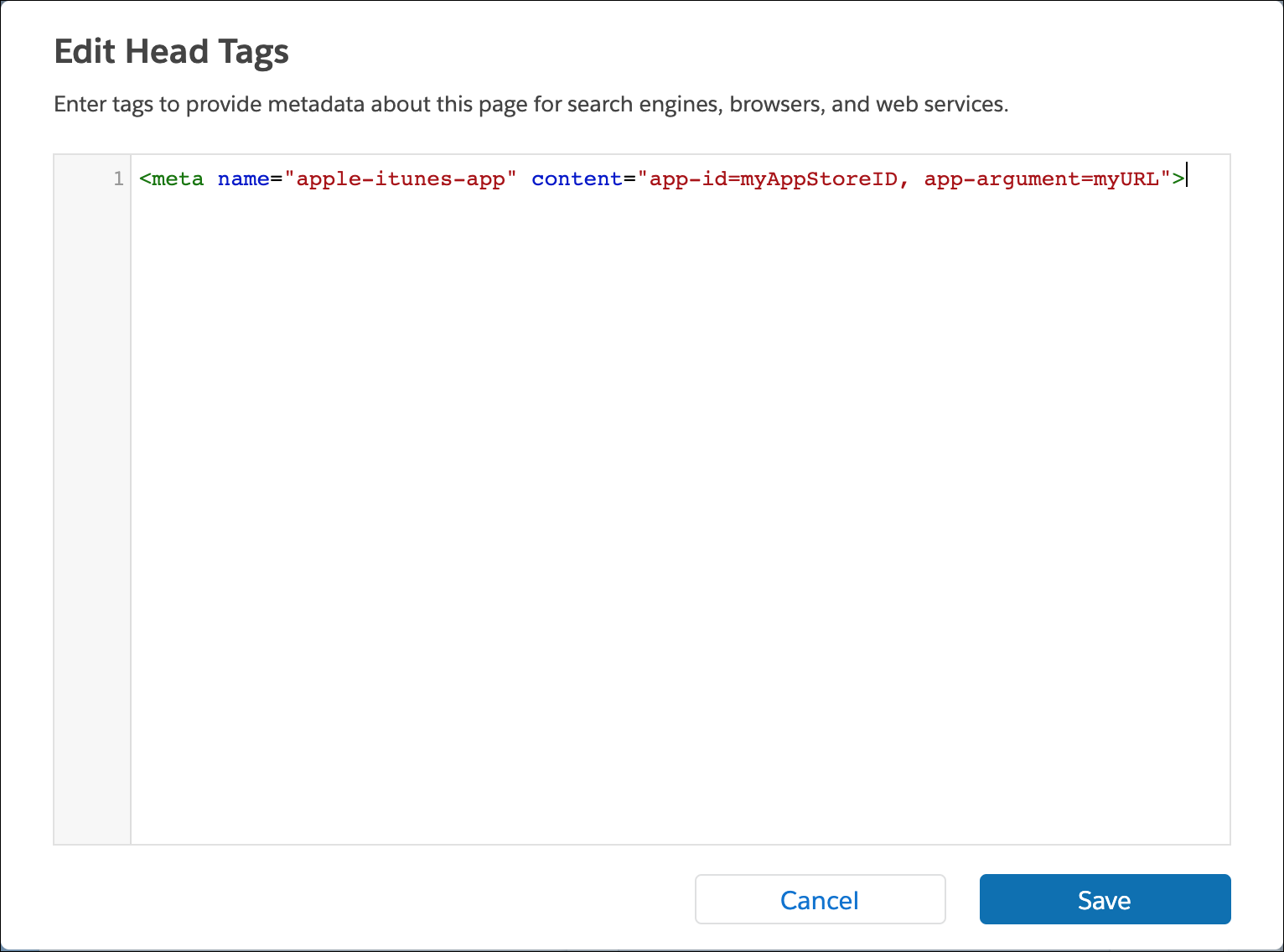
- When you’re in the Experience Builder, go to Page Properties | Properties | Head Tags | Edit Head Tags.
- Add your metadata and click Save.
Here’s an example of the smart app banner metadata from Apple.