
Create a placeholder app in your new Google Play Console account.
Required Editions
| Setup for Mobile Publisher available in: Lightning Experience |
| Setup for Mobile Publisher available in: production only (not sandbox) |
| Available in Lightning Experience in: Enterprise, Performance, and Unlimited Editions |
| User Permissions Needed | |
|---|---|
| To create and modify a Mobile Publisher project: | Manage mySalesforce Apps |
Before you begin, make sure that you have a verified Google Play developer account for an organization.

Note Mobile Publisher can’t submit your app for review until your
organization is successfully verified by Google. Make sure to follow Google’s requirements for verifying your organization. If your app requires advertiser verification, see Document requirements for advertiser verification in Google Play Console Help.
- Log in to your Google Play Console with your Google Play Developer account.
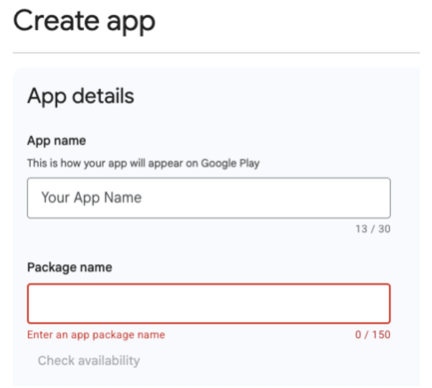
- Select Create App.
-
Enter the App Name, which must match the name entered in the Google Play
Title field in the metadata form.
- In the App or Game category, select App.
- In the Free or Paid category, select Free.
- Review and accept all the required Google Developer Declaration policies, and then select Create App.
- After you create the placeholder app, accept the terms. Select Test and Release | Testing | , and then select internal app sharing.
- If a Review Terms button is available, select and complete the acceptance of terms.
- Click Accept to finish.