
Now that we have all the information we need, we can go back to the Mobile Publisher and fill out the necessary fields.
Required Editions
| Setup for Mobile Publisher available in: Lightning Experience |
| Setup for Mobile Publisher available in: production only (not sandbox) |
| Available in Lightning Experience in: Enterprise, Performance, and Unlimited Editions |
| User Permissions Needed | |
|---|---|
| To create and modify a Mobile Publisher project: | Manage mySalesforce Apps |
- In Mobile Publisher, go to the App Distribution section.
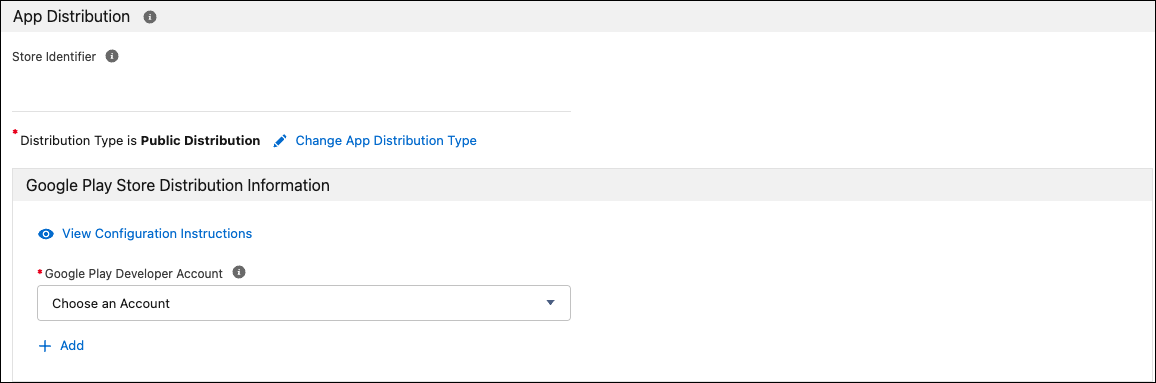
- To enter your Google Play Developer Account information, click
Add.
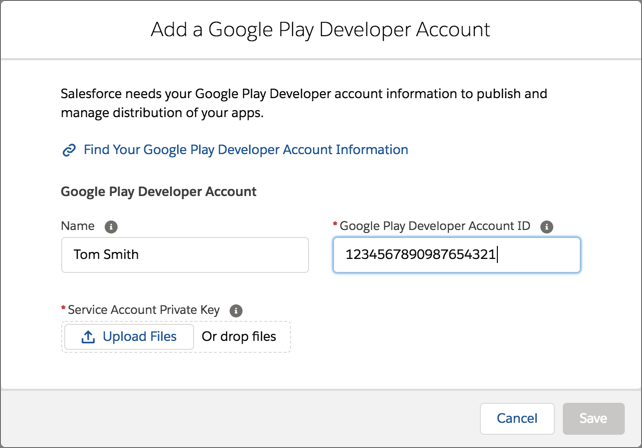
- Choose the contents of the Name field. This field is for Salesforce internal use only and can’t be changed after you save.
- Google Play Developer Account ID is the set of numbers that you copied to your clipboard from the URL of your browser address bar.
- Service Account Private Key is the JSON file that you saved to your computer from your Google Play Console.
- Save your work.
- Under Push Notifications, enter the information from your Google Firebase Console. See Register Your Firebase App to Enable Mobile Publisher Android Push Notifications for more information.
If you filled out the fields correctly, you’re ready to distribute your branded app to your users.