
Here’s how to change your distribution account for Android.
Required Editions
| Setup for Mobile Publisher available in: Lightning Experience |
| Setup for Mobile Publisher available in: production only (not sandbox) |
| Available in Lightning Experience in: Enterprise, Performance, and Unlimited Editions |
| User Permissions Needed | |
|---|---|
| To create and modify a Mobile Publisher project: | Manage mySalesforce Apps |
- From Setup, enter Mobile Publisher in the Quick Find box, then select Mobile Publisher.
- Choose the app you want to change the distribution type for.
- Go to the Customer Distribution Information section, and click
Add.
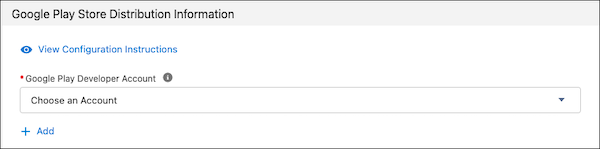
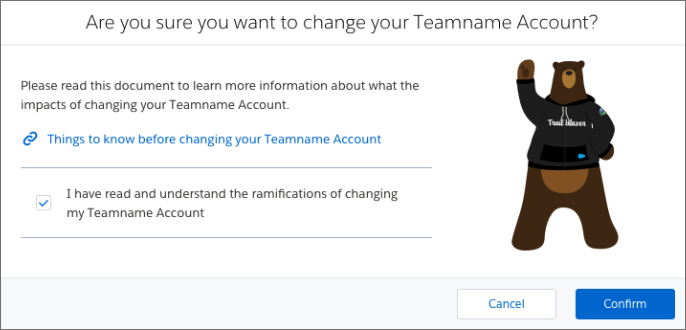
- Read about the impact of changing your account and click
Confirm.
- Add your new Google Play Developer Account.
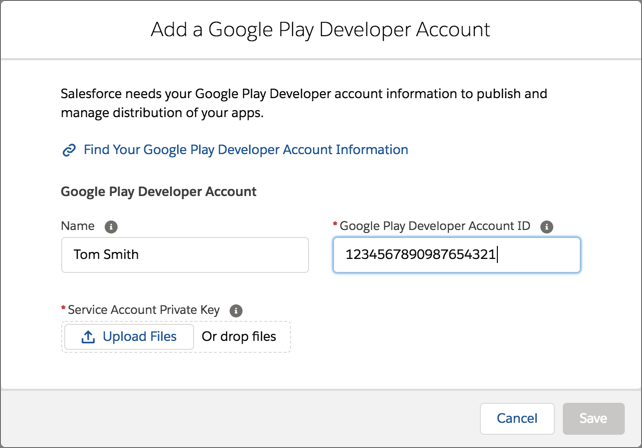
- Name is chosen by you and is for Salesforce internal use only (the name can’t be changed after you save).
- Google Play Developer Account ID is the set of numbers you copied to your clipboard from the URL of your browser address bar.
- Service Account Private Key is the JSON file you saved to your computer from your Google Play Console.
- Click Save.
The new Google Play Developer Account is selected by default.