
In your app’s Setup for Mobile Publisher project, use the URL Management section to configure how URLs open from your Mobile Publisher for Experience Cloud app.
Required Editions
| Setup for Mobile Publisher available in: Lightning Experience |
| Setup for Mobile Publisher available in: production only (not sandbox) |
| Available in Lightning Experience in: Enterprise, Performance, and Unlimited Editions |
| User Permissions Needed | |
|---|---|
| To create and modify a Mobile Publisher project: | Manage mySalesforce Apps |
| To create and modify a site: | Create and Set Up Experiences |

URL handling follows a unified precedence model on both Android and iOS. The behavior depends on how the URL is triggered.
- Login Interception: If a URL is intercepted during the login process and isn’t configured in URL Management, it opens within the login screen automatically. This ensures that intermediate authentication steps, such as Multi-Factor Authentication (MFA) and SAML flows, work seamlessly without extra configuration.
- In-App Interception: If a link clicked within the app isn’t configured in URL Management, it defaults to opening within the app on both Android and iOS.
- HAM Event (navigateToExternalURL): If a URL triggered by a HAM event isn’t configured in URL Management, it opens using the Default URL Opening Method.
Android now validates both the domain and the specific Experience Cloud site path when determining whether a URL is a site URL, matching iOS behavior. For example, in https://capricornjuices.my.site.com/capricornjuices/s/, the domain is https://capricornjuices.my.site.com and the site path is capricornjuices/s/. This prevents links to external sites on the same domain from being incorrectly treated as Experience Cloud site URLs.
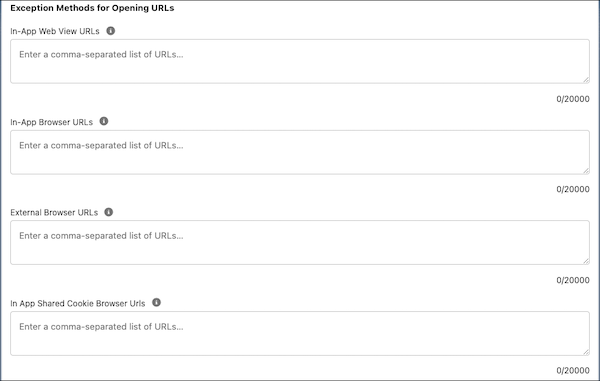
In the URL Management section, you can set links to open from your app in these ways.
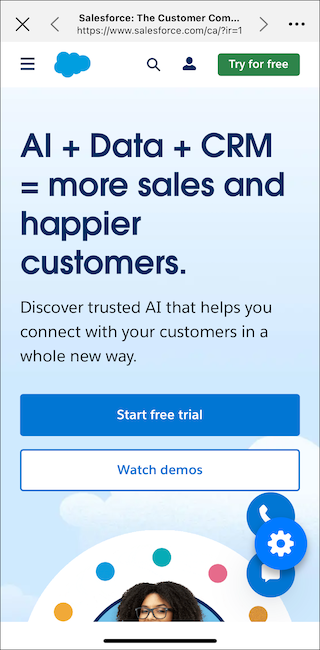
In-App Web View: Opens inside the Experience Cloud app as a web view.
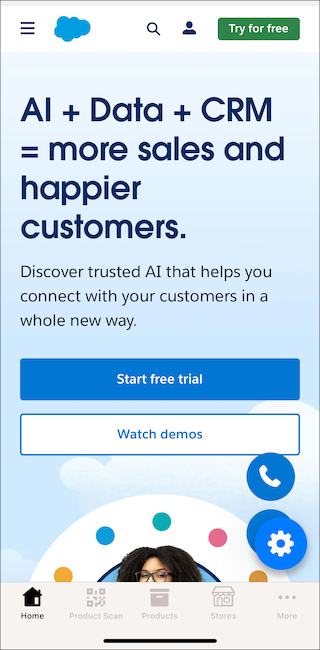
In-App Browser URLs: Opens inside the Experience Cloud app using an in-app browser.
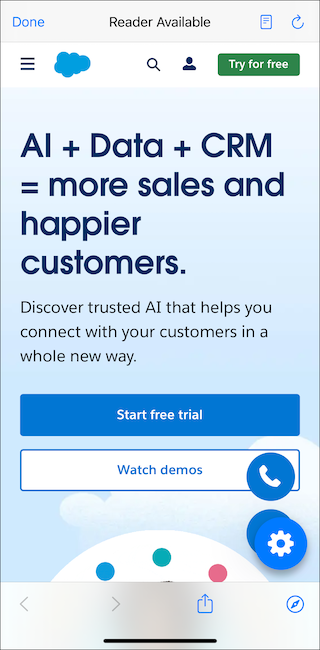
External Browser URLs: Opens outside the Experience Cloud app using the device’s default external browser.
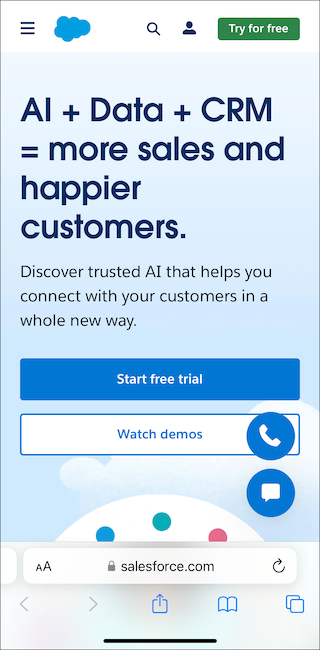
In-App Shared Cookie Browser URLs: Opens inside the Experience Cloud app’s in-app browser and shares cookies with the main web view.
- From Setup, in the Quick Find box, enter Mobile Publisher, and then select Mobile Publisher.
- Find the project for your Experience Cloud app, and then click Continue.
-
In the URL Management section, select the Default Method for Opening
URLs.

-
For any exceptions, enter those URLs in the corresponding field for the
exception method. In each exception method field, enter a comma-separated list
of up to 30 URLs.
 Important Don’t enter your Experience Cloud site URL, including the base domain or login URL, in URL-management fields. Your site URL isn’t supported in URL-management configurations and can cause issues with login and authentication.
Experience Cloud site URLs with a specific destination are supported. For example, https://example.my.site.com/privacy-policy is supported, but https://example.my.site.com/ isn’t supported.
Custom URI Schemes and Non-HTTP/HTTPS Links
Under Unified URL Management (UUM), links that use non-HTTP/HTTPS schemes require extra configuration to work correctly.
- Outbound Custom URI Schemes: If your app deep links to external native
apps using custom URI schemes (such as myapp://,
kotak://, or ibl://), add
those schemes to the Allowlist Custom URL Schemes field
in Android or iOS Setup. Links that aren’t allowlisted fail with
ERR_UNKNOWN_URL_SCHEME. - Non-HTTP/HTTPS Schemes on iOS: Links using tel:, mailto:, and maps: can fail on iOS Publisher apps if UUM routes them to the in-app browser. To prevent this, configure those links to open in an external browser in URL Management.