
A list view is a filtered list of one object’s records, but even after filtering, there are sometimes so many records in the list that it’s a challenge to find what you need. To understand and navigate your records more easily, apply sorting to your list views. You can sort any list view by 1 field column, and in Lightning Experience, you can sort a list view by up to 5 columns. Sorting is alphanumeric.
Required Editions
| User Permissions Needed | |
|---|---|
| To sort a list view: | Read on the records in the list |
Sort a List View by a Single Column
Required Editions
| Available in: both Salesforce Classic and Lightning Experience |
| Available in: all editions |
- Open the list view.
-
Click the header of the field column that you want to sort by.
An arrow at the top of the column indicates how the list is sorted: from the column’s first record (
 ) or from its last (
 ).
).
Sort a List View by Multiple Columns
Required Editions
| Available in: Lightning Experience |
| Available in: all editions except Starter and Pro Suite |
- Open the list view.
-
Click
 .
.
-
Select up to five columns in the order you want Salesforce to sort by and whether to
sort in ascending order or descending order for each column.
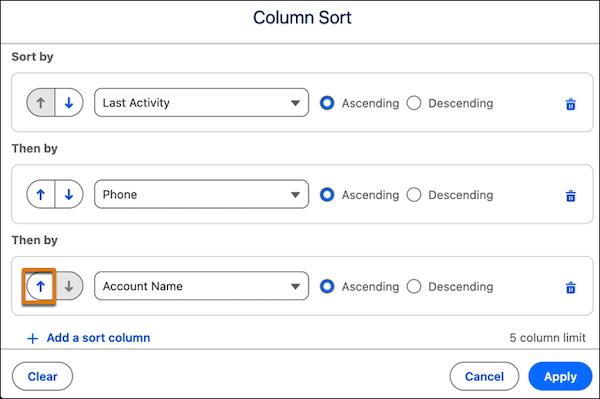
Your list view is sorted first by the top column you select in the Column Sort window, then by the second column, and so on. For example, let's say that your selections sort by Last Activity, then by Phone, and then by Account Name. If you change your mind about the sort order and you want to sort by Last Activity, then by Account Name, and then by Phone, click next to the Account Name column. The Account Name column moves above the Phone
column in the sort order.
-
Click Apply.
Your list view refreshes with the new sort order applied. An arrow at the top of each column that you sorted by indicates how that column is sorted: from its first record () or from its last (). To reverse the sort order of a column, click that column's
header.
To switch back to sorting by a single column, click the header of a column that isn't
included in the multiple column sort. To return to the default sort order, click  and then select Reset Column Sorting.

Note Sort by multiple
columns is supported for list views on object home pages. Other types of list views, such
as record lists in Experience Cloud sites, can’t be sorted by multiple columns. You can
sort by multiple columns only on list views for objects that render with Lightning Web
Components (LWC). If you don’t see , then sort by multiple columns isn’t supported for that list
view.
, then sort by multiple columns isn’t supported for that list
view.