
If enabled, use global search, at the top of every page, to search across Salesforce. From here you can find any searchable object by simply typing your search term in the search bar. Search shows only those records you have access to
Required Editions
| Available in Salesforce Classic |
| Available in: All editions except Database.com |
Search returns results for the objects that you use most. Be as specific as possible when entering search terms to get best, most targeted results. For example, let’s say you're looking for John Smith from your sales team. Enter his full name. Or if you’re looking for the sales report from March 2021, enter sales report March 2021.
To filter and sort results:
- Expand the search to other objects, use Search All, if available.
- View filtering options by selecting the object name in the sidebar.
- If available, use these filter settings:
- Options to restrict your search to items you own, to exact phrase searches, and, if applicable, to divisions in your org.
- Show Filters to filter your search results.
- My Columns to customize which columns display by using Selected Fields from the Available Fields.
-
Enter your search term.
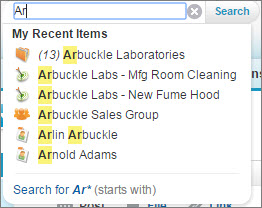
As you type, notice that the dropdown list includes My Recent Items and highlights the part of the record name that matches your search term.
-
Press Enter or click Search.
You’re taken to the search results page.
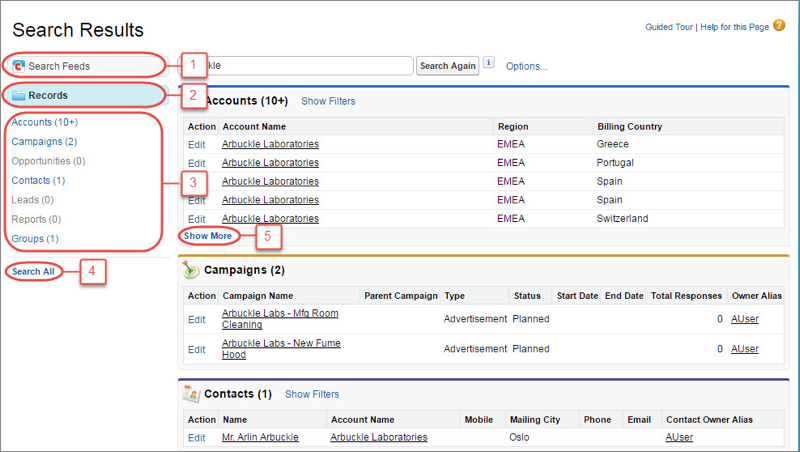
On the search results page, you can
- Search Feeds (1) to see posts from your company that match your search terms.
- Use the Records view (2) to see a few records for each frequently used object.
- Click an object name in the left search navigation (3) to see results for only that object.
- Click Search All (4) to see the results for more objects.
- Use Show More (5) under an object’s search results to see all results for the object.
The order of the objects is based on how frequently you use each object.
In Salesforce Classic you can also use the sidebar search or advanced search. If you enclose search terms in quotation marks, search doesn’t look for an exact match. For example, if you enter the name “John Smith” you can also get results for John Doe Smith.If you can’t find the record you need right away, try to refine your search. You can either sort results by clicking the headers or filter the results by selecting Show Filters.
Still can’t find a record? Try these tips.
- Limit the number of results by entering more specific search terms. For example, enter the full name and company, such as Mike Jones Salesforce or enter the last name and ZIP code, such as Jones 94123.
- Searching for a specific contact or opportunity? Get more targeted results by adding the account name to your search terms. For example, John Smith Acme or 200 Widgets Acme.
- Enter the complete search term.
- Check your spelling.
- If you recently created or updated the record, wait a few minutes for the record to be made searchable. If you can’t find your record after 15 minutes, contact your admin. Not all fields on a record are searchable.
- If you think the record isn’t appearing due to permission issues, check with your admin. You only see the records that you have access to.