---
schema_version: "1"
id: 52d2bc88fd0a57c323c95cd5d3eff74541ad92512454b7800b6acfc1a2e12347
title: Search List Views in Lightning Experience
collection: admin
version: current
locale: en-us
portal_url: https://docs.salesforce.com/admin/current/en-us/xcloud/264-0-0/basics_search_list_views_lex.md
canonical_url: https://help.salesforce.com/s/articleView?id=xcloud.basics_search_list_views_lex.htm&release=264.0.0&type=5
source_site: help.salesforce.com
content_type: documentation
content_hash: 395a857290f322784b070328e2ca1ceb87b9356df83c137cf5193e55c587d138
description: Use the list view search box to search for records in a list view. Click the search box or use the keyboard shortcut g+f, and then enter your query. The list view search looks at all searchable fields even if the corresponding columns aren’t shown in the list view.
products:
- Salesforce Platform
- Cross Cloud
release: "264"
---
# Search List Views in Lightning Experience
Use the list view search box to search for records in a list view. Click the search box or use the keyboard shortcut g+f, and then enter your query. The list view search looks at all searchable fields even if the corresponding columns aren’t shown in the list view.
### Required Editions
Available in: Lightning Experience
Available in: Essentials, Group, Professional, Enterprise, Performance, Unlimited, and Developer Editions
User Permissions
Needed
To search a list view:
Read on the records in the list
When you search a list view, only the first 2,000 records in the list are searched. If you can’t find your record, try a more specific search or modify your filters or sorting. For example, your accounts list view contains 8,000 records. If you search for an account that starts with Z, but that account isn’t in the search results, sort the Account Name field from Z to A so that the accounts begin with Z falls in the first 2,000 records listed. You can also add filters to make the list view more specific.
When you search a list view, spell correction is applied to your search terms. To disable spell correction on a term, surround the term with quotation marks. For example, spell correction causes searches for the word Parish to also return results for Paris. To get results for only Parish, search for “Parish”.

Note You can add the search bar to the List View component in the Lightning App Builder.
Some restrictions apply when you search a list view:
- Depending on the object you view, certain fields aren’t searchable, but you can still filter or sort on those fields. Want to see which fields aren’t searchable? Place your cursor in the list view search box and a tool tip shows you the list of unsearchable fields. If you aren’t getting the search results that you expect, check the tooltip.
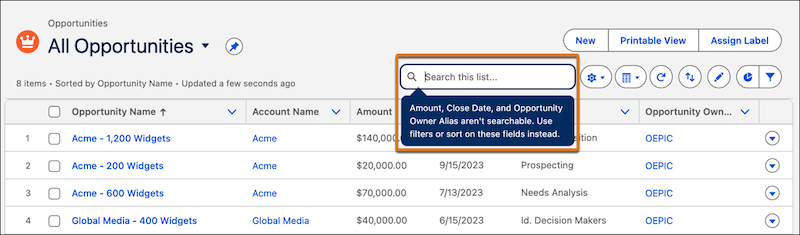
- Generally, formula fields, lookup fields, derived fields, and non-text fields such as number and currency aren’t searchable.
- You can’t search in list view for external objects.
- You can’t use filter criteria on Person Account records.
- Search doesn’t find partial strings in a field label unless the string is at the beginning of the label or the string follows a space. This rule applies to strings of words and numbers. For example:
- A search for the word commun finds Edge Communications, but a search for the string dge or cation doesn’t.
- A search for the number 12 finds Leads Report 12 but not Leads Report-12.
- Your admin can configure translated values for data labels and picklist values with Translation Workbench. If your org uses a non-English UI, search the list view using the English term. Don’t use the non-English term. For example, your admin configures the English word low to be translated to the French word basse. In the French UI, the list view shows basse, but if you search for “basse”, no records are found. To find the record, search for “low”.
- Searching a recently viewed list doesn’t show results in the recently viewed order.
- Alphabet shortcuts aren’t available in Lightning Experience, but you can find the same results with a search for the letter.
- Search terms entered in the list view search box don’t persist when you switch between list displays, such as from the standard table view to the kanban view.