In a list view, you see only the data that you have access to. You can see records that
you own, have read or write access to, or are shared with you. List views also include records
owned by or shared with users in roles below you in the hierarchy. The fields you see depend on
your page layout and field-level security settings.
Required Editions
| Available in: Lightning Experience |
| Available in: Essentials, Group, Professional,
Enterprise, Performance, Unlimited, and Developer
Editions
|
 Work with List Views in Lightning Experience (English Only)
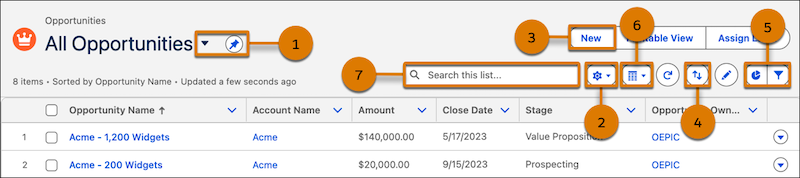
- Select a list view from the dropdown menu. Pin a list with
 to set it as your default (1).
- Edit, delete create, or share a list view using the List View Controls menu
 (2).
(2).
- Create records directly from a list view (3).
- Sort a list view by up to five columns with
 (4).
(4).
- View a list in different ways. Visualize list view data using charts with
 and refine which records are displayed using filters with
  (5).
(5).
- Depending on the object, you can switch between the standard table view
 , the Kanban view
  , tile view
  , and split view
  (6).
(6).
- Search a list view for the data you need (7).
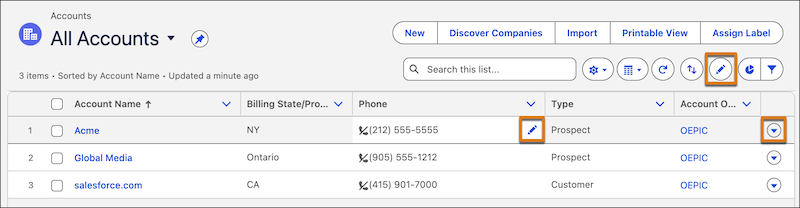
- Edit a field directly from a list view with
 in the list view header or next to a record detail.
- Edit or delete a record by selecting the dropdown
 next to it.
Modify and create list views from your record home page with List View Controls . To change and reorder the columns displayed in a list view, select Select
Fields to Display. Fields correspond to columns in the final list view
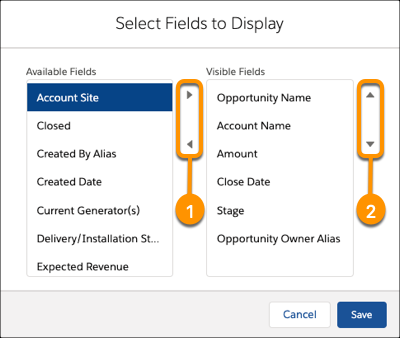
- Add fields to your list view (1).
- Reorder the columns in your list view (2). Columns appear from left to right in the order
shown in Visible Fields.
