
To view all standard and custom objects that are available to you in your org, click the plus icon (+). To see the records for a particular object, click the record’s tab.
Required Editions
| Available in: Salesforce Classic |
| Available in: All Editions |
The tabs you see depend on your permissions and how your administrator configured Salesforce. Let’s say your company wanted to track product inventory. The Salesforce administrator could create custom objects called Inventory and Merchandise and add them as tabs. You can change the order of your tabs.
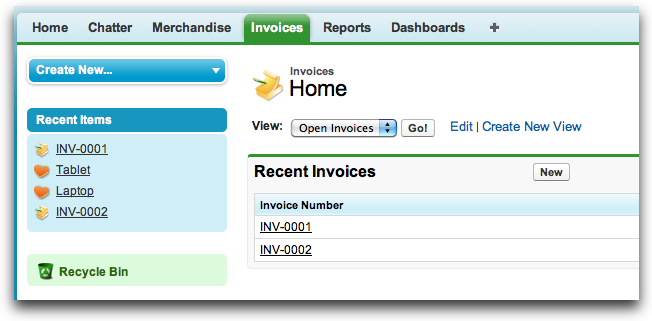
Find Record Data from a Tab
From a standard or custom record tab, select a view and click Go!.
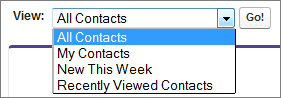
That action takes you to the list view, filtered by the view you selected.
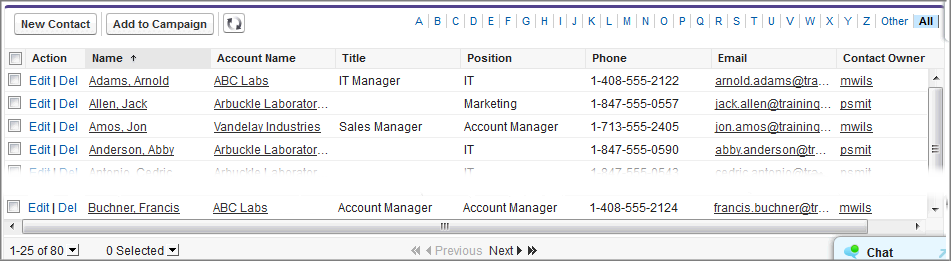
For example, if you select New This Week on the Contacts tab, the list view shows you the new contacts that were added this week.
Use Related Lists to Find Record Data
On many records, below the main page sections, look for related lists. They identify records that are associated with the record you’re currently viewing. For example, an account record probably has a related list of contacts at that account. Which records you can view and update depends on your user profile, user permissions, and sharing settings. Work with your administrator to make sure that you have access to the records and data you need.