---
schema_version: "1"
id: 4d2ffbc0b1c713dccae15abd0386f9c4c6099aec441f172f8c362d4e9e52b9e5
title: App Switching in Lightning Experience
collection: admin
version: current
locale: en-us
portal_url: https://docs.salesforce.com/admin/current/en-us/xcloud/264-0-0/basics_app_launcher_lex.md
canonical_url: https://help.salesforce.com/s/articleView?id=xcloud.basics_app_launcher_lex.htm&release=264.0.0&type=5
source_site: help.salesforce.com
content_type: documentation
content_hash: 56ba329d224b976d25da2fa4694a06feff81b2d86c9895d7d8b9507cf6517bbb
description: Use the App Launcher to navigate between your apps. You can easily switch between apps and access other Salesforce items and features.
products:
- Salesforce Platform
- Cross Cloud
release: "264"
---
# App Switching in Lightning Experience
Use the App Launcher to navigate between your apps. You can easily switch between apps and access other Salesforce items and features.
### Required Editions
Available in: Lightning Experience
Available in: all editions except Database.com>
User Permissions Needed
To use an app:
Access to that app as specified in your user profile or permission sets.
## Vertical Navigation Bar
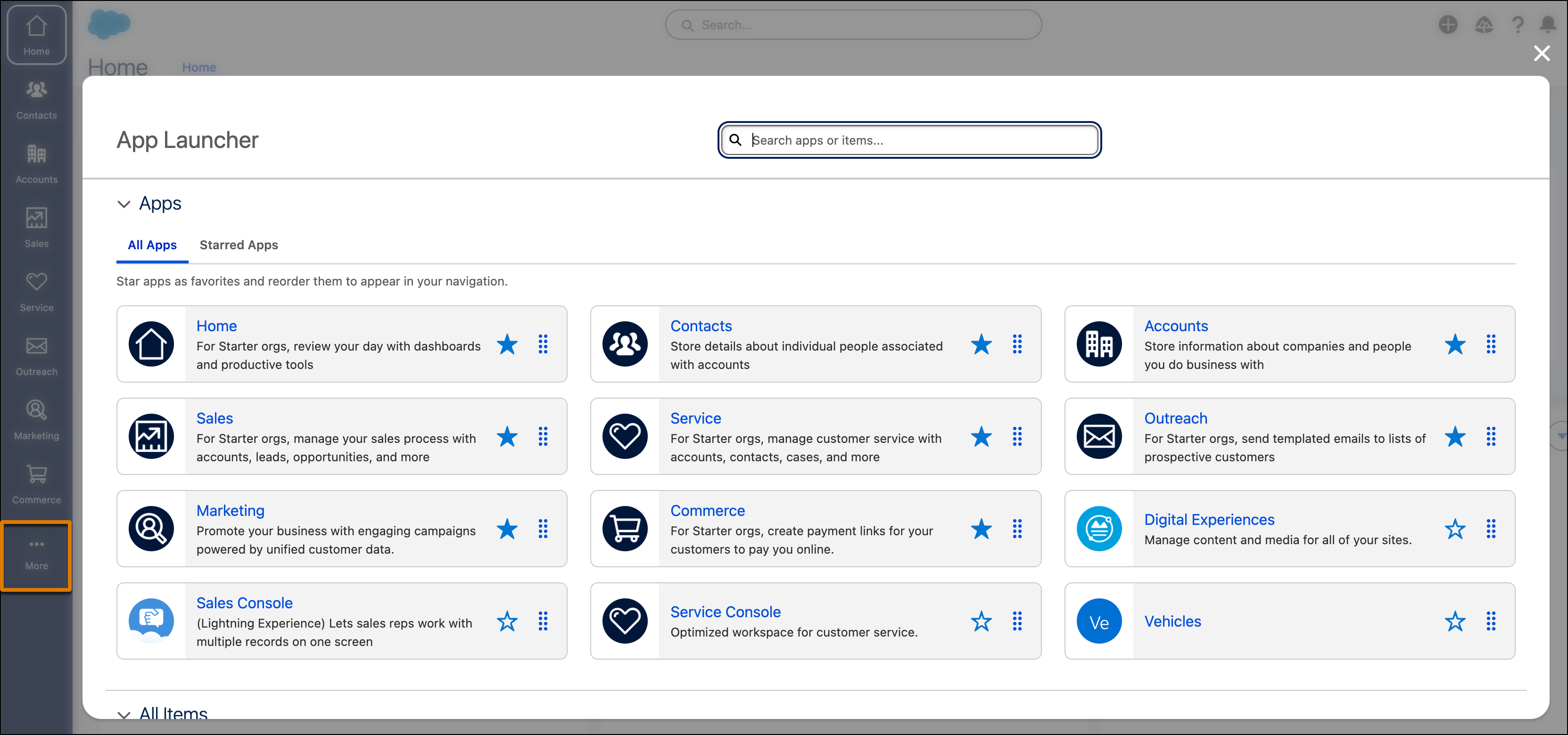
For users that have the vertical navigation bar enabled, easily switch between apps like Sales, Service, Marketing, and Commerce with a single click. Use the App Launcher to personalize what apps appear on the vertical navigation bar. To open the App Launcher, click **More** and favorite the apps that you want in your navigation bar. You can order them directly in the navigation bar or in the App Launcher by dragging the app to the location you want.
## App Launcher
These steps work in Lightning Experience. If you see the App Launcher icon () on the left side of the navigation bar at the top of your screen, you're in Lightning Experience. If not, you're in Salesforce Classic.
- To open the App Launcher, on the left side of the navigation bar, click .
The App Launcher displays all your available Salesforce apps and items. In contrast, the navigation bar displays all the items contained in the app that you’re currently using.

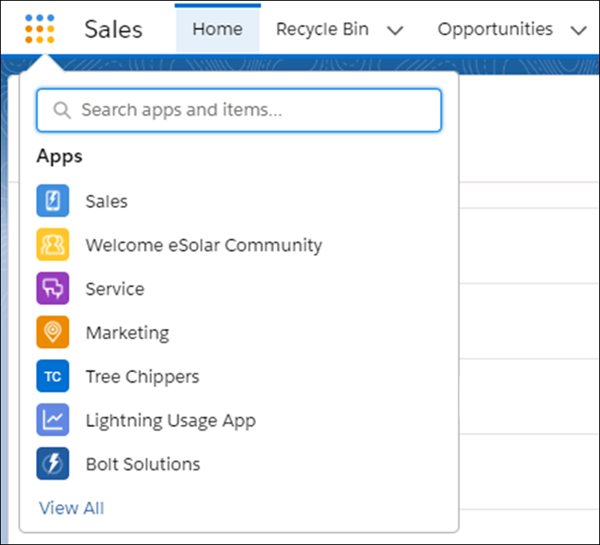
A quick view of the App Launcher displays a search bar and the first 7 apps listed in the App Launcher.
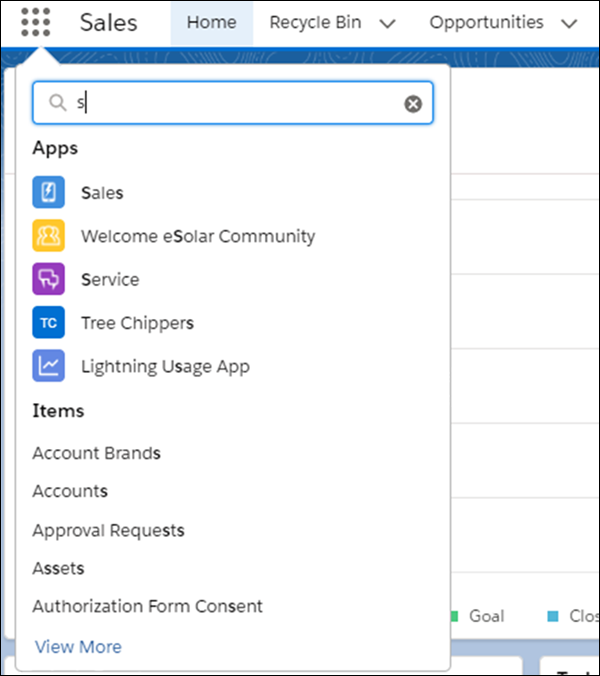
- To look for apps or items by name, use the **Search apps and items** box.
For example, start typing the name of an app or item, such as Service. Up to 7 apps or items (or if there are both app and item results, up to 5 each) containing the string appear as you type. If there are more results, a **View More** link appears and when clicked, the full App Launcher opens with all the results highlighted.
- To see all your available Salesforce apps and items, click **View All**.
The App Launcher displays standard Salesforce apps, custom apps, and the connected apps that your Salesforce admin has installed for your convenience. Connected apps are third-party apps, such as Gmail, Google Drive, and Windows365.
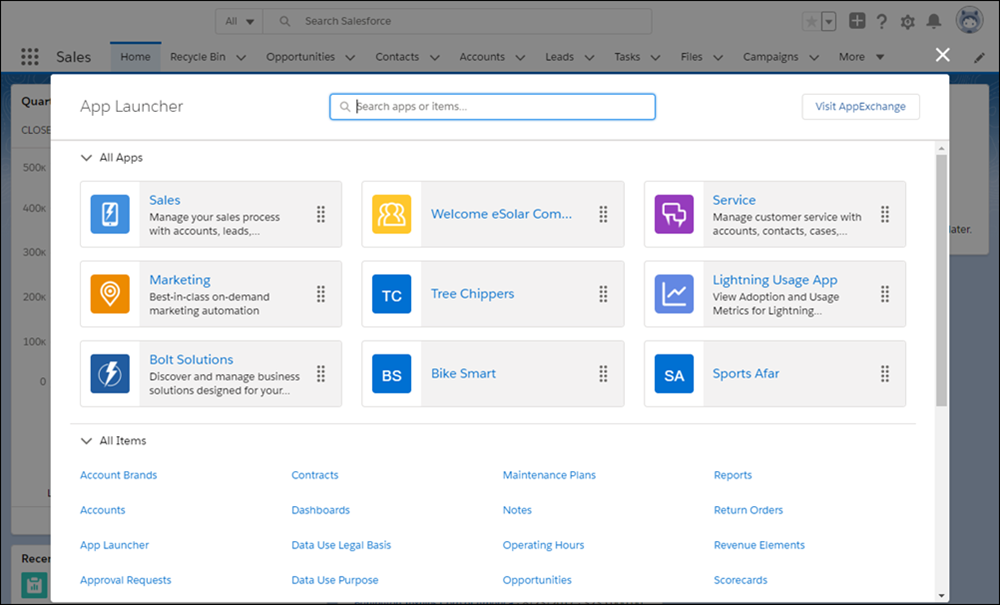
When you open a connected app, it opens in a new tab. If you are using Safari, be sure to set your popup blocker to allow popups. Otherwise, your connected app doesn’t launch.
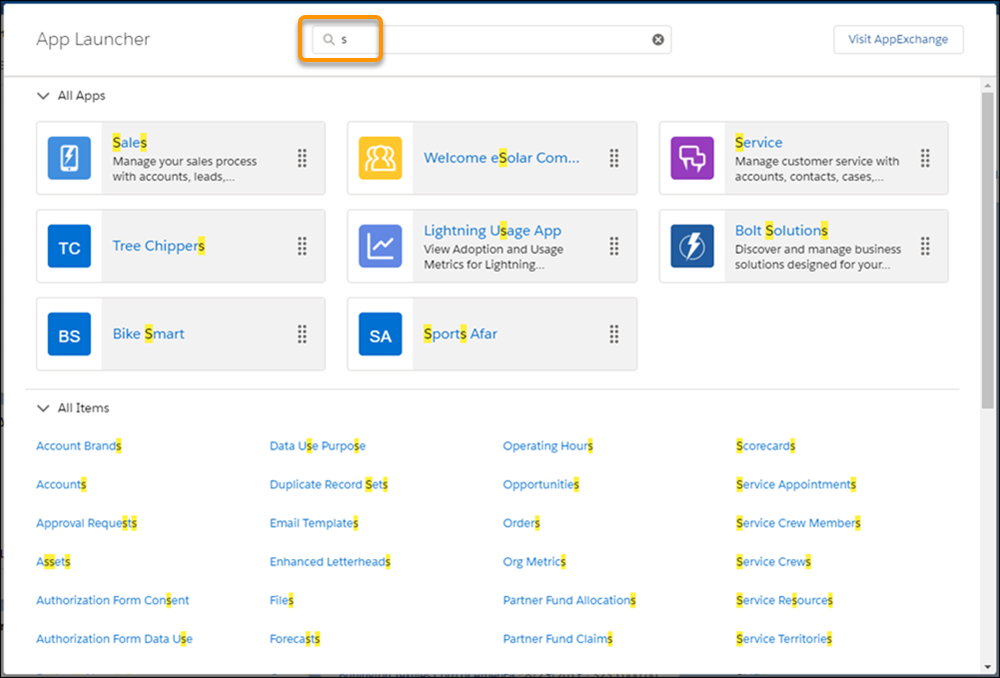
- To look for apps or items by name, use the **Search apps and items** box at the top of the App Launcher.
For example, start typing the name of the app, such as Service, and all apps and items containing the string appear and are highlighted as you type.
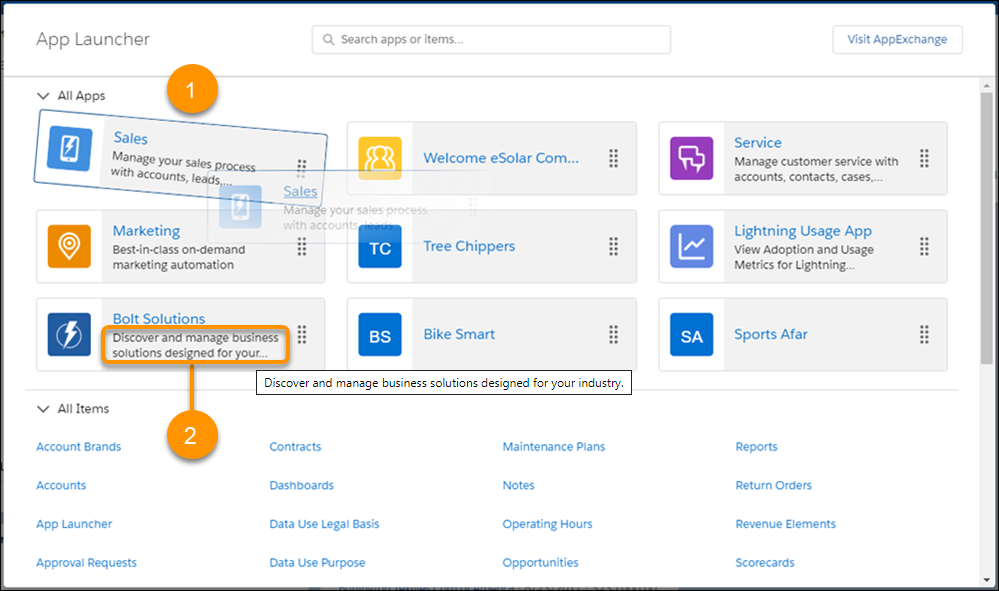
- Drag an app tile from one position to another to sort them by the apps that you use most (1). Hover over a truncated description (2) to see the full description of the app.
Don’t see what you want? Ask your Salesforce admin if more apps are available.
#### See Also
- [Turn On the Vertical Navigation Bar](https://help.salesforce.com/s/articleView?id=xcloud.base_vertical_nav.htm&type=5&language=en_US)
- [Simplified Navigation and Easy Access to Important Tasks](https://help.salesforce.com/s/articleView?id=xcloud.base_easy_access&type=5&language=en_US)
- [Vertical Navigation Bar Personalization](https://help.salesforce.com/s/articleView?id=xcloud.user_userdisplay_vertical_nav.htm&release=264.0.0&type=5 "Use the App Launcher to change what apps appear on the vertical navigation bar. Quickly access your most-used apps so you can work more efficiently.")