---
schema_version: "1"
id: 42d41a1d3ede97939d00eb3097c7366d2cea4eb1f124911db86c7d270bd006b3
title: Open Another App from the App Launcher in Salesforce Classic
collection: admin
version: current
locale: en-us
portal_url: https://docs.salesforce.com/admin/current/en-us/xcloud/264-0-0/basics_app_launcher.md
canonical_url: https://help.salesforce.com/s/articleView?id=xcloud.basics_app_launcher.htm&release=264.0.0&type=5
source_site: help.salesforce.com
content_type: documentation
content_hash: 2e2fb93dbd18f9e4179acc0c4f88a821cd17c77f73689eb9e2800fd907ab629b
description: Navigate between your Salesforce apps and connected apps from a single menu.
products:
  - Salesforce Platform
  - Cross Cloud
release: "264"
---
# Open Another App from the App Launcher in Salesforce Classic

Navigate between your Salesforce apps and connected apps from a single menu.

<table class="slds-table slds-table_bordered slds-max-medium-table_stacked slds-m-bottom_small ">
        <colgroup>
          <col style="width:50%">
          <col style="width:50%">
        </colgroup>
        <tbody>
          <tr class="">
            <td class="slds-cell-wrap" colspan="2" style="vertical-align:top;">Available in: Salesforce Classic (<a href="https://help.salesforce.com/articleView?id=overview_edition_lex_only.htm&amp;type=5&amp;language=en_US" target="_blank">not available in all
                orgs</a>)</td>

          </tr>
          <tr class="">
            <td class="slds-cell-wrap" colspan="2" style="vertical-align:top;">Available in: <strong>Enterprise</strong>, <strong>Performance</strong>,
              <strong>Unlimited</strong>, and <strong>Developer</strong> Editions
            </td>

          </tr>
        </tbody>
      </table> <table class="slds-table slds-table_bordered slds-max-medium-table_stacked slds-m-bottom_small ">
        <colgroup>
          <col style="width:50%">
          <col style="width:50%">
        </colgroup>
        <thead class="slds-text-title_caps ">
          <tr class="">
            <th scope="colgroup" class="slds-cell-wrap" colspan="2" style="vertical-align:top;" id="d39448e77">User Permissions Needed</th>
          </tr>
        </thead>
        <tbody>
          <tr class="">
            <td data-label="User Permissions Needed" class="slds-cell-wrap" style="vertical-align:top;" headers="d39448e77 ">To see the App Launcher:</td>

            <td class="slds-cell-wrap" style="vertical-align:top;" headers="d39448e77 ">Use Identity Features</td>

          </tr>
        </tbody>
      </table>

![Note](https://sf-zdocs-cdn-prod.zoominsoftware.com/tdta-xcloud-basics-264-0-0-production-enus/d8bf6981-f8ef-4f16-bfbd-c42ed32044eb/images/icon_note.png)

Note These steps work in Salesforce Classic. If you see the App Launcher icon (![../images/app\_launcher\_icon.png](https://sf-zdocs-cdn-prod.zoominsoftware.com/tdta-xcloud-basics-264-0-0-production-enus/d8bf6981-f8ef-4f16-bfbd-c42ed32044eb/basics/images/app_launcher_icon.png)) on the left side of the navigation bar at the top of your screen, you're in Lightning Experience. If not, you're in Salesforce Classic.

You must have access to the Salesforce app or connected app to see and open it from the App Launcher.

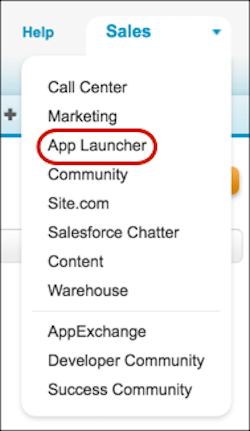
- To open the App Launcher, from the drop-down app menu at the upper-right corner of any Salesforce page, select **App Launcher**.
    
    ![Example of the app launcher in the app menu](https://sf-zdocs-cdn-prod.zoominsoftware.com/tdta-xcloud-basics-264-0-0-production-enus/d8bf6981-f8ef-4f16-bfbd-c42ed32044eb/basics/images/app_launcher_menu_item.png)
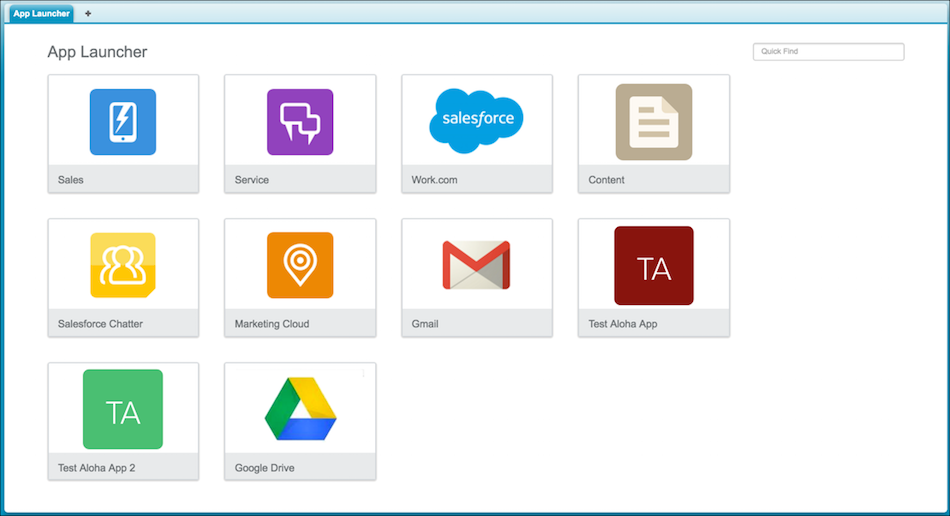
- In the App Launcher, click the tile for the app that you want.
    
    ![App launcher user interface](https://sf-zdocs-cdn-prod.zoominsoftware.com/tdta-xcloud-basics-264-0-0-production-enus/d8bf6981-f8ef-4f16-bfbd-c42ed32044eb/basics/images/app_launcher_ex.png)