
Add topics to records to organize the records around common themes and view them on topic detail pages.
Required Editions
| Available in: Lightning Experience |
| Available in: Essentials, Group, Professional, Enterprise, Performance, Unlimited, and Developer Editions |
| User Permissions Needed | |
|---|---|
| To add new topics to a record |
Read and Edit on the record AND Create Topics |
| To add existing topics to a record |
Read and Edit on the record AND Assign Topics |
| To remove topics from a record |
Read and Edit on the record AND Assign Topics |
Your admin must add the Topics component to Lightning record pages before you can add and remove topics from records.

-
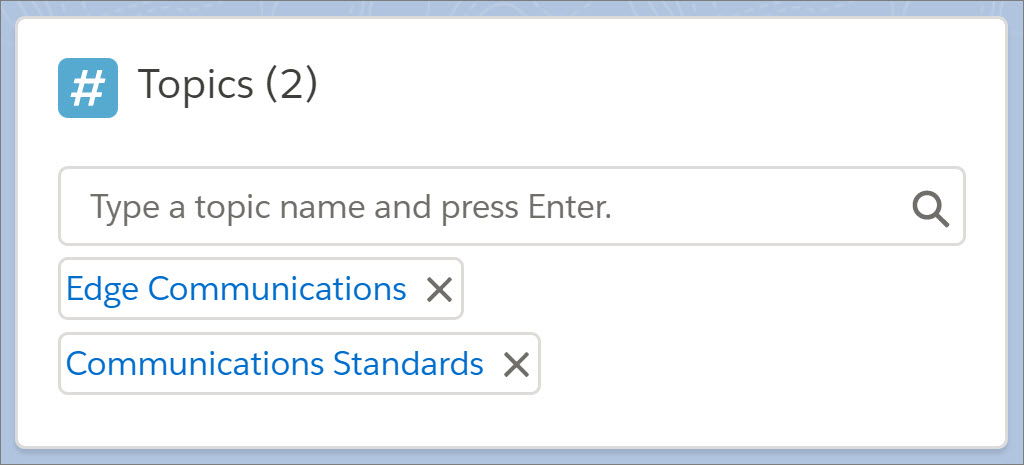
In the topic editor, start typing your text. As you type, you can pick a topic from the
list of suggestions or keep typing to create your own unique topic. Press Enter to add the
topic to the record.
Closing square brackets ( ] ) aren’t supported in topic names. Other punctuation, symbols, and separators are supported.
Records can have up to 100 topics.
Topics on records become links to topic detail pages. If Chatter is enabled, the Feed tab on the topic detail page shows posts and comments with the topic. Whether Chatter is enabled or not, the Related tab shows records with the topic. Topics on posts on a record aren’t automatically added to a record’s topics; you must add the topics to the record. Topics are added to a file automatically when the topics are added to:a post with the file attachment or comments on a post with the file attachment.
-
In the Topics component, click X next to a topic name to remove it from a record.
Removing a topic unassigns the topic from the record but doesn’t delete the topic. Before you remove a topic from a record, consider whether someone else added it; they could be using the topic to track the record.