---
schema_version: "1"
id: cdd18af90a8c47cd2becab76e03f42542b87b7f5ccb674c1ace947d8e83bc76b
title: Assign Permission Set to Users
collection: admin
version: current
locale: en-us
portal_url: https://docs.salesforce.com/admin/current/en-us/xcloud/264-0-0/assign_permission_set_to_user.md
canonical_url: https://help.salesforce.com/s/articleView?id=xcloud.assign_permission_set_to_user.htm&release=264.0.0&type=5
source_site: help.salesforce.com
content_type: documentation
content_hash: 8e8a0ca39bc3b23330a7e2893bed96d4f309030a20c831b2c7145facbf66ba7e
description: Give your admins access to Privacy Center features by assigning a permission set license and permission set to them. With this license, users can create retention and portability policies, manage Right to Be Forgotten requests, and view run logs and Privacy Center schedules. Privacy Center comes with 30 licenses.
products:
- Security
- Cross Cloud
release: "264"
---
# Assign Permission Set to Users
Give your admins access to Privacy Center features by assigning a permission set license and permission set to them. With this license, users can create retention and portability policies, manage Right to Be Forgotten requests, and view run logs and Privacy Center schedules. Privacy Center comes with 30 licenses.
### Required Editions
Available in: all editions
User Permissions Needed
To assign permission set license:
Modify All Data and Privacy Center
To assign permission set:
Modify All Data and Privacy Center
1. From **Setup**, in the Quick Find box, enter Users, and then select **Users**.
2. Click the user who you want to assign the permission set license to.
3. In the Permission Set License Assignments related list, select **Edit Assignments**.
4. Enable **Privacy Center User**, and click **Save**.
5. Click the user who you want to assign the permission set to.
6. In the Permission Set Assignments related list, select **Edit Assignments**, then add **Privacy Center**. If the user isn’t an admin, add **Manage Data Subject Access Policies** and **Execute Data Subject Access Policies**.
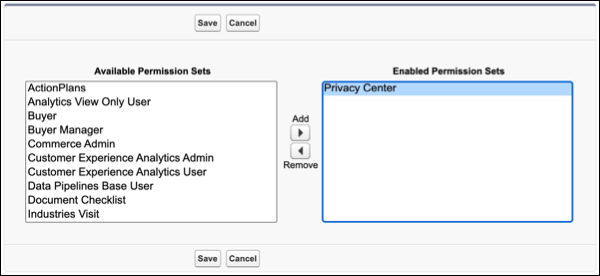
7. Save your changes.