
Connect your Quip site to Salesforce. When you set up your site, we create permission sets, an Auth. provider, and external data source for you.
Required Editions
| Available in: Enterprise, Performance, Professional, Developer, and Unlimited Editions |
- Only a Quip admin and Salesforce admin can connect an existing Quip site to Salesforce.
- To complete the setup, first create a Client ID and Client Secret in the Quip Admin Console.
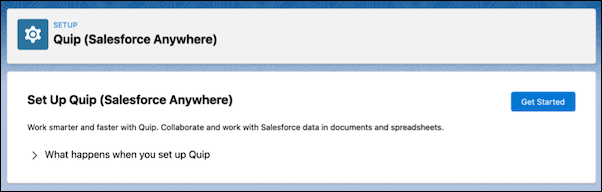
- In Salesforce Setup, from the Quick Find box, enter Quip, then select Quip (Salesforce Anywhere).
-
Click Get Started.
-
To connect your site, enter your Quip site subdomain and click Use your Quip
Client ID and Client Secret. Tell Me
How
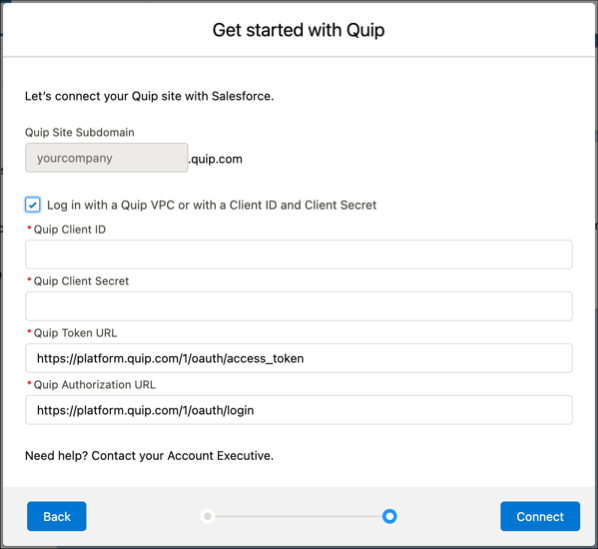
 Note If you’re not a Quip site admin, ask the site’s admin for the Client ID and Client Secret.
 -
Assign the Quip permission set to give your team access to Quip features in Salesforce. You
can manually assign the permission set or assign it to everyone. Learn About Quip Permissions

- Optional:
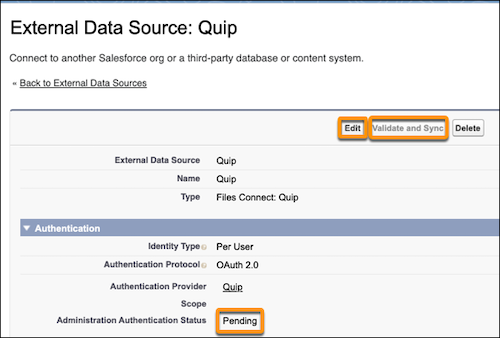
To see documents and spreadsheets in Global Search, validate and sync the external data
source. Click Go To External Data Source and click Validate
and Sync on the External Data Source page. If the Quip external data source is
pending, click Edit, then Validate and Sync.
-
To complete the setup, tell your users to click Take the Last
Step.
