Identify the users who haven’t connected Salesforce and Quip, and then send them an
email reminder to complete the connection. After they complete the connection, your users can
access all Quip features in Salesforce, and your Quip engagement metrics become more
accurate.
Required Editions
| Available in: Lightning Experience |
| Available in: Enterprise, Performance, Professional,
Developer, and Unlimited Editions
|
-
From Setup, in the Quick Find box, enter Quip, and then select
Quip (Salesforce Anywhere).
-
Under Remind Quip Users to Connect to Salesforce, click Get Users and
Template.
-
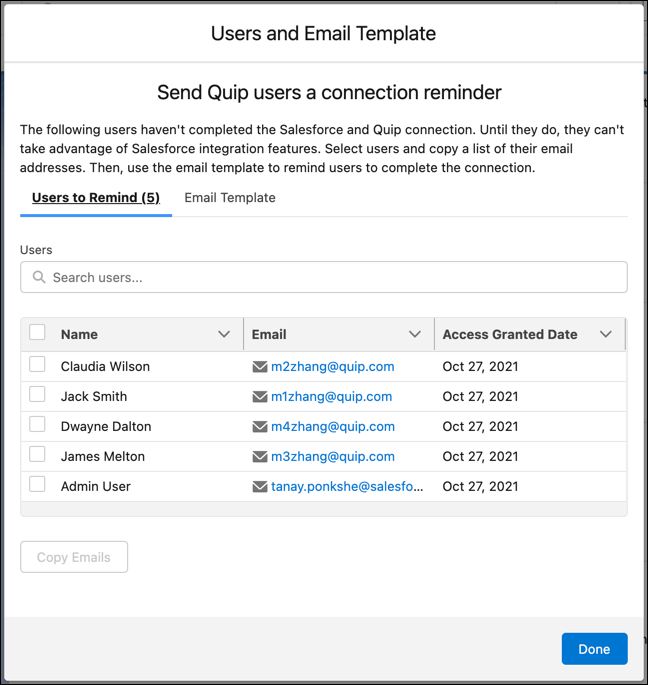
In the Users and Email Template window, the Users to Remind tab shows the Quip users who
haven’t connected to Salesforce. Select the users who you want to remind, and then click
Copy Emails.
-
Open your preferred email client and paste the copied email addresses in the To:
field.
-
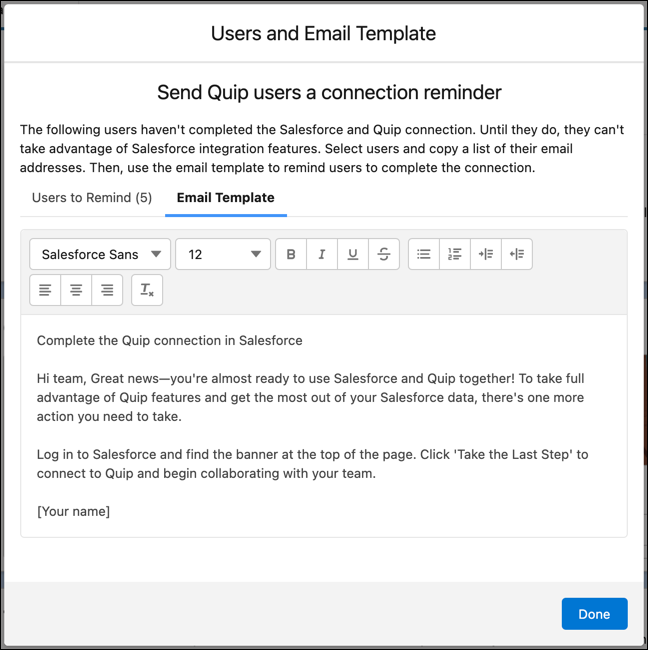
Return to the Users and Email Template window in Salesforce Setup, and then click the
Email Template tab.
-
To copy the email template, place your cursor in the text box and double-click. Then,
right-click or use a keyboard shortcut to copy.
-
Click Done.
-
In your email client, paste the copied text into the email body.
-
Select Complete the Quip connection in Salesforce and right-click or
use a keyboard shortcut to cut. Then, paste the text in the subject line.
-
Send the email.