
To manage documents related to Salesforce, link them to a record. You can see which documents are linked to the record from the document or from the record itself.
Required Editions
| Available in: Enterprise, Performance, Professional, Developer, and Unlimited Editions |
To link a document to a record, in Lightning Experience, you must click Take the Last Step.

If Synced Sharing is enabled for your Salesforce org, a message lets you know what level of access users have to your linked document before and after you link it.
-
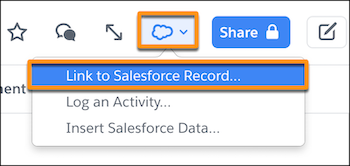
From a document in Quip, click
 .
.
-
Select Link to Salesforce Record.
-
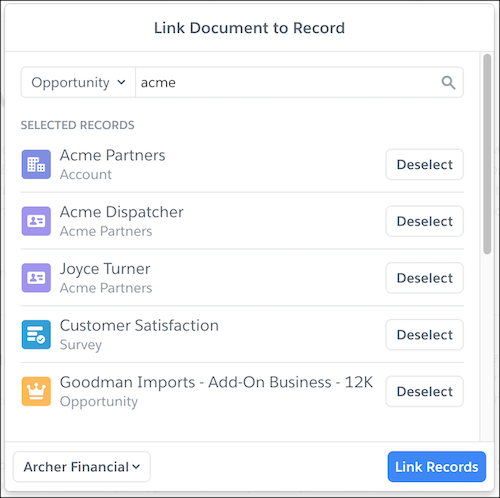
Choose an object type, enter a record name, and select the records that you want to link
your document to. You can select records from multiple object types. Click Link
Records.
- If Synced Sharing is enabled, confirm that you want users with access to the record to be able to access your linked document.
-
To see which records the document is linked to, click
 and see its linked records. To manage which
records the document is linked to and to link another record, click Manage Linked
Records.
and see its linked records. To manage which
records the document is linked to and to link another record, click Manage Linked
Records.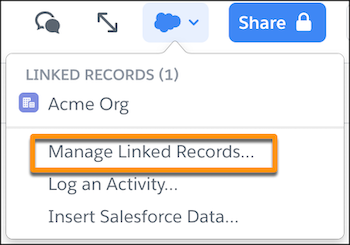
-
To see what level of access Salesforce users may have to your linked document, from the
document, click Share, and check the Synced Sharing level of
access.
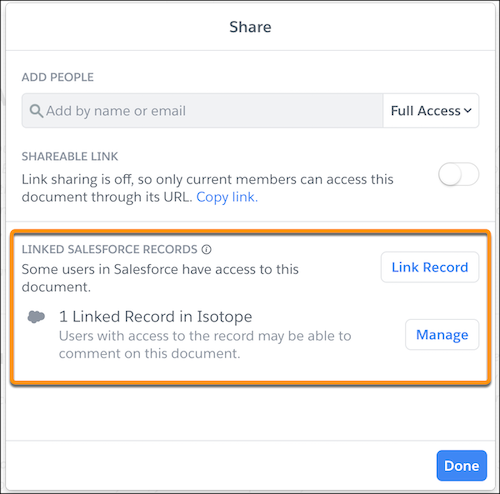
 Note Synced Sharing is an org-wide level of sharing for documents linked to Salesforce records. Depending on the Synced Sharing access level set by the Quip admin, users with access to the record may be able to view, comment on, edit, or share its linked documents.
After you link a document to a Salesforce record, it appears in the Quip Associated Documents component. If there’s no Quip Associated Documents component set up, the document is added to Files and Attachments component.