---
schema_version: "1"
id: 751677b7328763e71f7290b15cc8f1897586140b86721e5a6f3ca81563b2f869
title: Delete Records from Trending Datasets
collection: admin
version: current
locale: en-us
portal_url: https://docs.salesforce.com/admin/current/en-us/xcloud/264-0-0/analytics_delete_records_from_datasets.md
canonical_url: https://help.salesforce.com/s/articleView?id=xcloud.analytics_delete_records_from_datasets.htm&release=264.0.0&type=5
source_site: help.salesforce.com
content_type: documentation
content_hash: 8375d4af2849e69277b4e7cd743a9b6a8fb90558d47853152163848287902b26
description: General Data Protection Regulation (GDPR) requires you to delete customers’ personal data when customers request it, or when it’s no longer necessary to keep. You can remove customers’ data from the Analytics for Loyalty app by deleting the records from a trending dataset.
products:
- Loyalty Management
release: "264"
---
# Delete Records from Trending Datasets
General Data Protection Regulation (GDPR) requires you to delete customers’ personal data when customers request it, or when it’s no longer necessary to keep. You can remove customers’ data from the Analytics for Loyalty app by deleting the records from a trending dataset.
### Required Editions
Available for an extra charge in Professional, Performance, and Unlimited editions that have Loyalty Management enabled.
User Permissions Needed
To delete records from datasets
CRM Analytics Plus Admin and Loyalty Analytics Admin

Note Before you delete records, make sure your app’s data is synced and it has the latest data.
You can delete a contact or an account from the Analytics for Loyalty trending datasets.
1. In CRM Analytics Studio, click and then select **Data Manager**.
2. Select **Dataflows & Recipes**.
3. Under Dataflows, look for GDPR Trending and then click 
4. Select **Edit**.
5. Select the filter node and edit the SAQL filter.
6. To delete an account,
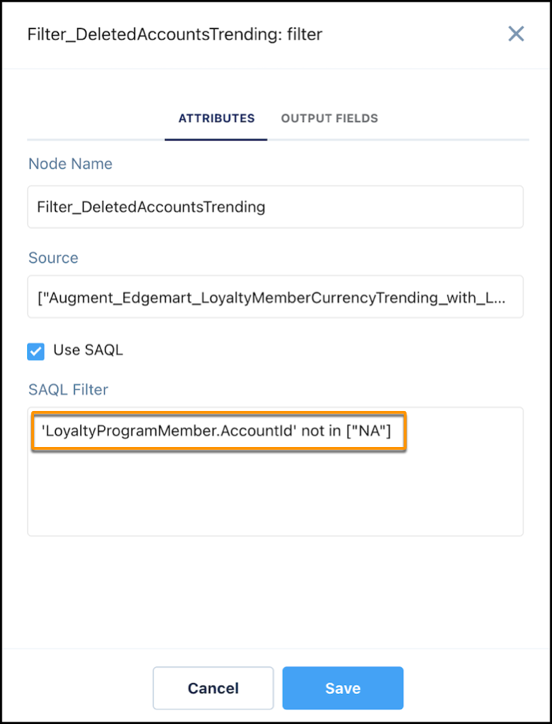
1. Select the **Filter:DeletedAccountsTrending** node.
2. In the SAQL filter string, replace NA with the ID of the account you want to delete.
3. Save your changes.
7. To delete a contact,
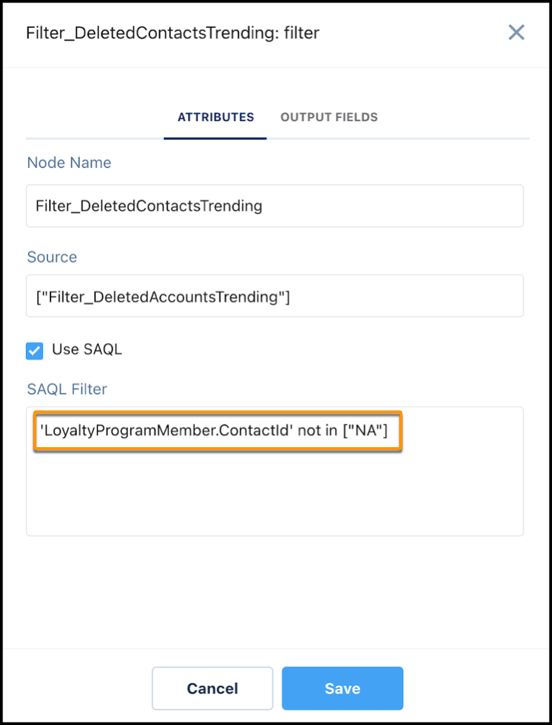
1. Select the **Filter:DeletedContactsTrending** node.
2. In the SAQL filter string, replace NA with the ID of the contact you want to delete.
3. Save your changes.
8. Click **Run Dataflow**.
After the dataflow run completes, open the LoyaltyMemberCurrencyTrending datasets and verify if the records are deleted.