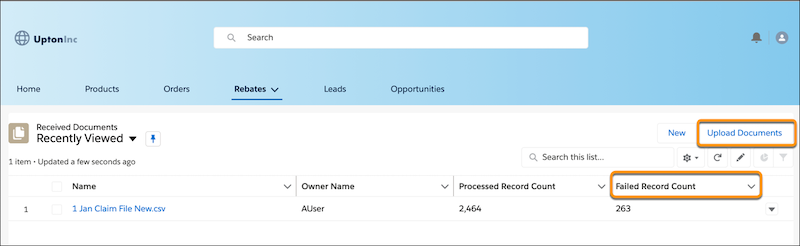
Partners can upload proof-of-sale documents such as invoices and claims in .csv files from the Experience Cloud site to claim rebate payouts. These documents are validated against standard business rules, and the partner can edit and resubmit the documents if there are errors. The admin then converts the records in the .csv file into Transaction Journal records for payout processing. Each uploaded file is stored as a Received Document record, which tracks the processing status, number of records processed, and any errors.
Required Editions
| Available in: Enterprise, Unlimited, and Developer Editions that have Rebate Management enabled. |
Here are the high-level steps involved in the process.
-
The admin creates a CSV header file and shares it with the partners. The header file
must correspond to the destination object where transactions would be stored, which can be
Transaction Journal or another object of your choice. The file must also contain fields of
the Transaction Journal object, such as MemberId, ActivityDate, Quantity, and
TransactionAmount. To add business-specific information such as Product Name, Product
Category, Account Territory, Invoice Date, create custom fields on Transaction Journal,
and add the field names to the CSV header file. For example, the header of the .csv file
can look like this.
ProductId,Quantity,TransactionAmount,ActivityDate,MemberId,Region__c,Country__c -
The partners use the file to add transaction data for a specific period, and click
Upload Document on the home page of the Experience Cloud site to
upload the file. When the file is uploaded, a Received Document record is created and
validation immediately starts for each row in the file.
Here’s a sample .csv file from a partner.
ProductId,Quantity,TransactionAmount,ActivityDate,MemberId,Region__c,Country__c 01tB0000000aNYIIA2,5,1500,2020-01-15T10:10:10,0i9B0000000GmkqIAC,FL,US 01tB0000000aNYNIA2,3,3200,2020-07-15T10:10:10,0i9B0000000GmkqIAC,FL,US 01tB0000000aNYOIA2,6,1500,2020-08-15T10:10:10,0i9B0000000GmkvIAC,AL,US 01tB0000000aNYIIA2,11,890,2020-01-15T10:10:10,0i9B0000000Gml0IAC,CA,US 01tB0000000aNYNIA2,13,1900,2020-02-15T10:10:10,0i9B0000000GmkwIAC,MG,Brazil -
The admin can receive the records in the CSV directly in the Transaction Journal or
another object in the Salesforce org to stage the transaction records from the CSV file.
This object can serve as an interim object where transactions are stored, before they get
converted to Transaction Journal records.
After validation succeeds, the uploaded file is ready for processing. A scheduled flow extracts the data from the CSV file and creates records in the configured target object (Transaction Journal or staging object). If validation fails, the file isn’t processed, and errors are logged for each failed row.
- The admin creates a scheduled flow and adds the predefined Process CSV File flow action to the flow. When the admin activates and runs the flow, the transaction records are extracted from the uploaded CSV file and created as records in the specified object. If a staging object is used, a Data Processing Engine definition processes these records and converts them into Transaction Journal records for rebate calculations and payouts.

If you don’t have identifier information like ProductID and
MemberID, you can use external ID fields like
Member.Member_Code__c and Product.Product_Code__c in the
CSV column header. These external ID fields must refer to the related identifier field. You
can then use Bulk API to upsert records. Here’s a sample .csv where external ID fields are
used.
Member.Member_Code__c,Product.Product_Code__c,Quantity,TransactionAmount,ActivityDate
  Astro,RadiusPro,10,807.03,2021-01-01T10:10:10
  Astro,SpectraLite,30,567.03,2021-01-01T10:10:10
  Cloudy,RadiusPro,15,459.17,2021-01-01T10:10:10
To learn more, see Relationship Fields in a Header Row (2.0).
When a partner uploads the documents, the CSV files are validated based on predefined rules set up by the admin. The file isn’t processed further if errors are found during validation. The partner can view the processing status of each uploaded file on My Documents page in Experience Cloud site. If a file fails with errors, the partner can view the number of records processed and the error details. Failed records are associated with the Received Document record along with the reason for failure. After resolving the errors, they can upload the document again.
When the file is successfully processed, the records are available in the target object and, if applicable, converted into Transaction Journal records that are used for rebate calculation and payout processing.