---
schema_version: "1"
id: dd419f524d120fa3770ad0d5476255426dc70909833da36d237f7d6c632a3c38
title: Customize Data Processing Engine Definitions to Support a Large Number of Rebate Eligibility Conditions
collection: admin
version: current
locale: en-us
portal_url: https://docs.salesforce.com/admin/current/en-us/xcloud/264-0-0/admin_rebates_dpe_custom_node.md
canonical_url: https://help.salesforce.com/s/articleView?id=xcloud.admin_rebates_dpe_custom_node.htm&release=264.0.0&type=5
source_site: help.salesforce.com
content_type: documentation
content_hash: 8f9c774d6a14d140ac24a6d36d7d7ed68f12d307f8afdb410713726376e74f14
description: Data Processing Engine (DPE) definition runs can fail if there are multiple eligibility criteria conditions to filter transactions that qualify for member payouts. Having a large number of filter conditions in a DPE definition increases the recipe size that’s not supported by the calculation engine framework. To reduce the chances of DPE failure, use the Compute Valid Transaction Journals Per Rebate Type custom node.
products:
- Partner Cloud
- Cross Cloud
- Manufacturing
release: "264"
---
# Customize Data Processing Engine Definitions to Support a Large Number of Rebate Eligibility Conditions
Data Processing Engine (DPE) definition runs can fail if there are multiple eligibility criteria conditions to filter transactions that qualify for member payouts. Having a large number of filter conditions in a DPE definition increases the recipe size that’s not supported by the calculation engine framework. To reduce the chances of DPE failure, use the Compute Valid Transaction Journals Per Rebate Type custom node.
### Required Editions
Available in: Enterprise, Unlimited, and Developer Editions that have Rebate Management enabled.
User Permissions
Needed
To customize Data Processing Engine definitions:
Customize Application AND Data Pipelines Base User permission set

Note
The custom node Compute Valid Transaction Journals Per Rebate Type is built into all the DPE templates of process type Rebates starting Spring ‘23.
Follow these steps if you are using an existing DPE definition that you cloned from a DPE template before the Spring ‘23 upgrade. Add the custom node to the existing definition that you’re using as the calculation definition on active rebate types.
1. If you’re using a DPE definition that’s cloned from any of the templates other than the Year Over Year Growth Aggregate using Member template, follow these steps:
1. In Setup, enter Data Processing in the Quick Find Box, and select **Data Processing Engines**.
2. Open an active definition that you want to update.
3. Click **Deactivate**.
4. Click **New Node**, and select **Custom** as the node type.
5. Enter Compute Valid Transaction Journals Per Rebate Type New as the name.
6. Enter Compute\_Valid\_Transaction\_Journals\_Per\_Rebate\_Type\_New as the API name.
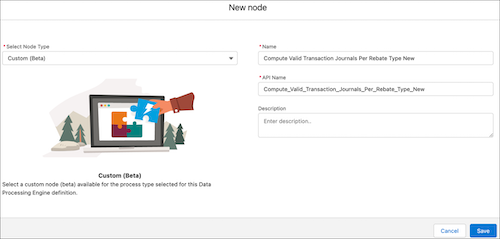
7. Click **Save**.
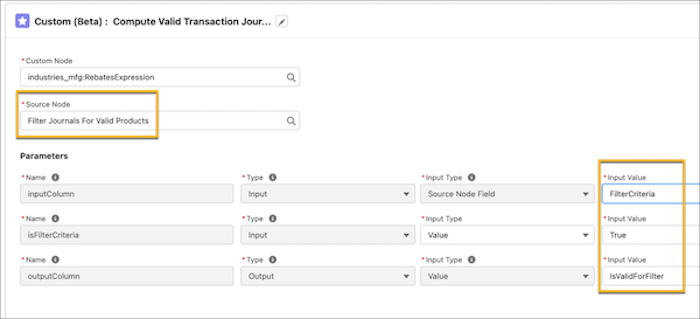
8. On the Configuration tab of the new node, select **industries\_mfg:RebatesExpression** as the custom node.
9. Select **Filter Journals For Valid Products** as the source node.
10. For the inputColumn parameter, select **FilterCriteria** as the input value.
11. For the isFilterCriteria parameter, select **Value** as the input type.
12. For the isFilterCriteria parameter, enter true as the input value.
13. For the outputColumn parameter, enter IsValidForFilter as the input value.
14. Click **Done**.
15. Click .
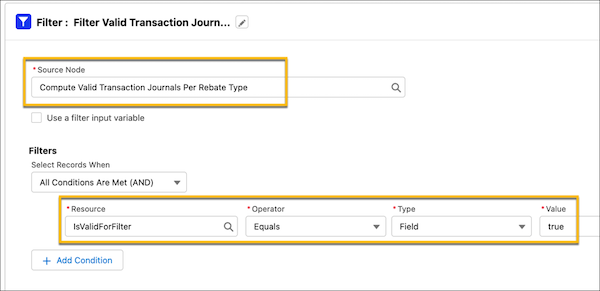
16. Click the **Filter Valid Transaction Journals For Rebate Types** node.
17. Click **Configure** on the node’s icon in the builder.
18. Replace Source Node from Compute Valid Transaction Journals Per Rebate Type to **Compute Valid Transaction Journals Per Rebate Type New**.
19. Select **IsValidForFilter** as the filter resource.
20. Select **Equals** as the filter operator.
21. Select **Field** as the filter type.
22. Enter true as the filter value.
23. Click **Done**.
24. Click .
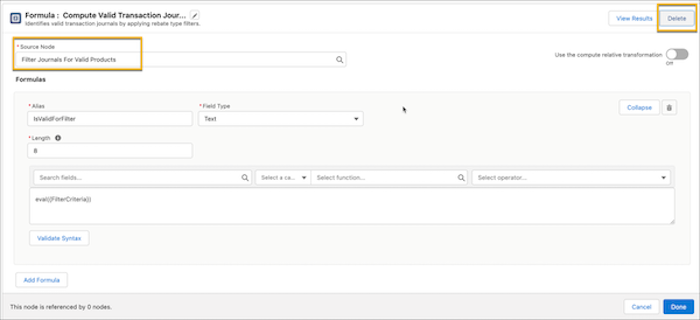
25. Click the formula node **Compute Valid Transaction Journals Per Rebate Type**.
26. Click **Configure** on the node’s icon in the builder.
27. Click .
28. Click **Save**.
29. Click .
30. Click the custom node **Compute Valid Transaction Journals Per Rebate Type New**.
31. Click .
32. Rename the node to Compute Valid Transaction Journals Per Rebate Type.
33. Click **Continue**.
34. Click **Save**.
2. If you’re using a DPE definition that’s cloned from the Year Over Year Growth Aggregate using Member template, follow these steps in addition to the previous step.
1. Click **New Node**, and select **Custom** as the node type.
2. Enter Compute Prior Date Valid Transaction Journals Per Rebate Type New as the name.
3. Enter Compute\_Prior\_Date\_Valid\_Transaction\_Journals\_Per\_Rebate\_Type\_New as the API name.
4. Click **Save**.
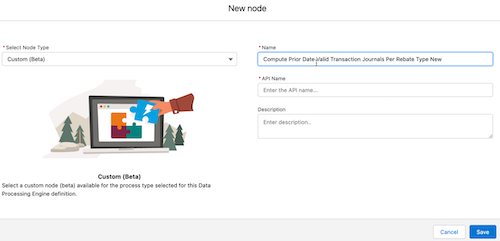
5. On the Configuration tab of the new node, select **industries\_mfg:RebatesExpression** as the custom node.
6. Select **Filter Journals With Prior Period For Valid Products** as the source node.
7. For the inputColumn parameter, select **FilterCriteria** as the input value.
8. For the isFilterCriteria parameter, select **Value** as the input type.
9. For the isFilterCriteria parameter, enter true as the input value.
10. For the outputColumn parameter, enter IsValidForFilter as the input value.
11. Click **Done**.
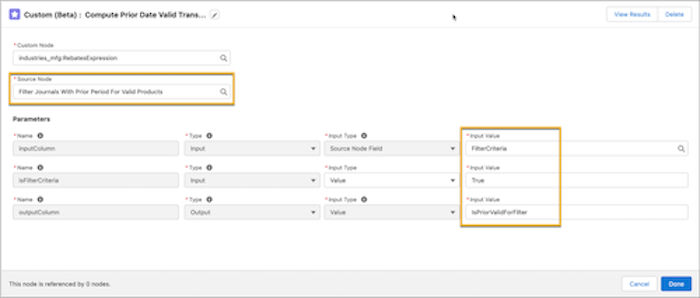
12. Click .
13. Click the **Filter Prior Period Valid Transaction Journals For Rebate Types** node.
14. Click **Configure** on the node’s icon in the builder.
15. Replace Source Node from Compute Prior Date Valid Transaction Journals Per Rebate Type to **Compute Prior Date Valid Transaction Journals Per Rebate Type New**.
16. Select **IsValidForFilter** as the filter resource.
17. Select **Equals** as the filter operator.
18. Select **Field** as the filter type.
19. Enter true as the filter value.
20. Click **Done**.
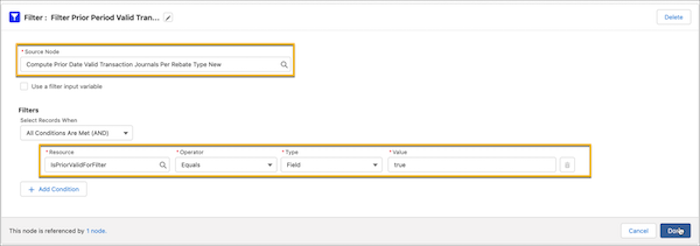
21. Click .
22. Click the formula node **Compute Prior Date Valid Transaction Journals Per Rebate Type**.
23. Click **Configure** on the node’s icon in the builder.
24. Click .
25. Click **Save**.
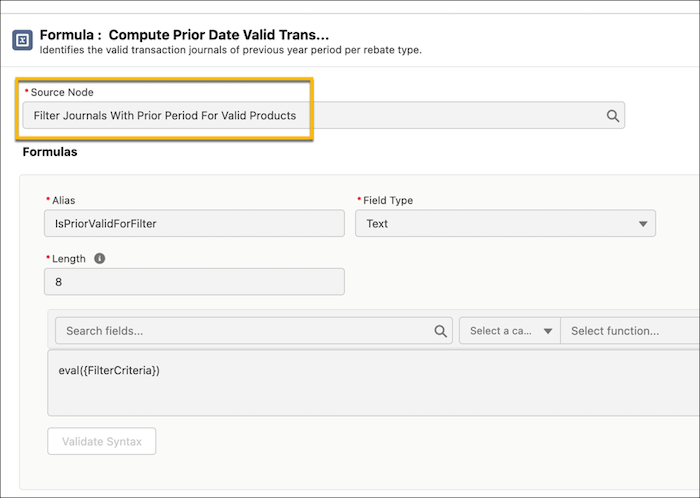
26. Click .
27. Click the custom node **Compute Prior Date Valid Transaction Journals Per Rebate Type New**.
28. Click .
29. Rename the node to Compute Prior Date Valid Transaction Journals Per Rebate Type.
30. Click **Continue**.
31. Click **Save**.
Activate the DPE definition after verifying the changes and update the required Program Rebate Type records and rebate orchestration flows to include the updated definition.