
Rebate Management flows use Batch Management capabilities to process a large number of filtered and aggregated transactions in manageable batches, and calculate rebate amounts. Two predefined batch jobs, Calculate Rebate Payout and Calculate Rebate Payout for All Periods, that are available with Rebate Management and can be used in any scheduled flow. Modify the predefined batch jobs, or create your own.
Required Editions
| Available in: Enterprise, Unlimited, and Developer Editions that have Rebate Management enabled. |
Use the Predefined Batch Jobs for Rebate Management
In Setup, find the predefined batch jobs under Workflow Services.
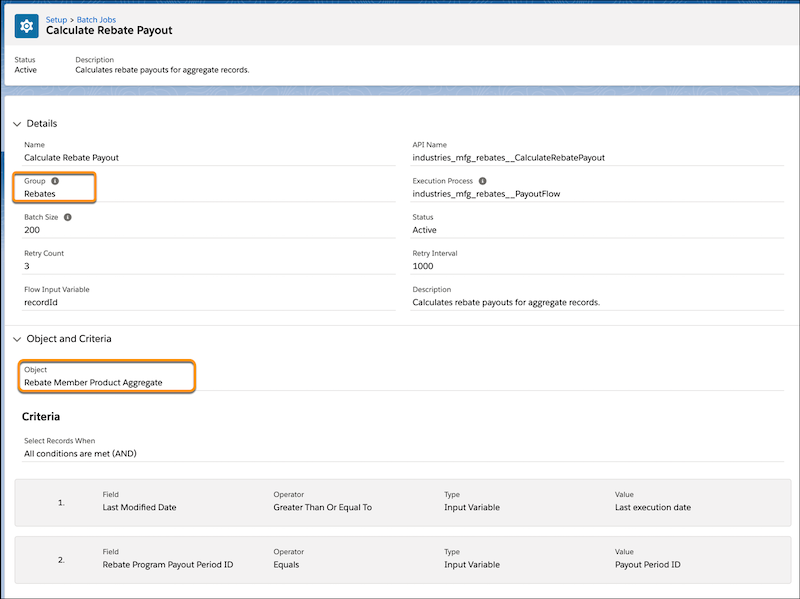
The Calculate Rebate Payout batch job processes Rebate Member Product Aggregate records in batches of 200 and updates the payout values in Member Payout records. This batch job is used in the Rebate Orchestration Flow.
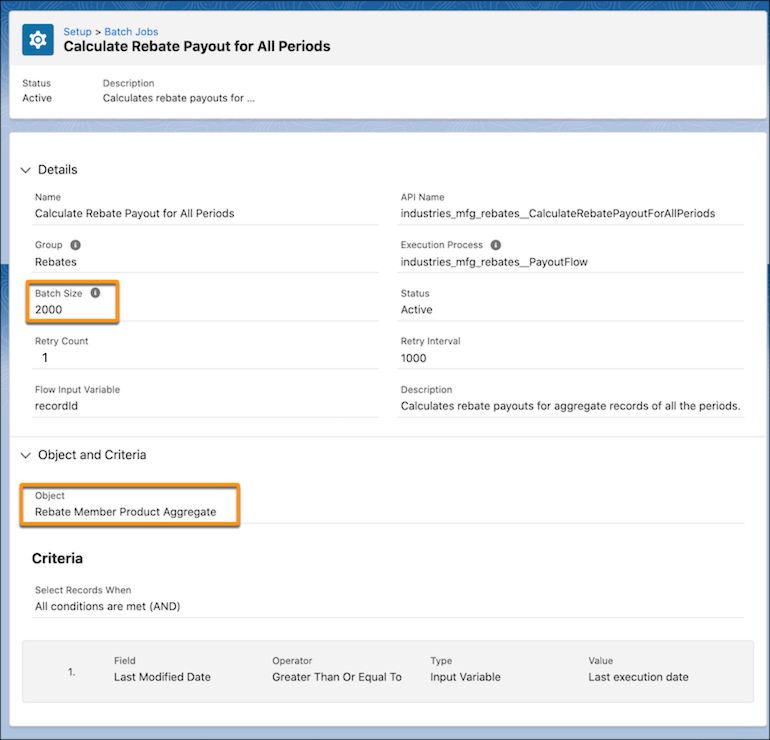
The Calculate Rebate Payout for All Periods predefined batch management job processes Rebate Member Product Aggregate records in batches of 2,000 and updates the payout values in Member Payout records. This batch job is used in the Rebate Orchestration Flow 2.
If your org uses a different object to store aggregate records, change the Source Object in the batch job definition. You can also define filter criteria based on which records you select for processing. And you can schedule your batch jobs using scheduled flows.

Create Custom Batch Job for Rebate Management
If you want to define your own filter criteria, or change any parameters, create your own custom batch job. When creating a batch job, make sure you select the following:
- Select Execution Process as an active Flow definition API name
- Select Group as Rebates.
- Select the Source Object as the aggregate object.
- For the Calculate Rebate Payout batch job, define criteria to filter records by payout period, and last calculation date. You can add additional criteria.
- For the Calculate Rebate Payout for All Periods batch job, define criteria to filter records by last calculation date. You can add additional criteria.
For detailed instructions, see Create a Batch Job.
After a batch job is run, track the progress and status of the batch job and its job parts using Monitor Workflow Services. For detailed instructions, see Monitor Your Batch Jobs.