Configure the Output Parameter for the Get Eligible Program Rebate Types Flow Action in Flow
Builder
The Get Eligible Rebate Types flow action has two output parameters, Resultant Rebate
Types for API and Resultant Rebate Types for Flow. Use the Resultant Rebate Types for API
parameter for API calls and the Resultant Rebate Types for Flow parameter when creating a flow
with the GetEligibleRebateTypes invocable action.
Required Editions
| Available in: Enterprise, Unlimited, and Developer Editions that
have Rebate Management enabled. |
| User Permissions Needed |
| To create a flow |
Rebate Management Admin permission set, Manage Flows |
-
From Setup, in the Quick Find box, enter Flows and then select
Flows.
-
Click New Flow.
-
Select a flow type and then click Create.
-
Select the Freeform layout and then drag the Action element onto the canvas.
-
In the Action field in the New Action dialog, select the Get Eligible Program Rebate Types
action and specify these details.
| Field |
Description |
| Label |
The name for the action. |
| API Name |
The API name for the action. |
| Reference ID |
The input collection variable. Select {!ReferenceObjectIDs}. |
| Limit |
The limit for the eligible rebate type results. |
| Offset |
The offset for the eligible rebate type results. |
| Applied Rebate Types Limit |
The limit for the applied rebate types results. |
| Applied Rebate Types Offset Input |
The offset for the applied rebate types results. |
| Manually assign variables |
Select the checkbox to manually assign the output variables. |
-
In the Resultant Rebate Types for Flow field, click New
Resource.
-
In the New Resource dialog, specify these details.
| Field |
Value |
| Resource Type |
Variable. |
| API Name |
Specify an API name for the variable. |
| Data Type |
Apex-Defined. |
| Apex Class |
ConnectApi__EligibleProgramRebateTypesOutput. |
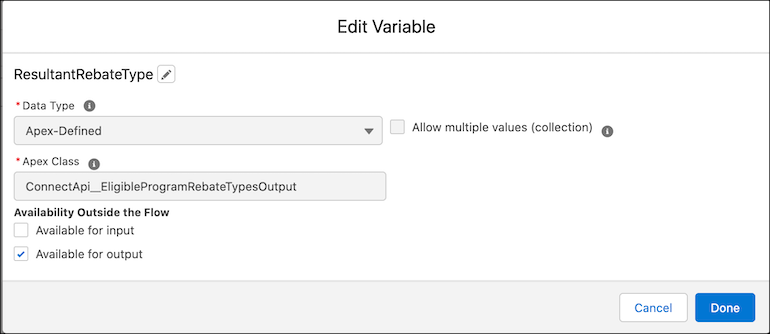
-
Select the Available for output checkbox and then click
Done.
-
In the New Action dialog, click Done.
-
Add other elements as required to the flow and save your work.
