
To identify which users chose to use each locale, create a custom field on the User object. Then use that custom field to create a report that lists users by locale code.
Required Editions
| Available in: both Salesforce Classic and Lightning Experience |
| Available in: all editions |
| User Permissions Needed | |
|---|---|
| To view release updates: | View Setup and Configuration |
| To enable or disable release updates |
Manage Release Updates OR Customize Application |
-
Click the gear icon (
 ),
and select Setup
Setup launches in a new tab.
),
and select Setup
Setup launches in a new tab. - Click the Object Manager tab.
- From the list of objects, click User.
- Click Fields & Relationships, then click New.
- Select Formula as the data type, and click Next.
- For the Field Label, enter Locale Code.
- Ensure that Add this field to existing custom report types that contain this entity is selected.
- For Formula Return Type, select Text, and click Next.
-
In the formula editor, enter
TEXT(LocaleSidKey), and click Check SyntaxA green message confirms that no syntax errors were found.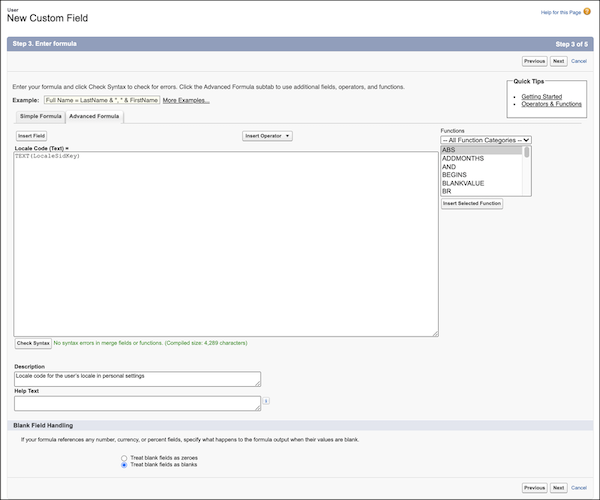
- Optionally, enter a description for the field such as Locale code for the user’s locale in personal settings.
- In Blank Field Handling, select Treat blank fields as blanks, and click Next.
- Select the profiles that you want to grant edit access to this field. At minimum, select the System Administrator profile, and click Next.
- Select the page layouts where you want to include this field, and click Save.