---
schema_version: "1"
id: b7e7666b405b97af30edb8063a6130e24ce42a8c813d82e59ea7653f234607e9
title: Set Up Synced Sharing
collection: admin
version: current
locale: en-us
portal_url: https://docs.salesforce.com/admin/current/en-us/xcloud/264-0-0/admin_files_quip_synced_permissions.md
canonical_url: https://help.salesforce.com/s/articleView?id=xcloud.admin_files_quip_synced_permissions.htm&release=264.0.0&type=5
source_site: help.salesforce.com
content_type: documentation
content_hash: 7657c407da81fc65a92f5e138bf06984bd5a89a954420576ce5e508c8a57ba8a
description: Manage user access at the org level via Synced Sharing for your documents associated with Salesforce records. Grant users with access to a record view, comment, or edit access to its linked documents, or align document access with Salesforce record permissions.
products:
- Quip
- Cross Cloud
release: "264"
---
# Set Up Synced Sharing
Manage user access at the org level via Synced Sharing for your documents associated with Salesforce records. Grant users with access to a record view, comment, or edit access to its linked documents, or align document access with Salesforce record permissions.
### Required Editions
Available in: Lightning Experience
User Permissions Needed
To manage document access:
Customize Application
To get started, make sure that your Quip site is connected to Salesforce. In Setup, enter Quip (Salesforce Anywhere) in the Quick Find box and follow the steps. Only a Salesforce and Quip admin can manage Synced Sharing.

Note The Quip site admin that enables Synced Sharing for a Salesforce org must also be the Salesforce admin for that particular Salesforce org.
The Quip Associated Documents component must be added to your layouts and documents added to it for Synced Sharing to take effect.
1. Go to [https://admin.quip.com](https://admin.quip.com).
2. Log in using your Quip admin email and password.
3. From Settings, select **Salesforce**.
4. In the Connected Salesforce Organizations section, click  next to the org that you want to manage access to.

Note You can test Synced Sharing in a sandbox environment first. From the Add Salesforce Org dropdown, select **Add Salesforce Sandbox Org**.
5. Next to Synced Sharing, click **Edit Access Level** from the dropdown and choose the access level for documents linked to Salesforce records. Synced Sharing is set to Comment Access by default.
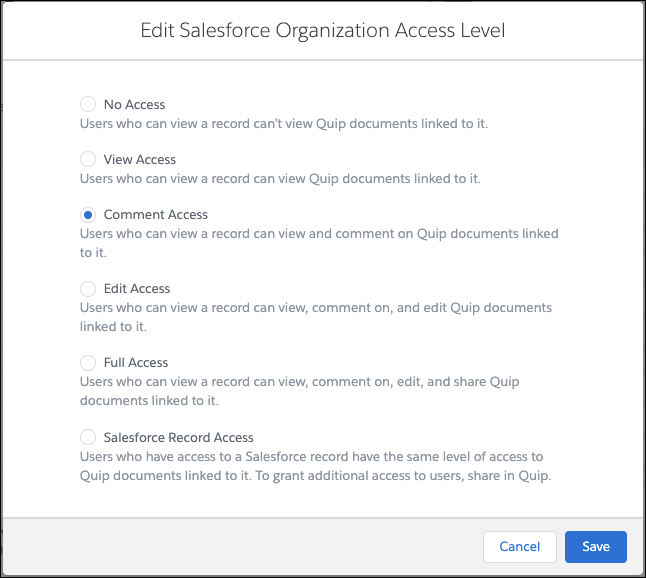

Important Synced Sharing is set at the org level and not at the user level. If you choose **Comment Access**, all users from your org with access to a record can comment on its linked documents. To grant users with access to a Salesforce record the same access to its linked documents, select **Saleforce Record Access**.
6. Click **Save**.
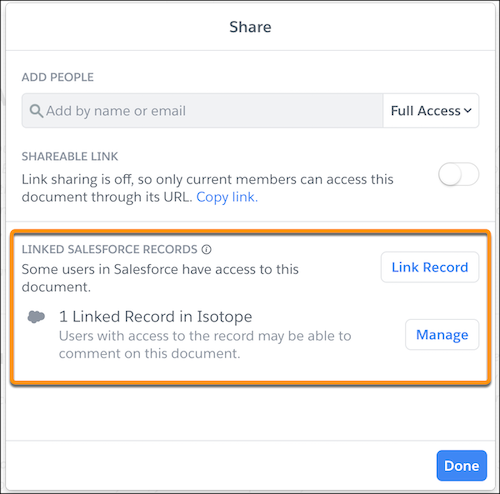
After Synced Sharing is enabled, users are notified when they link a document to a record that their document is shared with record members. Users can also see what Synced Sharing level of access record members have to their linked documents from the Share window in Quip.
#### See Also
- [_Knowledge Article_: Synced Sharing Scenarios, Salesforce Anywhere Advanced (Quip)](https://help.salesforce.com/articleView?id=000356489&type=1&mode=1&language=en_US)