---
schema_version: "1"
id: 28b40762d2b0eade1f7c44bd95942b83066a1aa2a4f3aad3222a52f1c75e330e
title: Add the Quip Associated Documents Component
collection: admin
version: current
locale: en-us
portal_url: https://docs.salesforce.com/admin/current/en-us/xcloud/264-0-0/admin_files_quip_add_lightning_component.md
canonical_url: https://help.salesforce.com/s/articleView?id=xcloud.admin_files_quip_add_lightning_component.htm&release=264.0.0&type=5
source_site: help.salesforce.com
content_type: documentation
content_hash: c63959394c70e1d64c570f22e7820d1087f57773716fee1e8b70c2f73d811fce
description: Add the Quip Associated Documents component to your page layouts so that documents are easy to access. You can add the component to accounts, opportunities, leads, most other standard objects, and your custom objects.
products:
- Quip
- Cross Cloud
release: "264"
---
# Add the Quip Associated Documents Component
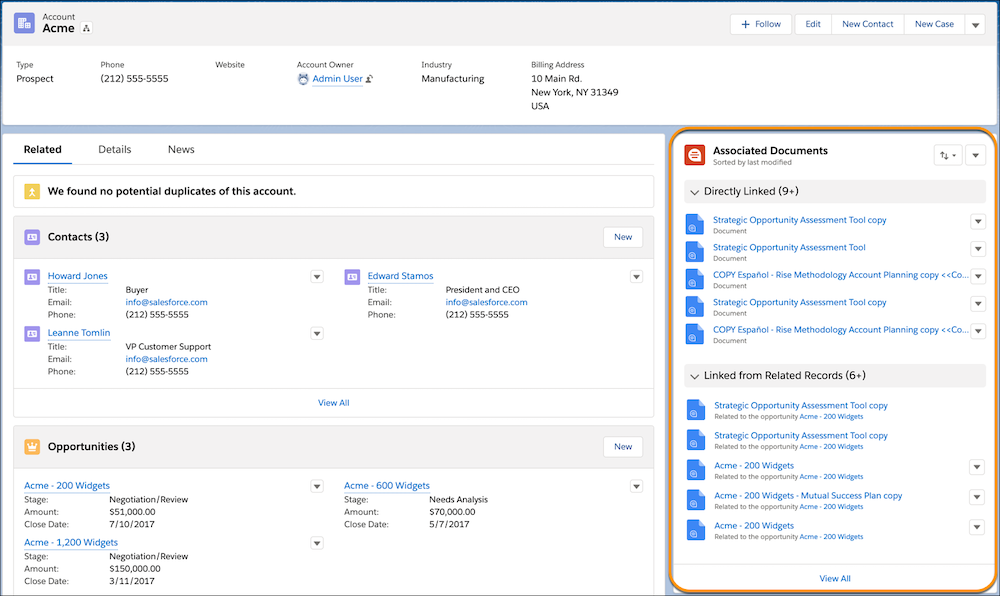
Add the Quip Associated Documents component to your page layouts so that documents are easy to access. You can add the component to accounts, opportunities, leads, most other standard objects, and your custom objects.
### Required Editions
Available in: Lightning Experience
User Permissions Needed
To add the Quip Lightning component:
Administrator Permissions

Note The Quip Associated Documents component isn’t available for user record pages or file details pages, nor when a record page is viewed from within an Experience Cloud site.
To add the Quip Associated Documents component:
1. From the Setup menu on a record page, click **Edit Page**.
2. Under Components, select **Quip Associated Documents**.
3. Drag the component to the column on the right.
4. Click **Save** and then click **Activation**.
5. On the Activation: Account Record Page, click **Assign as Org Default** and close the page.