---
schema_version: "1"
id: a4c9832aaceb7ff1acad81b464f495934b3436ead5f360bd4da41811a5422460
title: Model Your Campus
collection: admin
version: current
locale: en-us
portal_url: https://docs.salesforce.com/admin/current/en-us/sfdo/264-0-0/ec_model_your_campus.md
canonical_url: https://help.salesforce.com/s/articleView?id=sfdo.ec_model_your_campus.htm&release=264.0.0&type=5
source_site: help.salesforce.com
content_type: documentation
content_hash: 5d429fd784b1df0e36ce5a909385990eb122efefe786da8b13868740f1511117
description: Model your campus in Education Cloud as an organizational structure of accounts and a network of physical facilities. Represent your institution and its colleges as accounts, and manage buildings, spaces, and their uses as locations.
products:
- Education
release: "264"
---
# Model Your Campus
Model your campus in Education Cloud as an organizational structure of accounts and a network of physical facilities. Represent your institution and its colleges as accounts, and manage buildings, spaces, and their uses as locations.
### Required Editions
Available in: Lightning Experience
Available in: Enterprise, Unlimited, and Developer Editions with Education Cloud
User Permissions Needed
To model your campus:
Education Cloud Full Access
A campus is more than its buildings. In Education Cloud, you model a campus along two dimensions that work together:
- Organization: Your institution and its academic and administrative units, represented as accounts.
- Facilities: The physical buildings and spaces, and how they're used, represented as locations.
Model both dimensions to connect your institution’s organizational structure with the places where activities occur.
## Model Your Campus Organization
Use business accounts to represent your institution and its units. Start with a top-level account for the institution, and then add a child account for each college, school, or department. For example, model Connected University as the top-level account, and add child accounts for the College of Engineering, the College of Fine Arts, and the College of Business.
The resulting account hierarchy mirrors your campus organization and helps you roll up records and reports to the appropriate unit.
For details about business accounts, person accounts, and the relationships that connect people and organizations, see [Model Households, Groups, and Organizations](https://help.salesforce.com/s/articleView?id=sfdo.ec_model_households.htm&release=264.0.0&type=5 "Set up relationships to define how your learners and other accounts connect with one another, such as for representing households.").
## Model Your Campus Facilities
Model your institution's physical facilities so you can assign space-specific uses and manage reservations and schedules.
Here’s a summary of facilities-related objects:
- Location: Represents information about the location of your institution's facility.
- Location Use: Represents information about the general purpose of the location.
- Associated Location: Represents a link between an account and a location in Education. Use this object to connect one or more locations to one or more accounts.
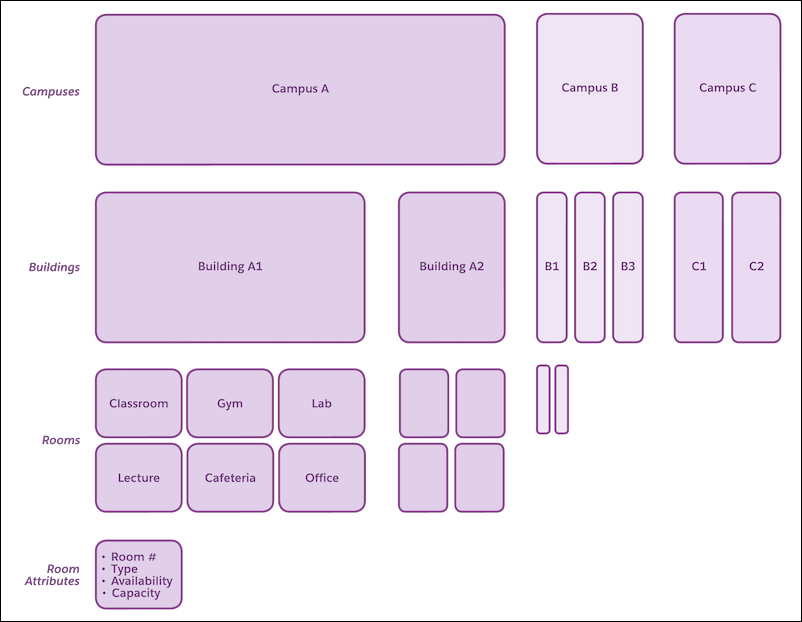
Here’s a sample representation of locations.
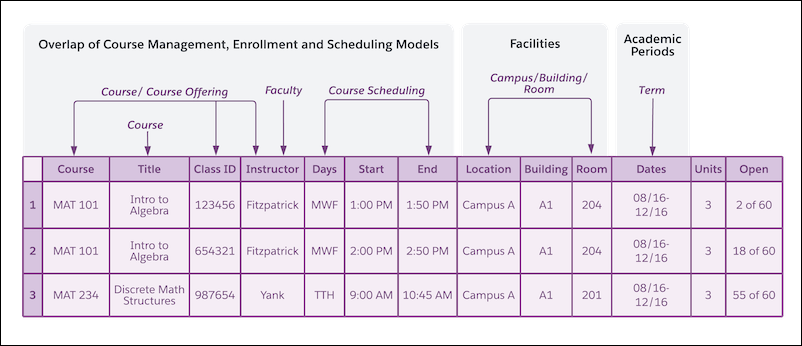
This example shows a student schedule that uses data from the entire model.
## Create a Campus Model
Define your institution's facilities and how they are used.
### Create a Location
1. From the App Launcher, find and select **Locations**.
2. Click **New**.
3. Enter a name, and specify the type of location.
4. Enter other relevant information, and save your changes.
### Define Location Use
1. From Setup, in the Quick Find box, find and select **Location Use**.
2. Click **New Location Use**.
3. Enter a name and select the location type.
4. Enter other relevant information, and save your changes.
### Define Associated Location
1. Add the Associated Location related list to the Account and Location page layouts.
2. From the Account or Location record page, click **Related**.
3. In the Associated Locations related list, click **New**.
4. Enter the required information, and save your changes.
SEE ALSO:
- [Group Memberships and Households](https://help.salesforce.com/s/articleView?id=ind.group_membership.htm&language=en_US)
- [How Education Cloud Models Groups and Relationships](https://help.salesforce.com/s/articleView?id=ind.group_membership_how_education_cloud_models_groups_relationships.htm&language=en_US)
- [Display Account Hierarchies](https://help.salesforce.com/s/articleView?id=sales.account_hierarchy_setup.htm&language=en_US)