---
schema_version: "1"
id: aa983121b48c3f7bdf56b343b8e6b39c2abd4add50ddcc0abc748911bcfdb1cc
title: Create Assessment Questions with Icon Responses
collection: admin
version: current
locale: en-us
portal_url: https://docs.salesforce.com/admin/current/en-us/sfdo/264-0-0/ec_create_assessment_questions_with_icon_responses.md
canonical_url: https://help.salesforce.com/s/articleView?id=sfdo.ec_create_assessment_questions_with_icon_responses.htm&release=264.0.0&type=5
source_site: help.salesforce.com
content_type: documentation
content_hash: b68a71cf025b6242796d7a3358384147702451b9e613338d108131787577e0c5
description: Use the icon data type in Education Cloud to create pulse check assessment questions that students can respond to with emojis. Create a rating scale by assigning numeric values to the icon responses and view the student’s sentiments over time with score graphs.
products:
- Education
release: "264"
---
# Create Assessment Questions with Icon Responses
Use the icon data type in Education Cloud to create pulse check assessment questions that students can respond to with emojis. Create a rating scale by assigning numeric values to the icon responses and view the student’s sentiments over time with score graphs.
Required Editions
Available in: Lightning Experience
Available in: Enterprise, Performance, Unlimited, and Developer Editions with Education Cloud
USER PERMISSIONS NEEDED
To create assessment questions:
Education Cloud Full Access
1. From the App Launcher, find and select **Assessment Questions**.
2. Click **New**.
3. Select **Icon** as the data type.
4. To make this question active, select **Active**.
5. Under Response Values, select an icon, and then enter its label and numeric value.
6. To add more rating levels, click **Add Rating Level**.
7. If needed, provide other relevant details.
8. Save your changes.
An assessment question version choice is created with the rating level details.
9. Icon data type doesn’t require a decision matrix for response score calculation. However, if your assessment questions have icon and other data types, ResponseValueScore gets set to null. To avoid this:
1. Clone the Update Assessment Question Response Score flow.
2. Modify the section of the new flow as shown.
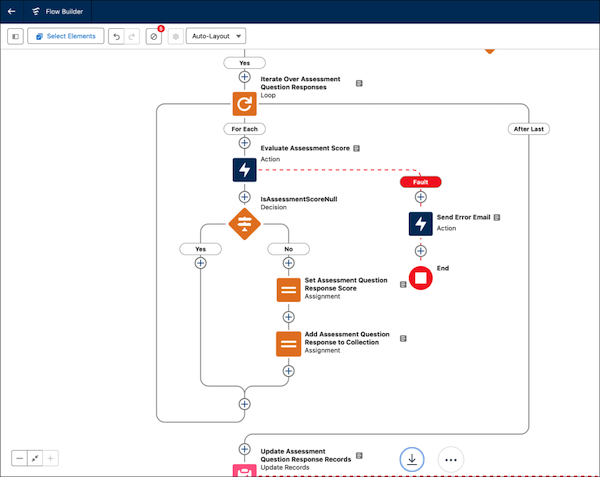
3. Activate the flow.
See Also:
- [Set Up Pulse Checks](https://help.salesforce.com/s/articleView?id=sfdo.ec_set_up_pulse_checks.htm&language=en_US)