---
schema_version: "1"
id: abbf7bfefd2aa2808ed38b3e60630e3b3ae135e66f788481115a255789838721
title: Configure Linked Courses
collection: admin
version: current
locale: en-us
portal_url: https://docs.salesforce.com/admin/current/en-us/sfdo/264-0-0/ec_configure_linked_courses.md
canonical_url: https://help.salesforce.com/s/articleView?id=sfdo.ec_configure_linked_courses.htm&release=264.0.0&type=5
source_site: help.salesforce.com
content_type: documentation
content_hash: f9b69af9979ee9fdd2a4257ee4356805270fbaa4973692efa3d44a5df262deaf
description: Configure linked courses to support simultaneous registration of a course along with dependent sections, such as a lecture that requires labs or exams. Linked courses also help enforce degree completion requirements.
products:
- Education
release: "264"
---
# Configure Linked Courses
Configure linked courses to support simultaneous registration of a course along with dependent sections, such as a lecture that requires labs or exams. Linked courses also help enforce degree completion requirements.
### Required Editions
Available in: Lightning Experience
Available in: Enterprise, Unlimited, and Developer Editions with Education Cloud
User Permissions Needed
To configure linked courses:
Education Cloud Full Access
Students can take linked courses only along with a related learning course. For example, the Experimental Psychophysiology course offers two lecture sections in Fall 2025 (1). Each lecture section is linked to three laboratory sections (2). The lecture is a primary learning course, and the laboratory is a linked course. To register for one of the lecture sections, students must also take one of the linked laboratory sections to meet the course’s completion requirement.
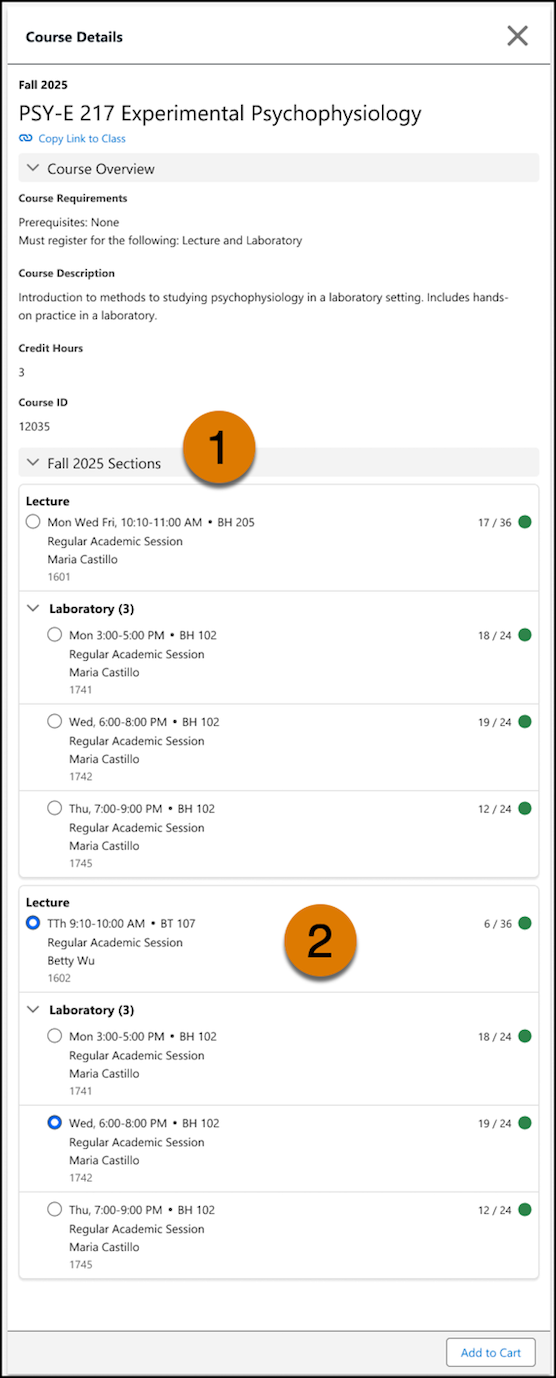
The registrar creates a linked-only lab course and then relates it to the Experimental Psychophysiology course, which is a lecture. They then create course offerings as sections for the lecture course and the linked-only lab course. Finally, they link lab sections to lecture sections. To register for Experimental Psychophysiology, a student adds a lecture section and a linked lab section to the cart in the Course Search and Registration portal.
If a learning course has multiple linked courses of the same type, students are only required to select one linked course offering of that type. For example, the Introduction to Biology Lecture course is linked to two different lab courses: Cell Structure Lab and Anatomy Lab. Students register for either a Cell Structure Lab section or an Anatomy Lab section, but not both.
1. [Create a learning course](https://help.salesforce.com/s/articleView?id=sfdo.ec_create_a_learning_course.htm&release=264.0.0&type=5 "Use the Learning Wizard in the Education Cloud Academic Operations app to create a learning course.") and make it a linked course.
Under Additional Course Details, select a course type, and then select **Linked Only**. Complete the guided setup to create the linked course.

Note Make sure that you select a course type, so that linked courses appear and function correctly in Course Search and Registration.
2. Create more linked courses as needed.
3. To add a linked course to a learning course, [edit an existing learning course](https://help.salesforce.com/s/articleView?id=sfdo.ec_edit_a_learning_course_or_learning_program.htm&release=264.0.0&type=5 "Use Learning Wizard in the Academic Operations app to modify your learning.") or create one.
1. In the guided setup, make sure that the learning course has a course type.
2. Select the **Linked Courses** tab and then add the linked courses that you created.
4. Create course offerings for the learning course.
These are different sections of the learning course. For example, Introduction to Biology offers three sections: Lecture A on Mondays and Wednesdays, 9-9:50 AM; Lecture B on Tuesdays and Thursdays, 1-1:50 PM; and Lecture C on Wednesdays, 3-5 PM.
5. Create course offerings for the linked course.
These are different sections of the linked course, such as various sections of the Introduction to Biology Lab.
6. Assign all applicable linked course offerings to each course offering of the learning course.
1. Open a course offering record of the learning course that you edited or created. For example, Introduction to Biology Lecture A.
2. Click **Manage Linked Sections**.
3. Select the linked course sections that you want to link to this course offering.
A linked course section can link to multiple course offerings. For example, Lecture A is linked to Lab 1, Lab 2, and Lab 3. Lecture B is linked to Lab 3, Lab 4, and Lab 5. Lab 3 is a linked course section that’s assigned to both Lecture A and Lecture B.

Note All the selections must be in the same academic session.
SEE ALSO
- [Course Search and Registration](https://help.salesforce.com/s/articleView?id=sfdo.ec_course_search_and_registration.htm&release=264.0.0&type=5 "Provide students with a simplified way to find and enroll in courses. Students search for courses and view details of course sections on a search results page. Students with the right permissions can add courses from the search results directly to a cart. They can review course availability and their own eligibility, and register for courses from the cart.")