---
schema_version: "1"
id: 7a1431d5b506ef09a00ca8b9705017728e6c458d579df0f9b9d13179824b3018
title: Activate Work Summaries for Email
collection: admin
version: current
locale: en-us
portal_url: https://docs.salesforce.com/admin/current/en-us/service/264-0-0/work_summaries_email_activate.md
canonical_url: https://help.salesforce.com/s/articleView?id=service.work_summaries_email_activate.htm&release=264.0.0&type=5
source_site: help.salesforce.com
content_type: documentation
content_hash: e8ad7ffb20f91b6028c88478b4ebf206a903e33419d2ad745d4efdff8548da9a
description: Turn on Work Summaries for Email in your org to access these time-saving summaries.
products:
- Service Cloud
- Service Intelligence
release: "264"
---
# Activate Work Summaries for Email
Turn on Work Summaries for Email in your org to access these time-saving summaries.
### Required Editions
1. From Setup, in the Quick Find box, enter Einstein Work Summaries, then select **Einstein Work Summaries**.
2. Click the **Email** tab.
3. To enable Work Summaries for Emails, activate **Email Message Summaries**.
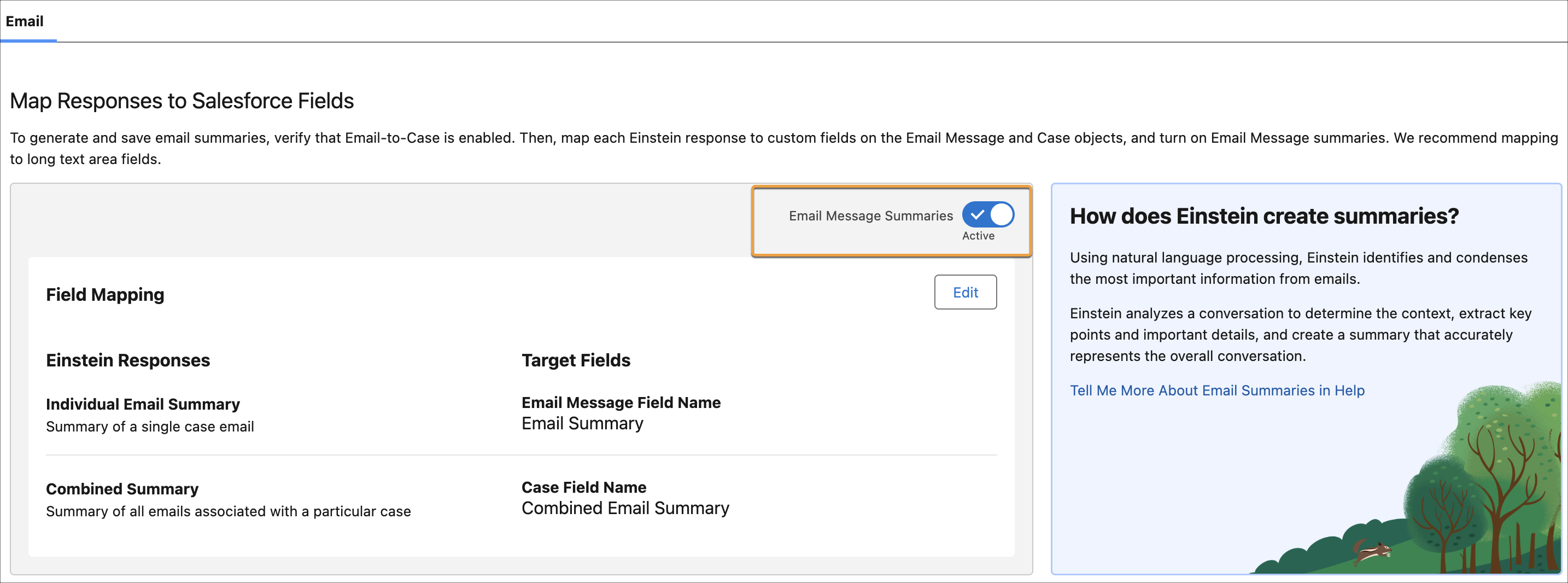
Now you’re ready to use Work Summaries for Email. Learn how to [access work summaries](https://help.salesforce.com/s/articleView?id=service.cc_generative_ai_use_work_summaries.htm&release=264.0.0&type=5 "Einstein Work Summaries generates an outline of conversations on cases and voice calls. Ask for summaries from the Einstein panel with agent. For Messaging, Chat, and Voice, you can draft, edit, and save summaries from the Wrap Up component in the Lightning Service Console. For Email, use the Einstein Email Summaries component.") in the console.