---
schema_version: "1"
id: e6f00bef908b4754e8ad2a65b3495eedc3dd57dadc3b5f88fc0606a5057b5221
title: Use Voicemail Drop for Outbound Calls
collection: admin
version: current
locale: en-us
portal_url: https://docs.salesforce.com/admin/current/en-us/service/264-0-0/voice_voicemail_drop.md
canonical_url: https://help.salesforce.com/s/articleView?id=service.voice_voicemail_drop.htm&release=264.0.0&type=5
source_site: help.salesforce.com
content_type: documentation
content_hash: 89d665f075f4e0c77e0559176893f0c07022c2c7529d2ae6073285361eae3196
description: Save time on outbound calls by automatically leaving pre-recorded voicemail messages. When you reach a user’s voicemail, you can end the call immediately, and proceed to your next work item. Salesforce Voice plays your default message for the user without disconnecting the call.
products:
- Service Cloud
- Digital Engagement
release: "264"
---
# Use Voicemail Drop for Outbound Calls
Save time on outbound calls by automatically leaving pre-recorded voicemail messages. When you reach a user’s voicemail, you can end the call immediately, and proceed to your next work item. Salesforce Voice plays your default message for the user without disconnecting the call.
### Required Editions
Applies to these telephony models
- Salesforce Voice with Amazon Connect
- Salesforce Voice with Partner Telephony (if supported by your telephony provider)
User Permissions Needed
To record and use voicemails:
Use Voicemail Drops
To make calls:
Salesforce Voice Contact Center Rep

Note Your admin can clone the **Salesforce Voice Contact Center Rep** or **Admin** permission sets to enable the **Use Voicemail Drops** user permission. This feature is available for all users that belong to the cloned permission set. Admins can add or remove users from the permission set as required.
You can manage your own library of pre-recorded messages. You can upload or record up to 10 voicemail messages. One message is always selected as the default. If you haven’t set a default recording, the first message is automatically selected as the default.
1. From your profile, go to settings.
2. In the Quick Find box, enter Voice, and select **Voicemail Settings**.
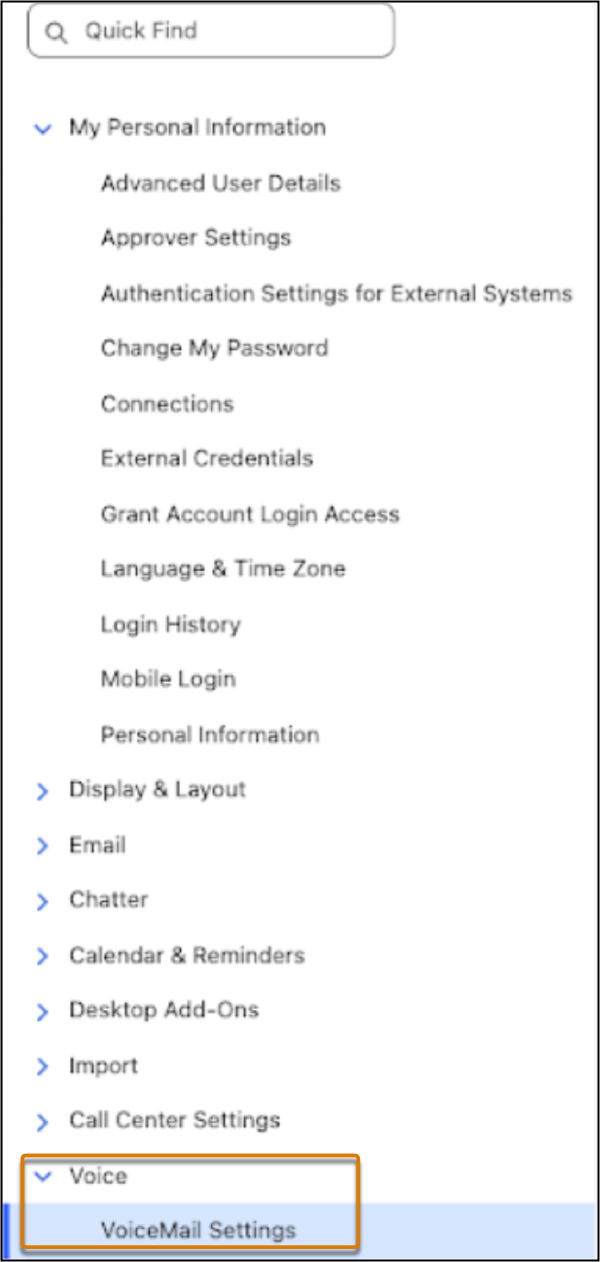
3. To add a voicemail drop, click **Add Voicemail Drop**.
1. Enter a name for the recording.
2. **Upload a file** or **Record an Audio** from your preferred input device to create the voicemail message.
To upload an audio file, the file must be in .wav format with an 8 kHz sample rate and mono channel. Also make sure that the file size doesn't exceed 16 MB.
4. Save your changes.
Your voicemail messages are listed in the **Outbound Voicemail Drops** table. From here, you can reorder the list to change their priority.

Use the **Set Default** option to set a recording as the default message. Use the **Download** or **Delete** option to download or delete the recording.

Note You must always have one default recording.
If you created the S3 bucket and added it to your Amazon Connect instance manually, you must attach the following CORS configuration to the bucket:
```
[ { "AllowedHeaders": ["Content-Type"], "AllowedMethods": ["PUT"], "AllowedOrigins": ["https://yourdomain.lightning.force.com"], "ExposeHeaders": ["ETag", "x-amz-request-id", "x-amz-id-2"], "MaxAgeSeconds": 300 } ]
```
While making a call from the service console, you can click the  icon to drop your default voicemail or select a more suitable message by using the drop-down icon. Click **End Call** to end the call without dropping a voicemail message. The sequence of recordings in the drop-down list is determined by their order in the **Outbound Voicemail Drops** table.
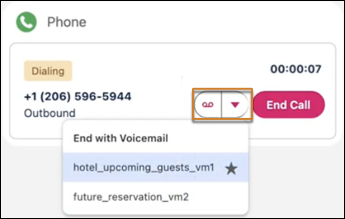
While on call, the recording is live the moment you hear the voicemail beep. Any background noise that’s captured is included in the message. For a professional experience, avoid unnecessary conversation until you drop the voicemail.

Note To use this feature with Salesforce Voice with Partner Telephony, your telephony provider must implement the `VFSProvider` apex interface.
## Limitations of Voicemail Drop
Keep these limitations of voicemail drop in mind.
- You can’t delete a default recording. To delete your current default, first set a different recording as the default.
- You must access the **Voice** and **Voicemail Settings** tabs directly from a Lightning page. Otherwise, the uploads to the S3 bucket might be rejected due to Cross-Origin Resource Sharing (CORS) errors.
- To upload an audio file, the audio file must be in .wav format with an 8 kHz sample rate and mono channel.
#### See Also
- [Salesforce Voice with Partner Telephony Apex Reference: VFSProvider](https://developer.salesforce.com/docs/atlas.en-us.voice_pt_developer_guide.meta/voice_pt_developer_guide/voice_pt_apex_reference.htm)
- [Object Reference for the Salesforce Platform: ConversationVendorInfo](https://developer.salesforce.com/docs/atlas.en-us.object_reference.meta/object_reference/sforce_api_objects_conversationvendorinfo.htm)