---
schema_version: "1"
id: 4e370173589e9127bb9694af05a809a9e0cdf0cf97db996d966d273331e8a6bc
title: Update Inaccessible Account Phone Number
collection: admin
version: current
locale: en-us
portal_url: https://docs.salesforce.com/admin/current/en-us/service/264-0-0/voice_update_inaccess_phone.md
canonical_url: https://help.salesforce.com/s/articleView?id=service.voice_update_inaccess_phone.htm&release=264.0.0&type=5
source_site: help.salesforce.com
content_type: documentation
content_hash: 6f0cb8ea2a2e503cf740f233be76c7313d7e4d88bc93e4ff40d5e20cfdc992cb
description: If the AWS account is inaccessible and you can’t log in, use the Connect APIs to update the primary phone number of the AWS sub-account.
products:
- Service Cloud
- Digital Engagement
release: "264"
---
# Update Inaccessible Account Phone Number
If the AWS account is inaccessible and you can’t log in, use the Connect APIs to update the primary phone number of the AWS sub-account.
### Required Editions

Note If you need to update both the primary phone number and root email address associated with your AWS account, make sure to first update the root email address before continuing with these steps.
This article applies to:
- Salesforce Voice with Amazon Connect
1. Log in as an admin.
2. Use your preferred method to trigger the connect API to update the phone number.
- Endpoint: `/services/data/{SaleforceAPIVersion}/connect/voice/aws-account/phone-number/reset`. Make sure that the API version is 67.0 or later.
- Payload: `{"awsAccPhoneNumber":"+1234567890"}`
3. In the request payload, provide the new phone number. For the required format, see [Phone Number Requirements](https://docs.aws.amazon.com/accounts/latest/reference/manage-acct-update-contact-primary.html#manage-acct-update-contact-primary-requirements).
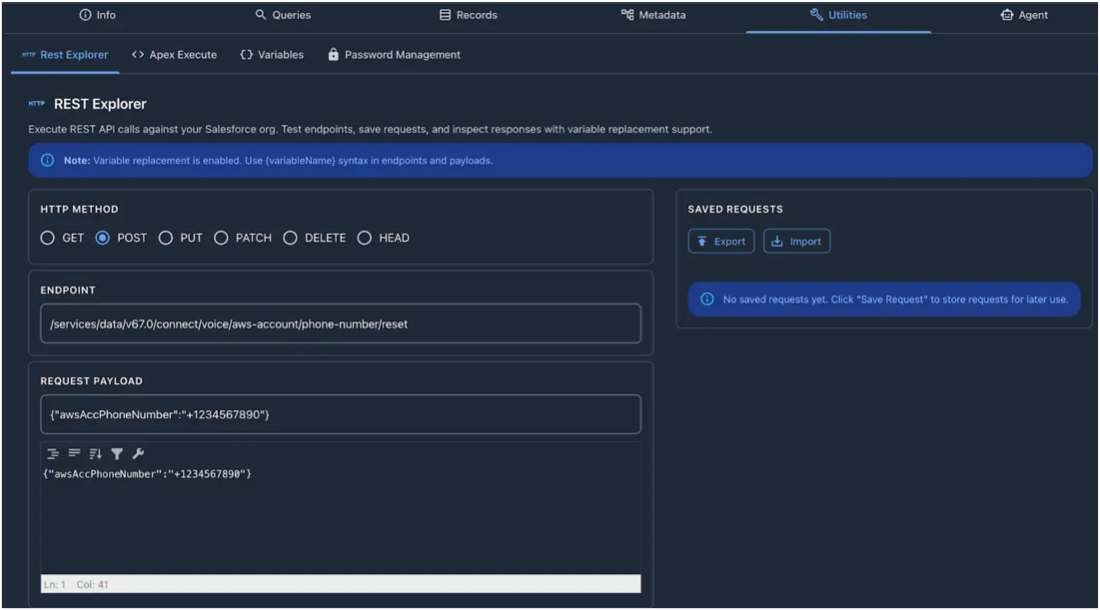
Triggering the API sends an email notification about the phone number change request to all the admins of the org.
After updating the phone number, you can use it to log in to the AWS account.