---
schema_version: "1"
id: a1e466934c02abc6bc49f911855f373e3007691dde183e38189667c6ce02bd90
title: Change Reps Assigned to Groups
collection: admin
version: current
locale: en-us
portal_url: https://docs.salesforce.com/admin/current/en-us/service/264-0-0/voice_supervisor_change_groups.md
canonical_url: https://help.salesforce.com/s/articleView?id=service.voice_supervisor_change_groups.htm&release=264.0.0&type=5
source_site: help.salesforce.com
content_type: documentation
content_hash: 40089da664f7bf378c5c52bc1f995823997810a3a4ffc610655dc5b2aa54b769
description: When Queue Management is enabled, supervisors can reassign reps to contact center groups on the fly. For example, if a queue gets swamped with calls and reps are running at capacity, a supervisor can reassign a group of reps from another queue. You can’t reassign reps from different contact centers at the same time. Instead, make changes to each contact center separately.
products:
- Service Cloud
- Digital Engagement
release: "264"
---
# Change Reps Assigned to Groups
When Queue Management is enabled, supervisors can reassign reps to contact center groups on the fly. For example, if a queue gets swamped with calls and reps are running at capacity, a supervisor can reassign a group of reps from another queue. You can’t reassign reps from different contact centers at the same time. Instead, make changes to each contact center separately.
### Required Editions
This article applies to:
- Salesforce Voice with Amazon Connect
- Salesforce Voice with Partner Telephony
- Salesforce Voice with Partner Telephony from Amazon Connect
When changes are made to a Salesforce contact center group, those changes are also updated in the associated Amazon Connect routing profile.
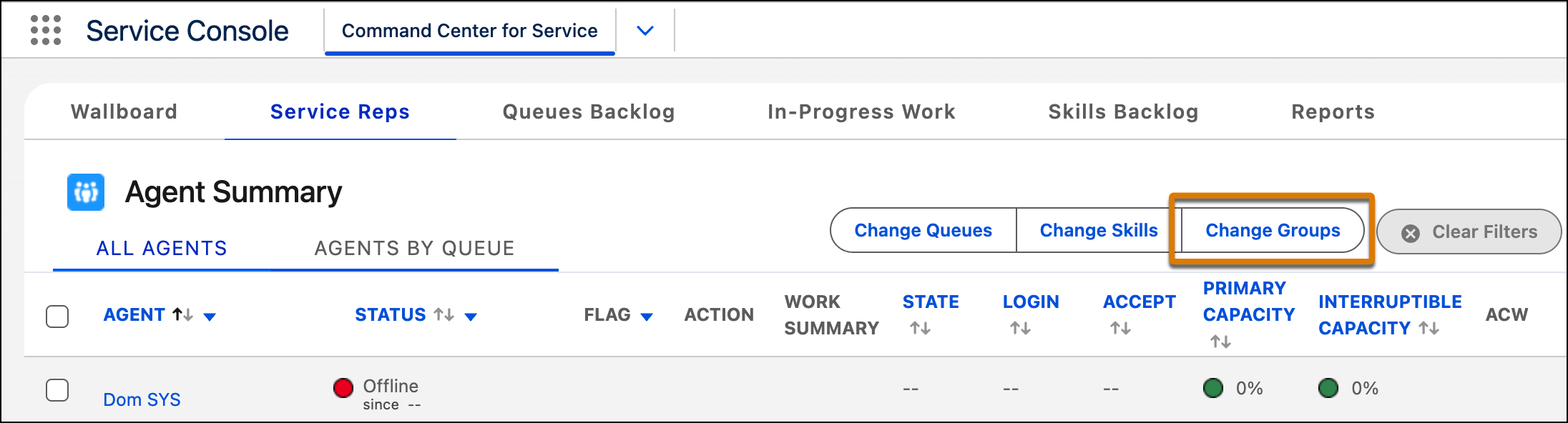
1. To see the Change Groups button in Command Center for Service, your admin must perform these prerequisite steps.
- Enable Queue Management.
- Add Change Groups to the actions in the supervisor configuration assigned to you.
2. In the Service Reps tab of Command Center for Service, click **Change Groups**.
3. Select the reps that you want to reassign.
4. Select their new group.

Note If Queue Management isn’t enabled, no groups appear. When reassigning a rep, you must assign them to a contact center group. If you don't select a group, you'll receive an error.
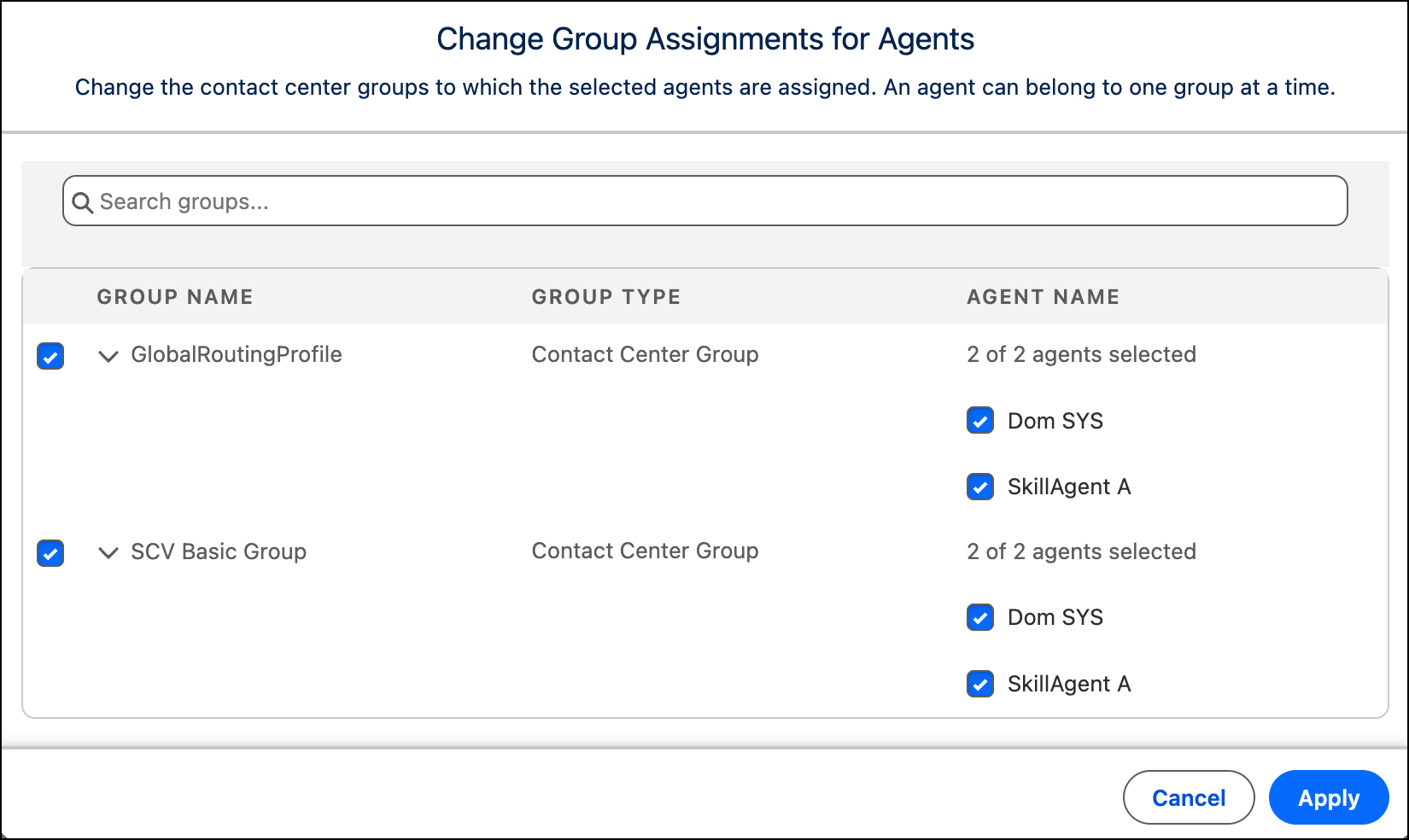
5. Click **Apply**.
All affected reps receive an email about the change. To apply the change, each rep must set their Omni-Channel status to offline, and then back to any available status. If a change can’t be applied, check your email for the details.
#### See Also
- [Manage Contact Center Queues in Salesforce and Your Telephony Provider Using Groups](https://help.salesforce.com/s/articleView?id=service.service_omni_queues_manage.htm&release=264.0.0&type=5 "If your telephony provider supports assigning groups of reps to queues, use Queue Management. With Queue Management, you manage Salesforce reps by assigning them to contact center groups. For example, you can create different groups of reps based on skills, such as product support and sales.")
- [Change What Supervisors See in Command Center for Service](https://help.salesforce.com/s/articleView?id=service.omnichannel_create_supervisor_configuration.htm&language=en_US)