---
schema_version: "1"
id: f292baaf63d9d5d2ab0b173963b546206bd22b0fc47d972d48ca41488ae724df
title: Run Self-Service Checks to Resolve Contact Center Issues
collection: admin
version: current
locale: en-us
portal_url: https://docs.salesforce.com/admin/current/en-us/service/264-0-0/voice_setup_service_checks.md
canonical_url: https://help.salesforce.com/s/articleView?id=service.voice_setup_service_checks.htm&release=264.0.0&type=5
source_site: help.salesforce.com
content_type: documentation
content_hash: 15cd8a588dcda1c16f2017c647068b487578d914c2ff3f14defa686b3d65ab54
description: Run self-service checks for a detailed diagnostic report about the health of your contact center.
products:
  - Service Cloud
  - Digital Engagement
release: "264"
---
# Run Self-Service Checks to Resolve Contact Center Issues

Run self-service checks for a detailed diagnostic report about the health of your contact center.

### Required Editions

This article applies to:

- Salesforce Voice with Amazon Connect
- Salesforce Voice with Partner Telephony from Amazon Connect

<table class="slds-table slds-table_bordered slds-max-medium-table_stacked slds-m-bottom_small edition"><colgroup><col></colgroup><tbody><tr class=""><td class="slds-cell-wrap" style="vertical-align:top;"><a href="https://help.salesforce.com/s/articleView?id=service.voice_editions.htm&amp;release=264.0.0&amp;type=5" title="Learn about the user interfaces, editions, and add-ons that support Voice solutions by Salesforce.">View supported editions</a>.</td></tr></tbody></table>

<table class="slds-table slds-table_bordered slds-max-medium-table_stacked slds-m-bottom_small permission">
        <colgroup>
          <col style="width:50%">
          <col style="width:50%">
        </colgroup>
        <thead class="slds-text-title_caps ">
          <tr class="">
            <th scope="colgroup" class="slds-cell-wrap" colspan="2" style="text-align:center;vertical-align:top;" id="d117629e71">User Permissions
              Needed</th>
          </tr>
        </thead>
        <tbody>
          <tr class="">
            <td data-label="User Permissions Needed" class="slds-cell-wrap" style="vertical-align:top;" headers="d117629e71 ">To view the Amazon Contact Centers page: </td>

            <td class="slds-cell-wrap" style="vertical-align:top;" headers="d117629e71 ">Customize Application AND Manage Call Centers </td>

          </tr>
          <tr class="">
            <td data-label="User Permissions Needed" class="slds-cell-wrap" style="vertical-align:top;" headers="d117629e71 ">To run service checks:</td>

            <td class="slds-cell-wrap" style="vertical-align:top;" headers="d117629e71 ">Salesforce Voice Contact Center Admin</td>

          </tr>
        </tbody>
      </table>

1. From Setup, in the Quick Find box, enter Contact Centers, and then select **Amazon Contact Centers** or **Partner Telephony Contact Centers**.
2. Open the contact center.
3. Click **Service Check**.
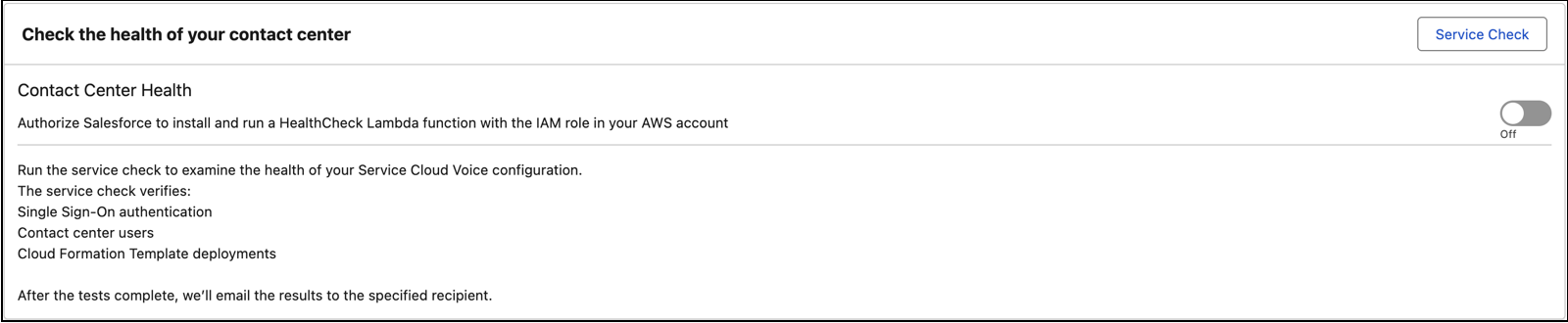
    
    ![The Service Check button is on the contact center details page.](https://sf-zdocs-cdn-prod.zoominsoftware.com/tdta-service-support_channels-264-0-0-production-enus/f3c4b3d2-ff86-4f7c-9fe2-3d8b23d35109/support_channels/images/voice/voice_service_checks_setup.png)
4. Enter your email address and click **Run Service Check**.
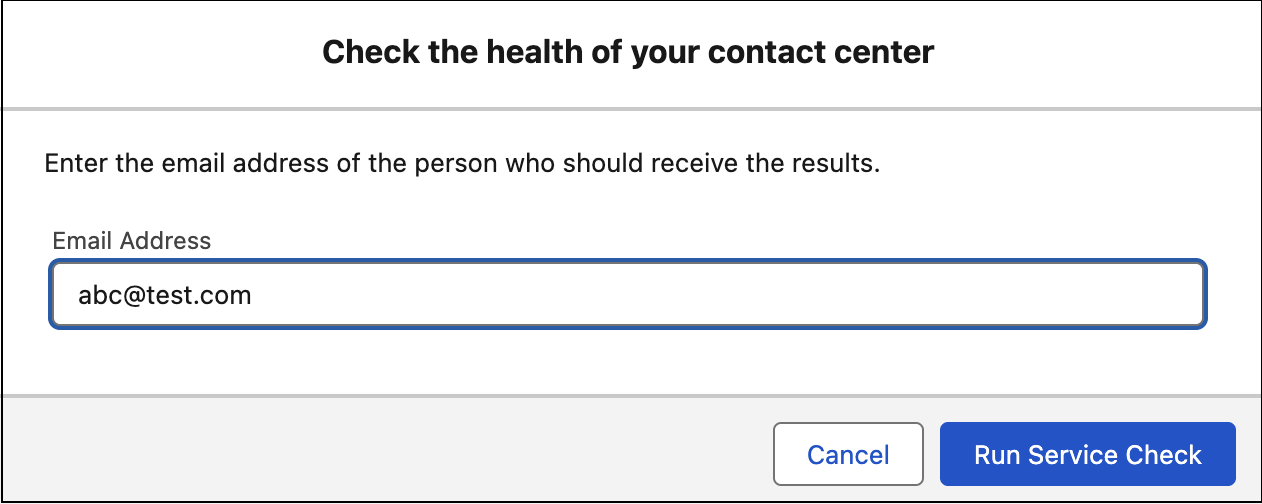
    
    ![Enter your email address and click the Run Service Check button.](https://sf-zdocs-cdn-prod.zoominsoftware.com/tdta-service-support_channels-264-0-0-production-enus/f3c4b3d2-ff86-4f7c-9fe2-3d8b23d35109/support_channels/images/voice/voice_service_checks_setup_email.png)
    
    After the service checks complete, you receive an email with the results.