---
schema_version: "1"
id: 3c98f5e89dfa935161e1451f1ba8f0f28acaf5fbffeda5792b3b22280b333740
title: Route Calls with Omni-Channel Flows
collection: admin
version: current
locale: en-us
portal_url: https://docs.salesforce.com/admin/current/en-us/service/264-0-0/voice_routing_flows.md
canonical_url: https://help.salesforce.com/s/articleView?id=service.voice_routing_flows.htm&release=264.0.0&type=5
source_site: help.salesforce.com
content_type: documentation
content_hash: 0be5315dd2d4cdffca20593f59f485d9f973c177bfcc9f3183068ecafd30cf1e
description: Dynamically route voice calls to the right rep or queue using an Omni-Channel flow. Build a template-based flow in Flow Builder and assign it to one or more Voice channels.
products:
- Service Cloud
- Digital Engagement
release: "264"
---
# Route Calls with Omni-Channel Flows
Dynamically route voice calls to the right rep or queue using an Omni-Channel flow. Build a template-based flow in Flow Builder and assign it to one or more Voice channels.
### Required Editions
1. **[Configure Omni-Channel](https://help.salesforce.com/s/articleView?id=service.voice_routing_flows.htm&release=264.0.0&type=5)**
To get started, enable Omni-Channel and update its settings.
2. **[Create an Omni-Channel Flow](https://help.salesforce.com/s/articleView?id=service.voice_routing_flows.htm&release=264.0.0&type=5)**
With the help of a flow template, create an Omni-Channel flow to route voice calls to your support team. You can create one flow to provide routing for all your Voice channels or designate a separate flow for each channel.
3. **[Connect Your Flow to Your Voice Channel](https://help.salesforce.com/s/articleView?id=service.voice_routing_flows.htm&release=264.0.0&type=5)**
After creating your Omni-Channel flow, link it to one or more Voice channels.
## Configure Omni-Channel
To get started, enable Omni-Channel and update its settings.
This article applies to:
- Salesforce Voice with Amazon Connect
- Salesforce Voice with Partner Telephony
- Salesforce Voice with Partner Telephony from Amazon Connect
1. Verify that Omni-Channel is enabled. See [Verify that Omni-Channel is Enabled](https://help.salesforce.com/s/articleView?id=service.voice_omni_channel_enable.htm&release=264.0.0&type=5 "Before you can turn on Voice, enable Omni-Channel so your support team can make and receive calls.").
2. [Create presence statuses](https://help.salesforce.com/s/articleView?id=service.service_presence_create_presence_status.htm&type=5&language=en_US) for Voice. If you’re not sure which statuses to create, start with these three: Available - Calls, On Break, Busy.
## Create an Omni-Channel Flow
With the help of a flow template, create an Omni-Channel flow to route voice calls to your support team. You can create one flow to provide routing for all your Voice channels or designate a separate flow for each channel.
This article applies to:
- Salesforce Voice with Amazon Connect
- Salesforce Voice with Partner Telephony
- Salesforce Voice with Partner Telephony from Amazon Connect
To configure an Omni-Channel flow to route calls to a queue, you must first create the queue.
1. In Setup, enter Flows in the Quick Find box, and then select **Flows** under Process Builder.
2. Click **New Flow**.
3. Click the **All + Templates** tab.
4. Select **Omni-Channel Flow** in the left pane, and click the template named **Voice Calls Routed to Agents and Queues**.
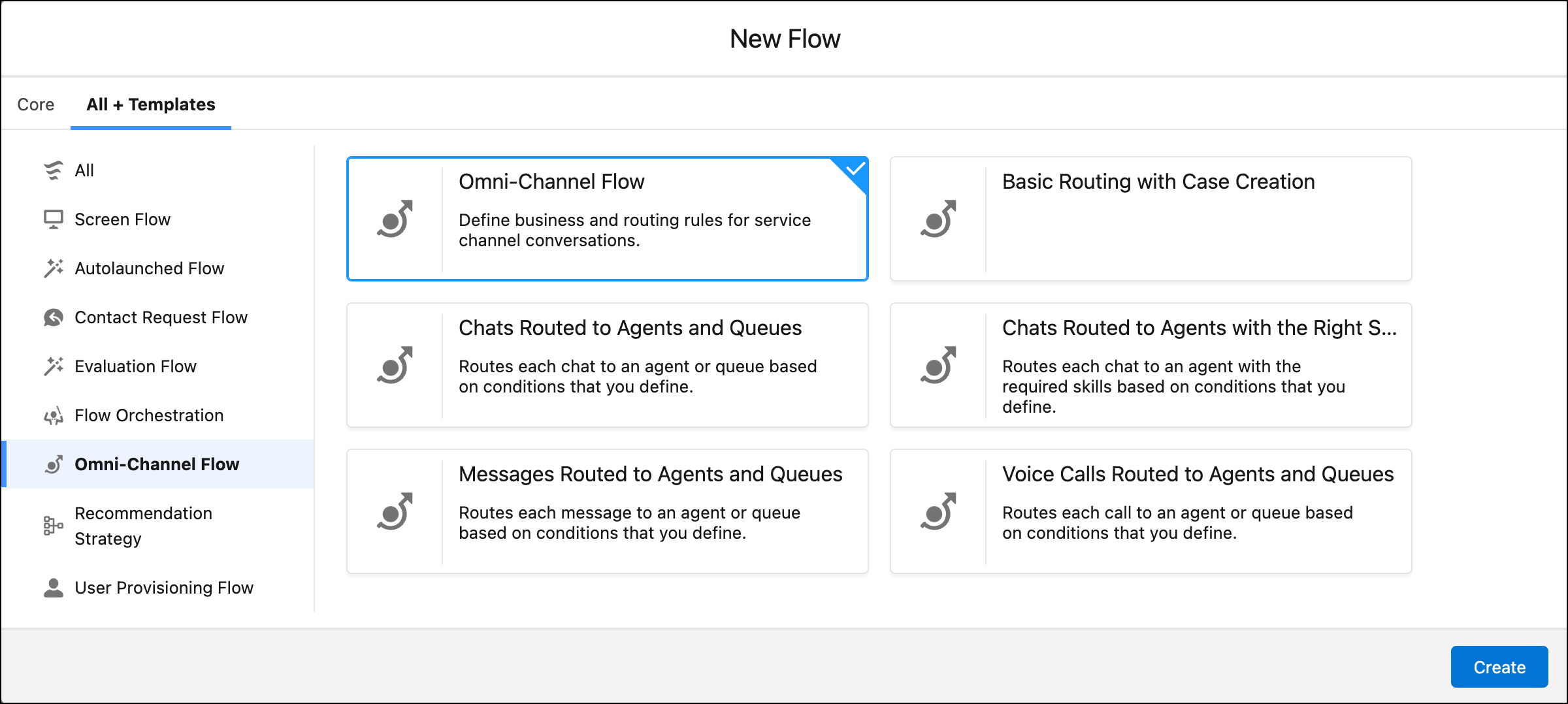
5. To open the template, click **Create**.
6. Edit the template to reflect your routing preferences, and save your changes.
#### See Also
- [Set Up Queues for Calls](https://help.salesforce.com/s/articleView?id=service.voice_queue_setup.htm&release=264.0.0&type=5 "Create queues to route calls and voicemails to.")
- [Create an Omni-Channel Flow](https://help.salesforce.com/s/articleView?id=service.omnichannel_create_a_flow.htm&type=5&language=en_US)
## Connect Your Flow to Your Voice Channel
After creating your Omni-Channel flow, link it to one or more Voice channels.
This article applies to:
- Salesforce Voice with Amazon Connect
- Salesforce Voice with Partner Telephony
- Salesforce Voice with Partner Telephony from Amazon Connect
1. From Setup in the Quick Find box, enter Voice, and then select **Amazon Contact Centers** or **Partner Telephony Contact Centers**, depending on your telephony system.
2. Click the contact center.
3. Under Contact Center Channels, click **Add** to add a phone channel. You can also edit an existing channel.
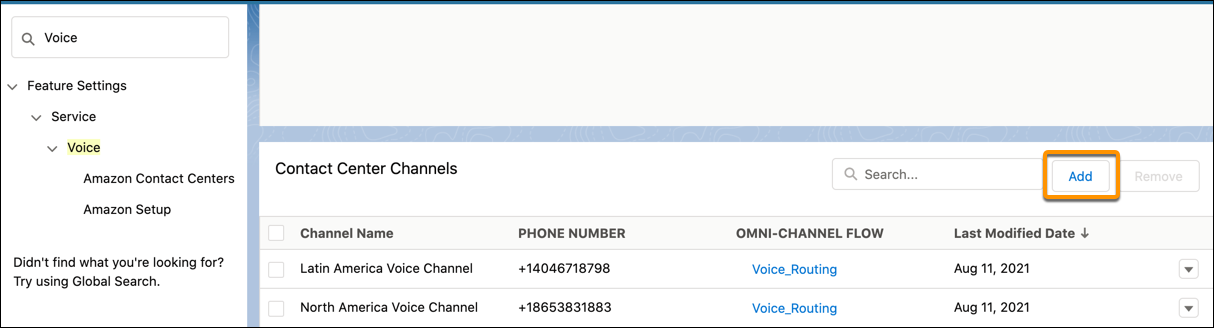
4. Enter the channel properties.
| Property | Description |
| --- | --- |
| Channel Name | The name of the phone channel. |
| Phone Number | The phone number that customers call to contact you on this channel. |
| Routing Type | Select **Omni-Channel Flow**, and then select the flow and fallback queue. If the flow fails to route the call, the call is routed to the fallback queue. |
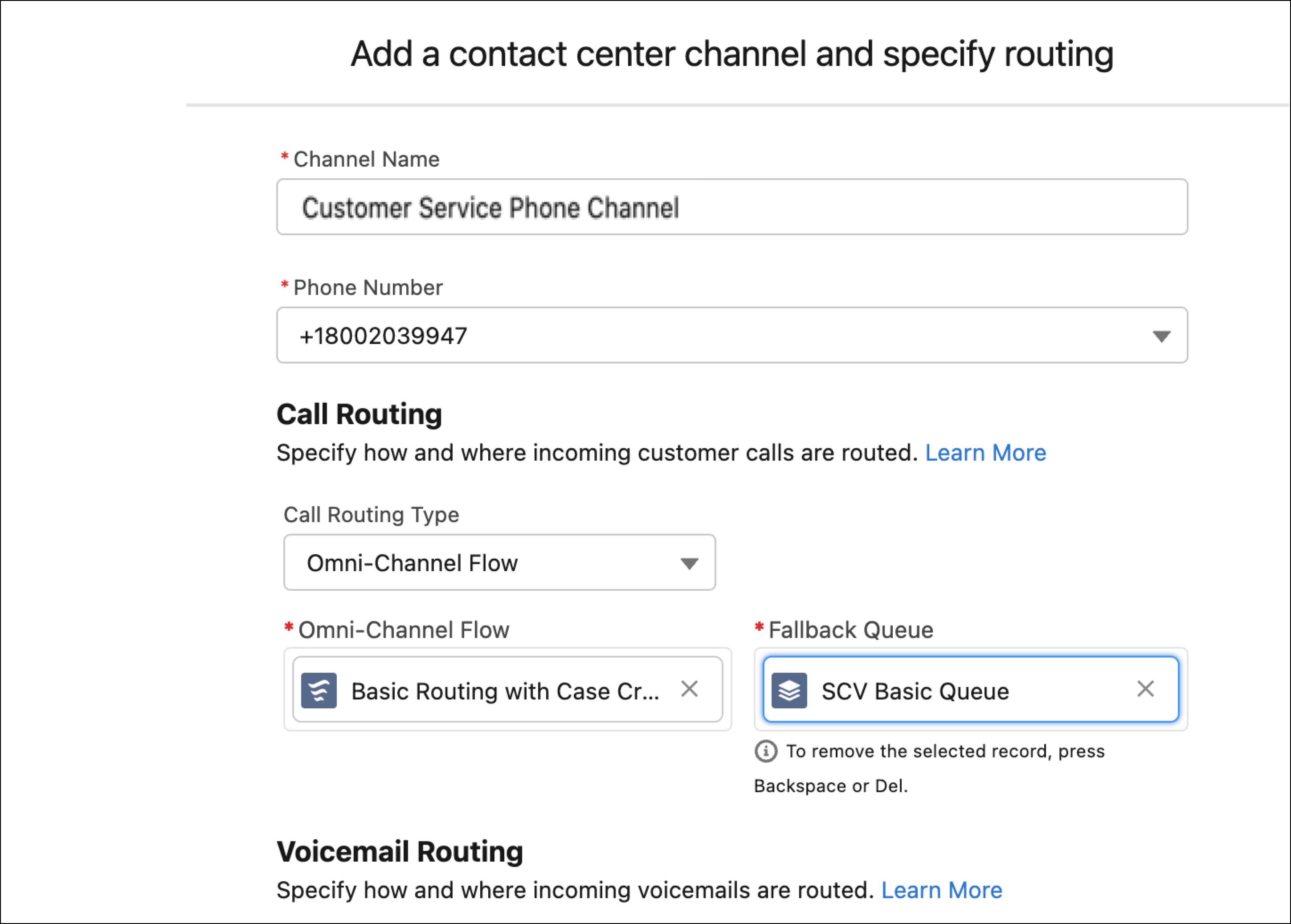
5. Click **Save**.