
Improve the calling experience for your customers by recording voicemail greetings that play automatically when you’re unable to answer a call. Any messages that your callers leave in response are stored in your voicemail box for you to review at any time.
Required Editions
| View supported editions. |
| User Permissions Needed | |
|---|---|
| To record and use voicemail greetings: | Manage Voicemail Greetings |
| To receive calls: | Salesforce Voice Contact Center Rep |

Applies to these telephony models
- Salesforce Voice with Amazon Connect
- Salesforce Voice with Partner Telephony (if supported by your telephony provider)
You can record up to ten voicemail greetings and store them in your voicemail library. You must set one message as the default. If you haven’t set a default recording, the first message is automatically selected as the default.
- From your profile, go to Settings.
-
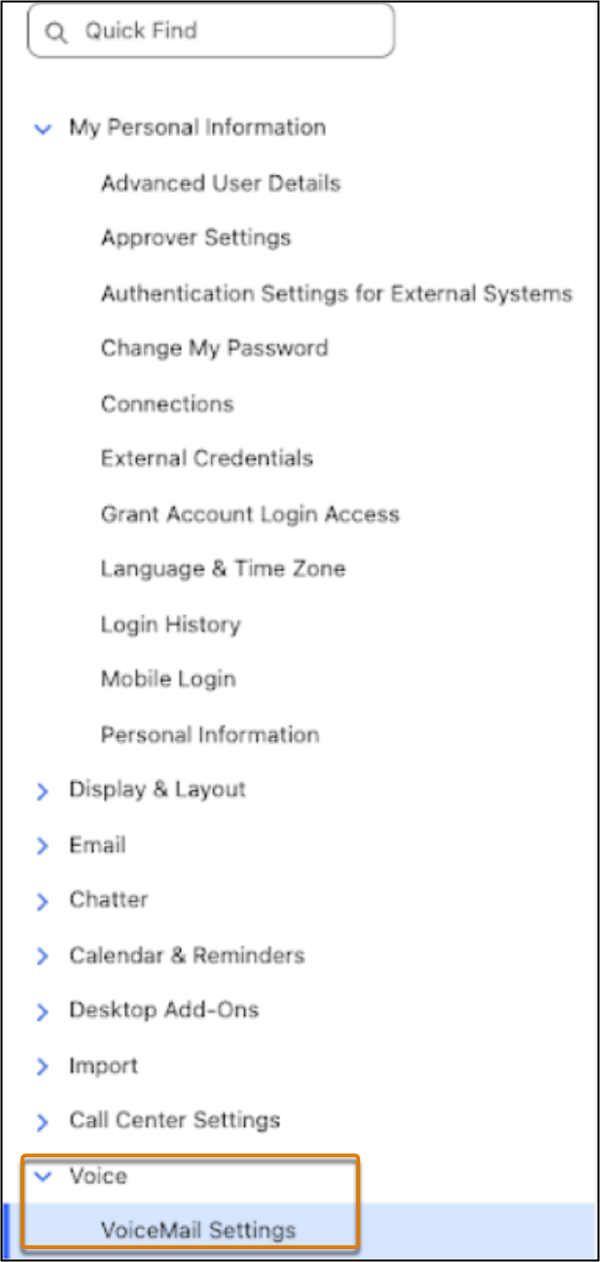
In the Quick Find box, enter Voice, and select Voicemail
Settings.
-
To add a voicemail greeting, click Add Voicemail Greeting.
- Enter a name for the recording.
-
Upload a file or Record an Audio from your
preferred input device to create the voicemail message.
The audio file that you upload must be in .wav format with an 8 kHz sample rate and mono channel.
-
Save your changes.
Your voicemail greetings are shown in the Inbound Voicemail Greetings table. From here, you can reorder the list to change their priority.
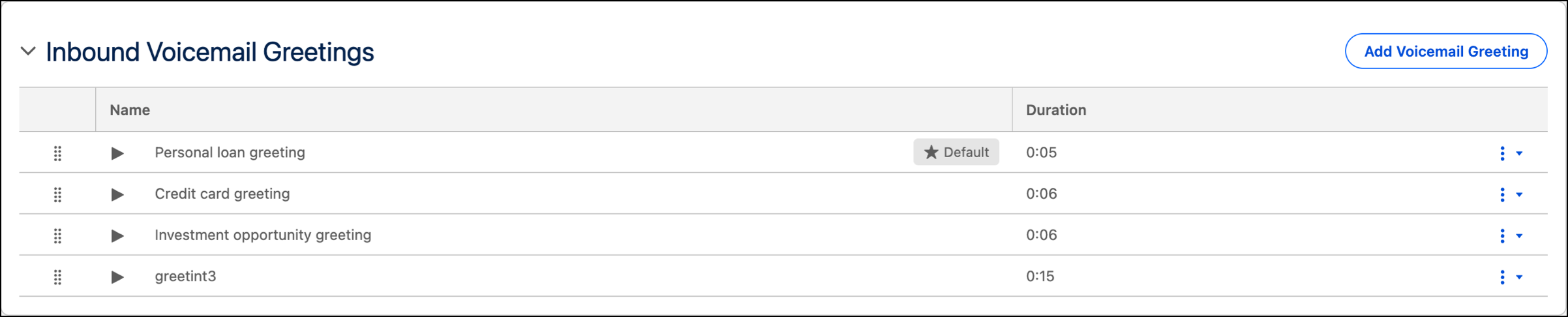
Use the Set Default option to set a recording as the default greeting. Use the Download or Delete option to download or delete the recording.
If you’ve claimed phone numbers, or your admin has assigned them to you, link a specific voicemail greeting to each number so that your callers hear the most relevant message. For more information, see Procure and Manage Phone Numbers.
If you created the S3 bucket and added it to your Amazon Connect instance manually, you must attach this CORS (Cross Origin Resource Sharing) configuration to the bucket:
[ { "AllowedHeaders": ["Content-Type"], "AllowedMethods": ["PUT"], "AllowedOrigins": ["https://yourdomain.lightning.force.com"], "ExposeHeaders": ["ETag", "x-amz-request-id", "x-amz-id-2"], "MaxAgeSeconds": 300 } ]VFSProvider apex interface.Listen to Voicemail Messages
View and listen to the voicemails that callers leave in response to your greeting message.
- Create a custom list view in the Voice Calls tab.
- Filter the list with the Owner as yourself and set the
CallOrigin field value as Voicemail. See Create List View for more information.
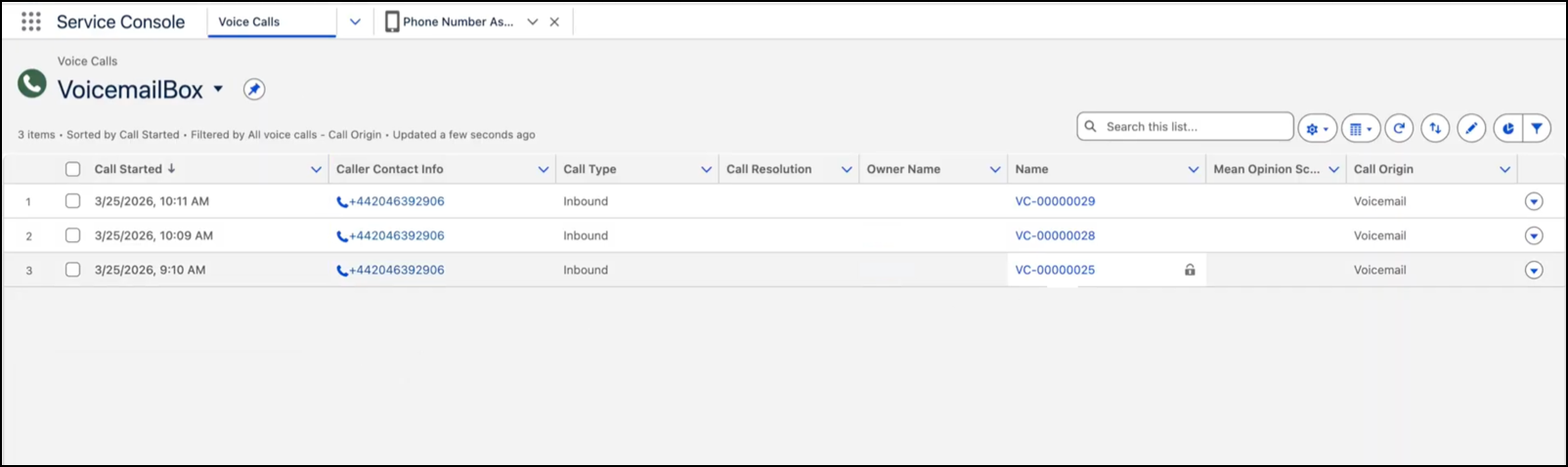
- Select the required voicemail record and go to the Recording tab to play the message.
Limitations of Voicemail Greeting
Keep these limitations of Voicemail Greeting in mind.
- You can’t delete a default recording. To delete your current default, first set a different recording as the default.
- You must access the Voice and Voicemail Settings tabs directly from a Lightning page. Otherwise, the uploads to the S3 bucket might be rejected due to Cross-Origin Resource Sharing (CORS) errors.
- To upload an audio file, it must be in .wav format, recorded with an 8 kHz sample rate and mono channel. This avoids playback issues such as distorted or robotic sound.