---
schema_version: "1"
id: dffce619198ea67bce2f58e19e04f9eb77c1628935dd54200acfda620fee4159
title: Configure Voicemail with Omni-Channel Unified Routing
collection: admin
version: current
locale: en-us
portal_url: https://docs.salesforce.com/admin/current/en-us/service/264-0-0/voice_omni_unified_routing_voicemail.md
canonical_url: https://help.salesforce.com/s/articleView?id=service.voice_omni_unified_routing_voicemail.htm&release=264.0.0&type=5
source_site: help.salesforce.com
content_type: documentation
content_hash: 5001c8c8de1d7e3d8699ddf15b1443cc0978cbacb87f6e2f8e5d95d25c4d2551
description: Configure voicemail support for a contact center that is set up for Omni-Channel Unified Routing.
products:
- Service Cloud
- Digital Engagement
release: "264"
---
# Configure Voicemail with Omni-Channel Unified Routing
Configure voicemail support for a contact center that is set up for Omni-Channel Unified Routing.
### Required Editions
This article applies to:
- Salesforce Voice with Amazon Connect
- Salesforce Voice with Partner Telephony from Amazon Connect
Before you begin, [Configure Unified Routing](https://help.salesforce.com/s/articleView?id=service.voice_omni_unified_routing_configure.htm&release=264.0.0&type=5 "Configure Omni-Channel Unified Routing for voice calls as part of contact center creation or incorporate it into your preexisting contact center. Omni-Channel Unified Routing uses Salesforce Omni-Channel as the routing engine. This means that you manage reps, queues, routing logic, rep statuses, and Command Center for Service directly in Salesforce. Use Amazon Connect to fulfill certain telephony requirements only.") for a contact center.
1. In Amazon Connect, select **Routing** and then select **Flows**.

Note These instructions reference sample Amazon Connect flows for admins setting up Omni-Channel Unified Routing in a brand new contact center. For a contact center with preexisting flows, interpret the steps and referenced flows according to your current setup.
2. If you’re using our sample flows, open the **Sample SCV Voicemail Subflow for Omni Routing** flow. Otherwise, edit your preexisting flow. If needed, import the [sample flow](https://github.com/service-cloud-voice/examples-from-doc/blob/main/ContactFlows/Sample_SCV_Voicemail_Subflow_For_Omni_Routing) into your Amazon Connect instance by downloading it from GitHub and then selecting **Create flow** and **Create customer queue flow** in Amazon Connect. For instructions on how to import flows, see the [Import/export flows page](https://docs.aws.amazon.com/connect/latest/adminguide/contact-flow-import-export.html) in the Amazon Connect Administrator Guide.
3. Update the sample subflow or your preexisting flow.
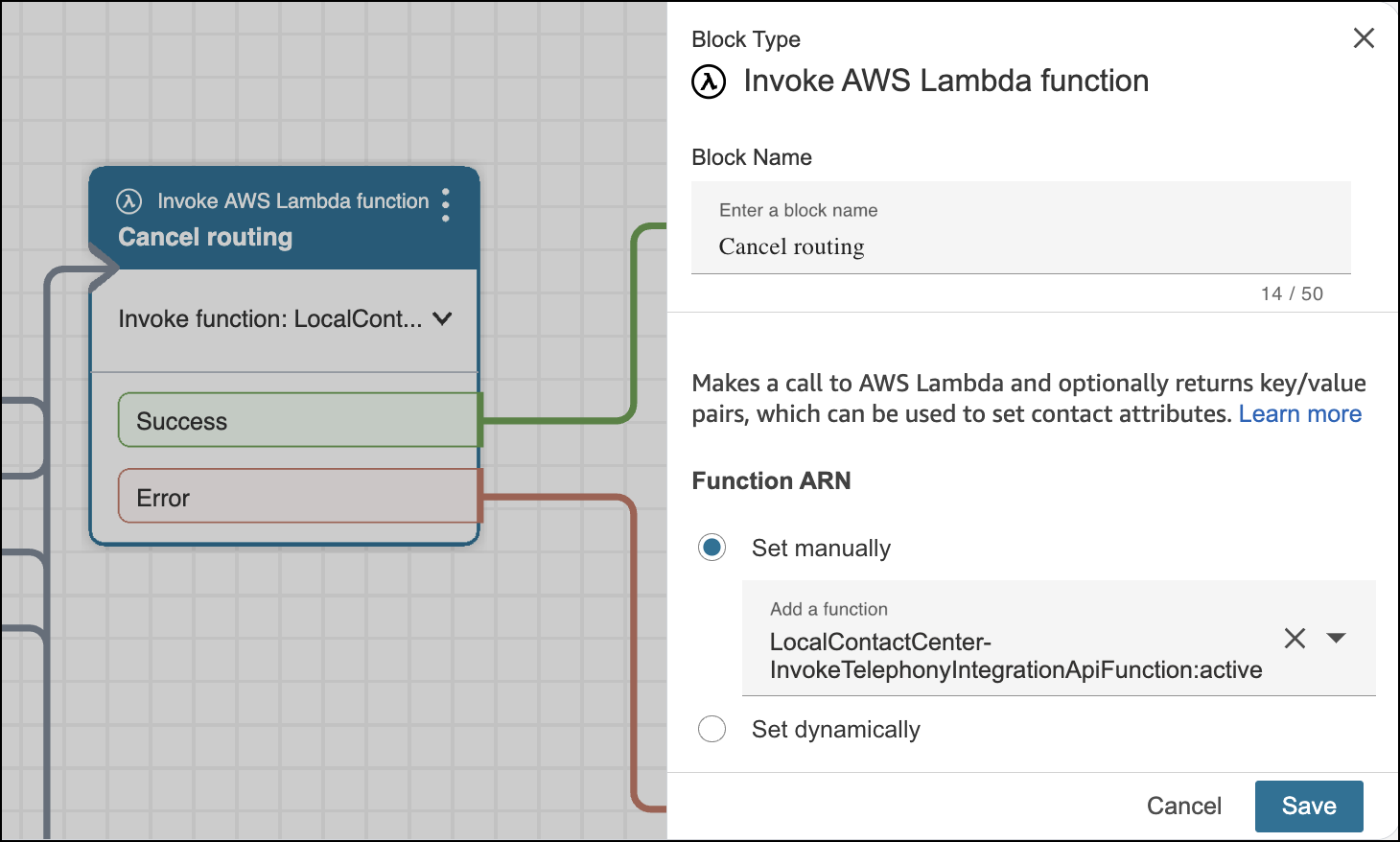
1. In the Invoke AWS Lambda function block named **Cancel routing**, update the Function ARN. Under **Set manually**, select a function that is prepended with the name of your contact center instead of a placeholder function name.
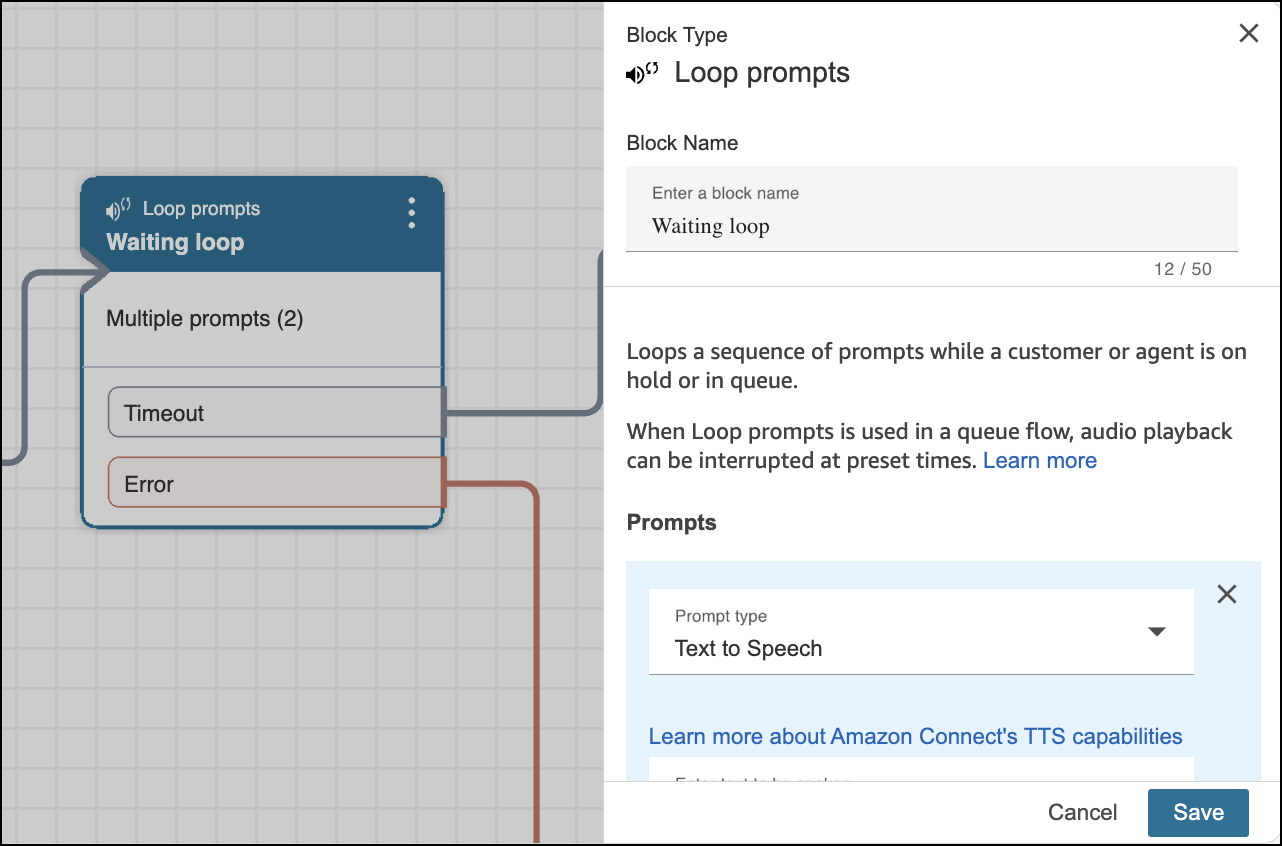
2. Optionally, to change the greeting prompts or adjust the interruption period for how often the IVR menu plays, update the Loop prompts block named **Waiting loop**.
4. In Amazon Connect, select **Routing** and then select **Flows**.
5. If you’re using our sample flows, edit the **Sample SCV Omni-Channel Subflow - Omni Routing With Case Creation** flow. Otherwise, edit your preexisting inbound flow.
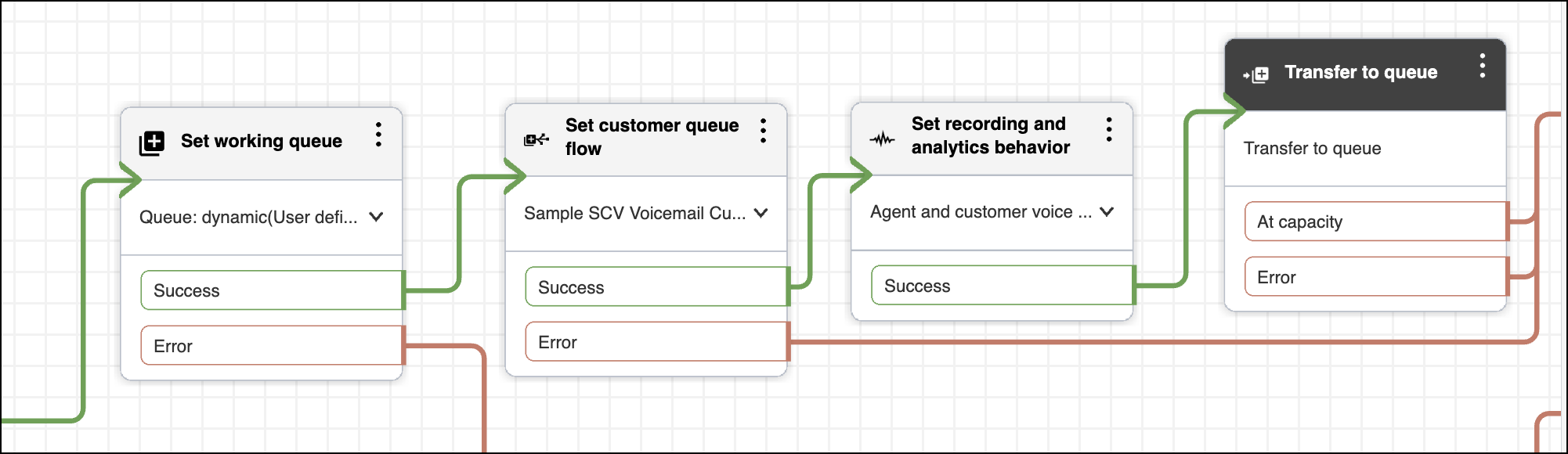
1. Delete the **Transfer to flow** block that appears after the **Set working queue** block.
2. Add a **Set customer queue flow** block, and place it in the flow after the **Set working queue** block. In the **Set customer queue flow** block, select the customer queue flow you created and imported in Step 3.
3. Add a **Set recording and analytics behavior** block, and place it in the flow after the **Set customer queue flow** block. Configure this block according to your business needs.
4. Add a **Transfer to queue** block, and place it in the flow after the **Set recording and analytics behavior** block.
Here’s an example of a modified flow.
6. Save your work and publish the flow.