---
schema_version: "1"
id: 96da46464aada171932098c8a62dc751e9d556c1e663ef429c975a81156ca900
title: Configure Omni-Channel Unified Routing
collection: admin
version: current
locale: en-us
portal_url: https://docs.salesforce.com/admin/current/en-us/service/264-0-0/voice_omni_unified_routing_configure.md
canonical_url: https://help.salesforce.com/s/articleView?id=service.voice_omni_unified_routing_configure.htm&release=264.0.0&type=5
source_site: help.salesforce.com
content_type: documentation
content_hash: 5684d6803b5faba0fcdf1a2dcbed5de92fd806fa2fea92a6d302e71fedb01237
description: Configure Omni-Channel Unified Routing for voice calls as part of contact center creation or incorporate it into your preexisting contact center. Omni-Channel Unified Routing uses Salesforce Omni-Channel as the routing engine. This means that you manage reps, queues, routing logic, rep statuses, and Command Center for Service directly in Salesforce. Use Amazon Connect to fulfill certain telephony requirements only.
products:
- Service Cloud
- Digital Engagement
release: "264"
---
# Configure Omni-Channel Unified Routing
Configure Omni-Channel Unified Routing for voice calls as part of contact center creation or incorporate it into your preexisting contact center. Omni-Channel Unified Routing uses Salesforce Omni-Channel as the routing engine. This means that you manage reps, queues, routing logic, rep statuses, and Command Center for Service directly in Salesforce. Use Amazon Connect to fulfill certain telephony requirements only.
### Required Editions
This article applies to:
- Salesforce Voice with Amazon Connect
- Salesforce Voice with Partner Telephony from Amazon Connect
Do you want to configure Omni-Channel Unified Routing for telephony partners other than Amazon? See [Unified Routing for Partner Telephony](https://help.salesforce.com/s/articleView?id=service.omni_unified_routing_byot.htm&release=264.0.0&type=5 "Unified routing for a contact center allows Salesforce to handle the routing of inbound and outbound voice calls, and call transfers to the reps using Omni-Channel flow. By consolidating all the routing within Salesforce, unified routing provides a single source of truth for agent capacity, enabling optimized workload distribution and prioritized handling of voice calls. This consolidated routing ensures reduced wait times, improved agent productivity, and a more seamless Omni-Channel experience. You can use unified routing only if your telephony provider supports it.").
## Configure Omni-Channel Unified Routing in Salesforce
Start configuring Omni-Channel Unified Routing for voice calls in Salesforce. These instructions show setup for queue-based routing.
Before you begin:
- In [Omni-Channel settings](https://help.salesforce.com/s/articleView?id=service.omnichannel_enable.htm&language=en_US), turn on Enhanced Omni-Channel and Enable Skills-Based and Direct-to-Agent Routing. If you are using Standard Omni-Channel, [upgrade to Enhanced Omni-Channel](https://help.salesforce.com/s/articleView?id=service.omnichannel_upgrade_standard_to_enhanced.htm&type=5&language=en_US).
- Turn on Salesforce Voice through one of the supported telephony models: [Salesforce Voice with Amazon Connect](https://help.salesforce.com/s/articleView?id=service.voice_setup_enable.htm&release=264.0.0&type=5 "When you turn on Salesforce Voice with Amazon Connect (formerly Service Cloud Voice with Amazon Connect), Salesforce creates an Amazon Web Services (AWS) account that’s used to create your Amazon Connect instance.") or [Service Cloud Voice with Partner Telephony from Amazon Connect](https://help.salesforce.com/s/articleView?id=service.voice_pt_amazon_setup.htm&release=264.0.0&type=5 "You may already have an Amazon Connect instance or want to manage your own Amazon Web Services account. Salesforce Voice with Partner Telephony from Amazon Connect (formerly Service Cloud Voice with Partner Telephony from Amazon Connect) lets you integrate your own Amazon Connect instance with Salesforce Voice. Before you start, review the Voice prerequisites, limitations, and planning resources.").
- Make sure you have an Amazon Contact Center created according to the telephony model specifications and that you have [claimed a phone number in Amazon Connect](https://help.salesforce.com/s/articleView?id=service.voice_setup_amazon_connect_details.htm&release=264.0.0&type=5 "Get your contact center up and running by configuring your Amazon Connect instance to work with Salesforce Voice (formerly Service Cloud Voice).").
- [Add users to your contact center](https://help.salesforce.com/s/articleView?id=service.voice_manage_access.htm&release=264.0.0&type=5 "Assign users access to Salesforce Voice with Telephony Providers (formerly Service Cloud Voice) features and add users to the contact center. Then, map the user accounts between the contact center and your telephony provider.") and make sure that they are mapped to telephony provider users.
- Request an evaluation of the Amazon Connect Service API rate limit for the UpdateContactRoutingData API to meet call volume needs. See [Increase Amazon Service Quotas](https://help.salesforce.com/s/articleView?id=service.voice_setup_aws_service_quotas.htm&release=264.0.0&type=5 "Salesforce Voice (formerly Service Cloud Voice) uses Amazon Web Services products, such as Amazon Connect for telephony and Amazon Transcribe for real-time transcription. AWS observes service quotas, or default limits, on Amazon Connect, Amazon Transcribe, and other AWS features. To increase the quota for your Connect instance if you have Salesforce Voice with Amazon Connect (formerly Service Cloud Voice with Amazon Connect), contact Salesforce. To resolve Amazon Connect issues, if needed, Salesforce works with and shares information with AWS Support. To increase the quota for your Connect instance if you have Salesforce Voice with Partner Telephony from Amazon Connect (formerly Service Cloud Voice with Partner Telephony from Amazon Connect), contact AWS.").
- Make sure you have access to sample Amazon Connect flows. New contact centers include access to Unified Routing sample flows directly in Amazon Connect. For preexisting contact centers, download JSON files from the [Sample Salesforce Voice flows](https://github.com/service-cloud-voice/examples-from-doc/tree/main/ContactFlows) page in GitHub and import them into your Amazon Connect instance. Our documentation references these flows:
- Sample SCV Omni-Channel Subflow - Omni Routing With Case Creation (queue-based routing)
- Sample SCV Omni-Channel Subflow - Omni Routing for Skills
- Sample SCV Omni-Channel Subflow - Omni Routing for Direct To Agent
- Sample SCV Transfer Flow For Omni Routing Transfers
- Sample SCV Voicemail Subflow for Omni Routing

Note These instructions follow our strong recommendation to create a separate holding queue for Omni-Channel Unified Routing. This recommendation works for most customers. For existing Voice customers migrating Voice to Omni-Channel Unified Routing who have applications that require queue information in Amazon Connect, we provide configuration recommendations in the Optional: Configure Omni-Channel Unified Routing in Salesforce but Keep Queues in Amazon Connect section.
1. From Setup, in the Quick Find box, enter and select `Amazon Setup`. Scroll down to More Voice Settings and turn on **Update Amazon Connect Queues and Routing Profiles**.
2. Verify that [Omni-Channel is enabled](https://help.salesforce.com/s/articleView?id=service.voice_omni_channel_enable.htm&release=264.0.0&type=5 "Before you can turn on Voice, enable Omni-Channel so your support team can make and receive calls.").
3. Verify that you have a service channel for routing voice calls or [create a service channel](https://help.salesforce.com/s/articleView?id=service.service_presence_create_service_channel.htm&language=en_US) for routing voice calls.
4. Return to the Quick Find box in Setup and enter `Routing Configurations`. [Define a routing configuration](https://help.salesforce.com/s/articleView?id=service.service_presence_create_routing_configuration.htm&language=en_US) or edit an existing routing configuration.
1. Set **Routing Model** to **Most Available** or **Least Active**. The External Routing selection isn’t compatible with Omni-Channel Unified Routing.
2. Set **Percentage of Capacity** to 100%.
5. Return to the Quick Find box in Setup and enter `Queues`. [Create a Salesforce queue](https://help.salesforce.com/s/articleView?id=service.setting_up_queues.htm&language=en_US) with Voice Call as a **Supported Object**. Associate the queue with the routing configuration defined in Step 4. Create additional queues as needed for your contact center, based on your routing needs and business logic.
6. In addition to the queues you created for routing, set up a separate queue in Salesforce with Voice Call as a **Supported Object**. You can name it whatever you want, but conceptually this is your holding queue. It will be mapped to a working queue in Amazon Connect.
1. Associate your holding queue with a routing configuration that has a routing model of Most Available or Least Active (not External Routing).
2. Don’t add any contact center users to the holding queue.

Note This holding queue that’s mapped to a working queue in Amazon Connect satisfies one of the core requirements for this feature. It makes sure that reps have access to the queue set in the **Set working queue** block in the Amazon Connect flow, which is a prerequisite to connect the call.
7. Return to the Quick Find box in Setup and enter `Amazon Contact Centers`. Select your Amazon Connect Contact Center.
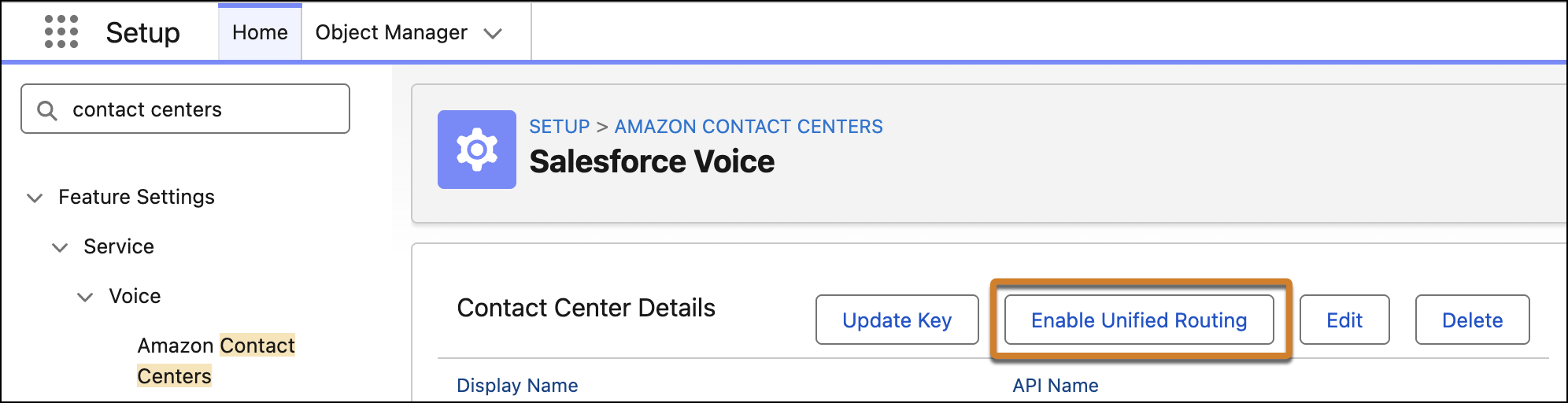
8. In the Contact Center Details section, click **Enable Unified Routing**.
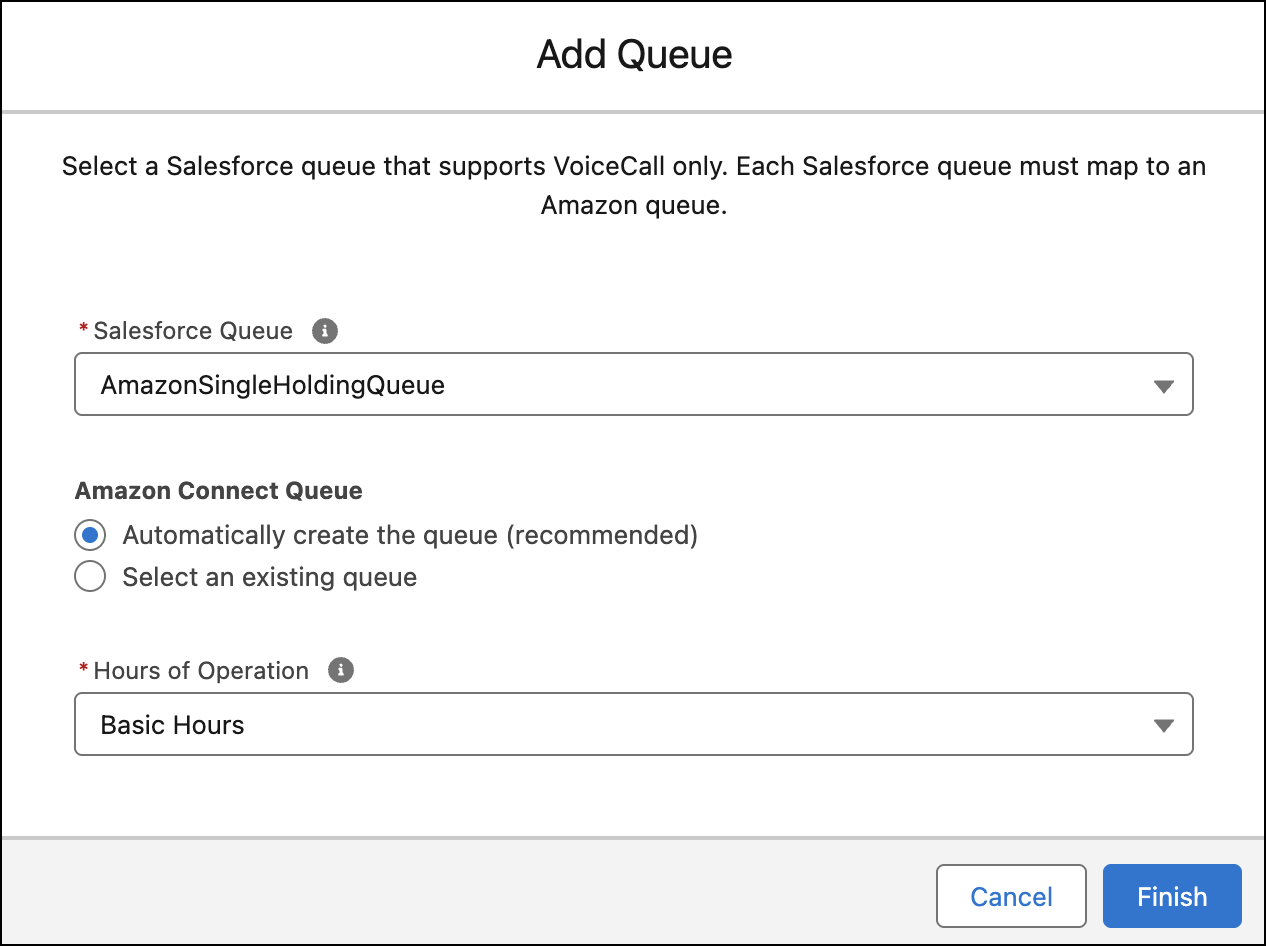
9. Under Contact Center Queues, add the holding queue you created to the contact center.
1. For Salesforce Queue, select the queue created in Step 6.
2. For Amazon Connect Queue, select **Automatically create the queue**. This maps the Salesforce queue to a new queue in Amazon Connect.
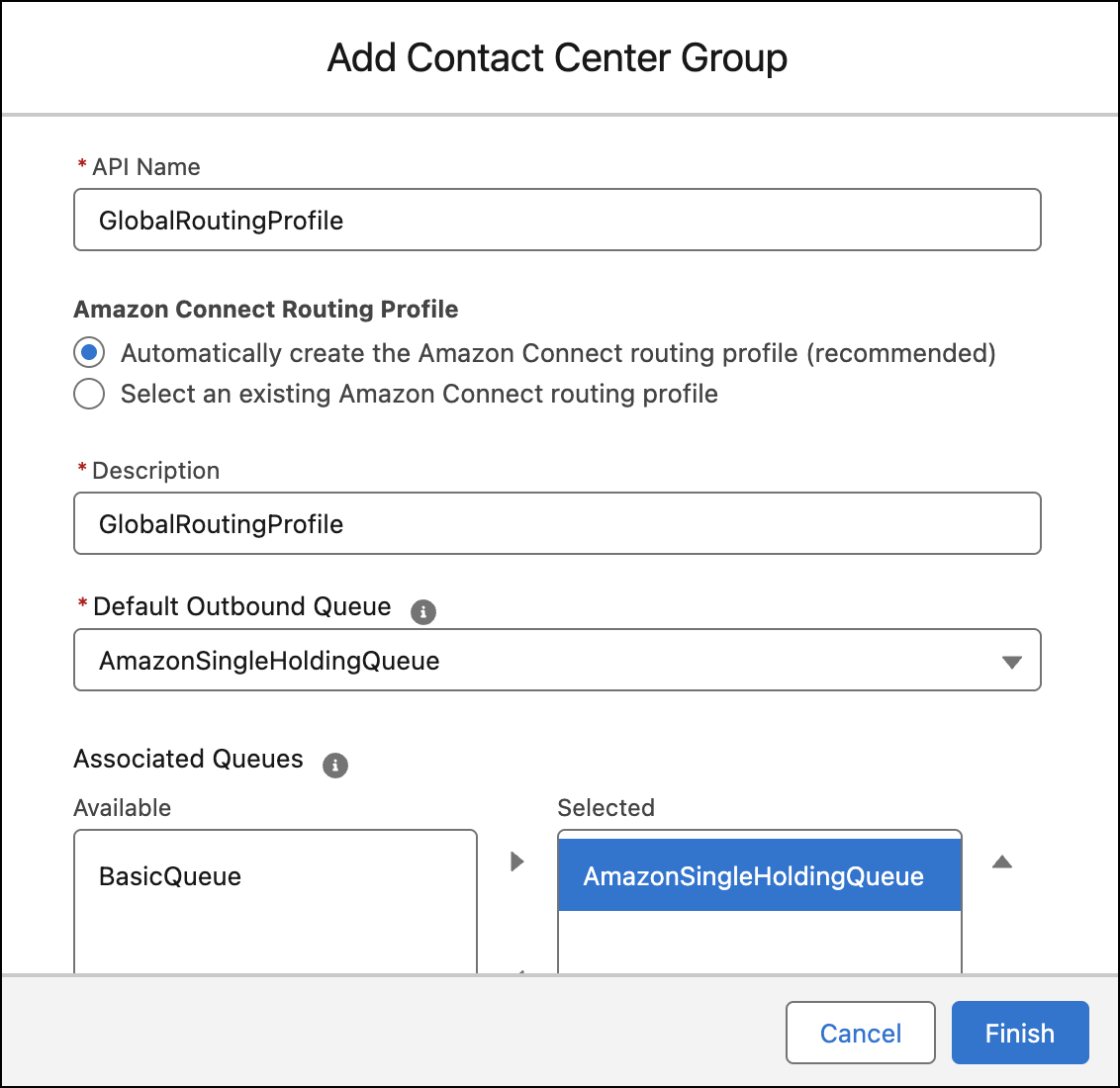
10. Go to the Contact Center Groups section and [add a new contact center group to the Amazon Connect Routing Profile](https://help.salesforce.com/s/articleView?id=service.service_omni_queues_manage.htm&release=264.0.0&type=5 "If your telephony provider supports assigning groups of reps to queues, use Queue Management. With Queue Management, you manage Salesforce reps by assigning them to contact center groups. For example, you can create different groups of reps based on skills, such as product support and sales.").
1. Associate the holding queue to this contact center group.
11. Assign contact center users to groups.
1. Go to the Contact Center Users section and select the checkboxes next to users in the contact center. Click **Assign to Group**. Under Contact Center Group, select the group you made, and then save your work.
2. If you have multiple contact center groups, make sure each user is assigned to a group and that the holding queue is associated with each group.
12. Go to the Contact Center Channels section, [create a Contact Center Channel](https://help.salesforce.com/s/articleView?id=service.voice_create_phone_channel.htm&release=264.0.0&type=5 "To configure call routing for voice calls, including Omni-Channel flows and queue routing, and to determine when to create an End User record, create a phone channel. After you create a phone channel, you can set up a caller ID tool to create or reuse an End User record and choose whether to associate the End User record with the number dialed.").
1. To route this phone channel’s calls to a specific queue, select **Queue** in the Call Routing Type field, and then enter the name of the Salesforce queue you want to route calls to.
2. To route this phone channel’s calls with an Omni-Channel flow, select **Omni-Channel Flow** in the Call Routing Type field, and then enter the names of the Omni-Channel flow and fallback queue.
3. To learn more about [direct-to-rep](https://help.salesforce.com/s/articleView?id=service.voice_omni_unified_routing_route_to_rep.htm&release=264.0.0&type=5 "Route voice calls directly to a preferred rep by using Omni-Channel Unified Routing. For example, you can route sales calls from customers to their account executives.") or [skill-based routing](https://help.salesforce.com/s/articleView?id=service.voice_omni_unified_routing_route_to_skill.htm&release=264.0.0&type=5 "Using Unified Routing with Omni-Channel, route voice calls with Omni-Channel skills. Make sure that a rep who has the correct skills to solve the problem takes the call."), follow our linked documentation.
After Salesforce configuration is complete, finish Omni-Channel Unified Routing basic setup in Amazon Connect.
## Optional: Configure Omni-Channel Unified Routing in Salesforce but Keep Queues in Amazon Connect
For existing Voice customers migrating to Omni-Channel Unified Routing who have applications that require queue information in Amazon Connect, a holding queue is recommended but isn’t required for queue-based routing. However, you must make sure that you follow these recommendations to ensure that telephony requirements are met.
- All of your Amazon Connect queues are mapped to Salesforce queues. Queues must be present inside Salesforce because Omni-Channel handles the routing instead of Amazon Connect.
- Create a Salesforce contact center group for each routing profile in Amazon Connect. If you don’t use a holding queue, make sure that all reps have access to the queue set in the **Set working queue** block, which is a prerequisite to connect the call.

Tip A holding queue is required for routing calls to a skill, direct-to-rep routing, and transferring calls with Omni-Channel Unified Routing. On its own, maintaining queue mapping won’t satisfy the core working queue requirement for these routing features.
## Configure Unified Routing in Amazon Connect
Finish the basic setup for voice calls to use Omni-Channel Unified Routing in Amazon Connect.

Tip New contact centers include access to Unified Routing sample flows directly in Amazon Connect. For preexisting contact centers, download JSON files from the [Sample Salesforce Voice flows](https://github.com/service-cloud-voice/examples-from-doc/tree/main/ContactFlows) page in GitHub and import them into your Amazon Connect instance. Unless specified in help content, select Create flow to import instead of selecting a specific flow type. For instructions on how to import flows, see the [Import/export flows](https://docs.aws.amazon.com/connect/latest/adminguide/contact-flow-import-export.html) page in the Amazon Connect Administrator Guide. After importing, make sure to update Invoke AWS Lambda function blocks by selecting a lambda that matches your contact center instance.
1. To go to the Amazon Connect Admin Dashboard associated with your contact center, go to the Contact Center Details section in Salesforce and click **Telephony Provider Settings**.
2. Make sure all reps in your contact center have auto-accept enabled in Amazon Connect so that Omni-Channel can handle routing and accepting calls. Auto-accept is on by default for reps added to a contact center after Unified Routing is enabled in Salesforce. For all other reps, such as preexisting users in the contact center, follow Amazon’s instructions to [enable auto-accept calls](https://docs.aws.amazon.com/connect/latest/adminguide/enable-auto-accept.html) for reps.
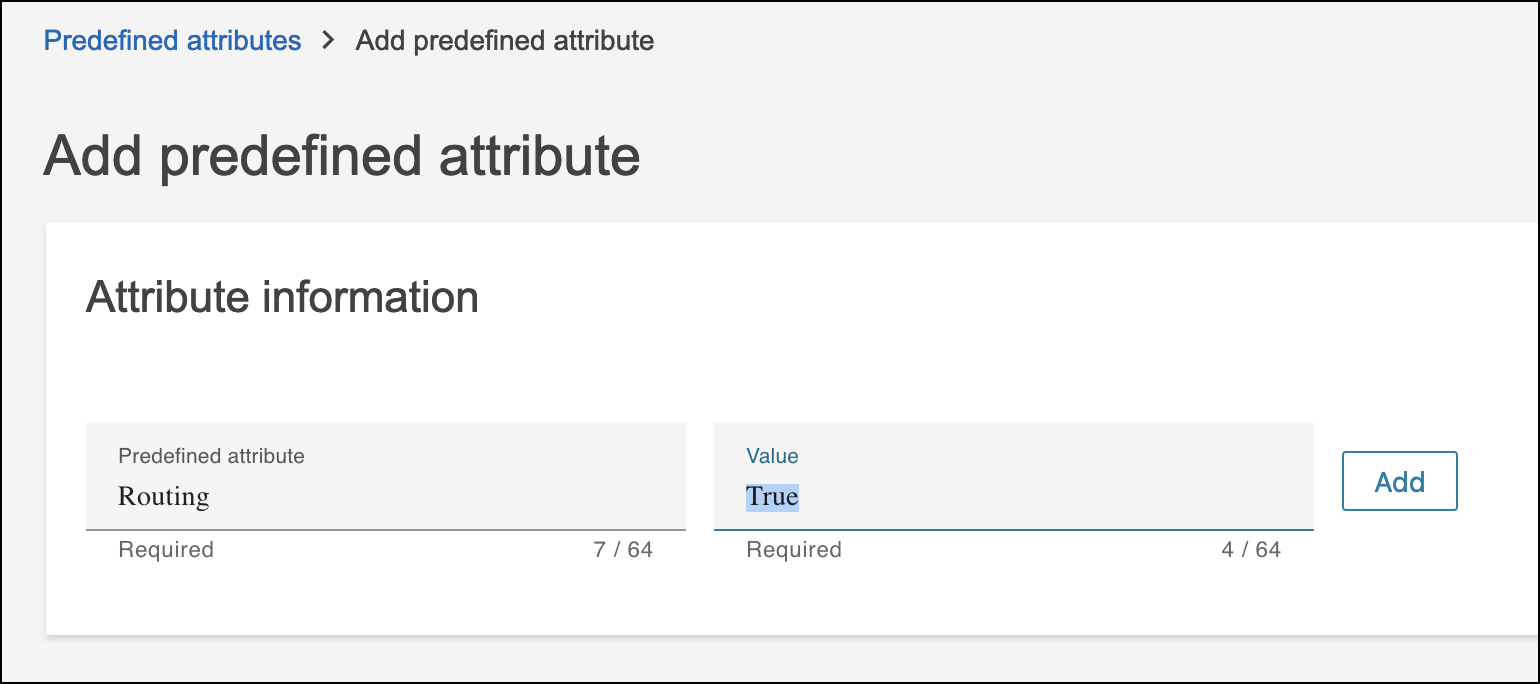
3. Follow Amazon’s instructions to [create a predefined attribute for routing contacts](https://docs.aws.amazon.com/connect/latest/adminguide/predefined-attributes.html) to reps. Make sure your security profile has the permissions required to add predefined attributes to Amazon Connect.
1. Set **Predefined attribute** to **Routing**. Because Salesforce uses this value as part of an API call, you must use **Routing**.
2. Set **Value** to **True**.
4. In Amazon Connect, select **Routing** and then select **Flows**.

Note
- These instructions reference sample Amazon Connect flows for admins setting up Omni-Channel Unified Routing in a brand new contact center. For a contact center with preexisting flows, interpret the steps and referenced flows according to your current setup. For example, edit your inbound flow to meet the requirements below.
- If you’re using our sample flows end-to-end, edit the Sample SCV Inbound Flow to transfer to the Sample SCV Omni-Channel Subflow - Omni Routing With Case Creation flow.
5. Edit the Sample SCV Omni-Channel Subflow - Omni Routing With Case Creation flow or your preexisting inbound flow that’s connected a phone number according to your business needs.
While Salesforce provides sample Amazon Connect flows as a reference, each organization usually adds unique business logic to their flow implementations. If you are updating an Amazon Connect flow to enable Omni-Channel Unified Routing, reference the example flow (Sample SCV Omni-Channel Subflow - Omni Routing With Case Creation) and keep these considerations and requirements in mind.
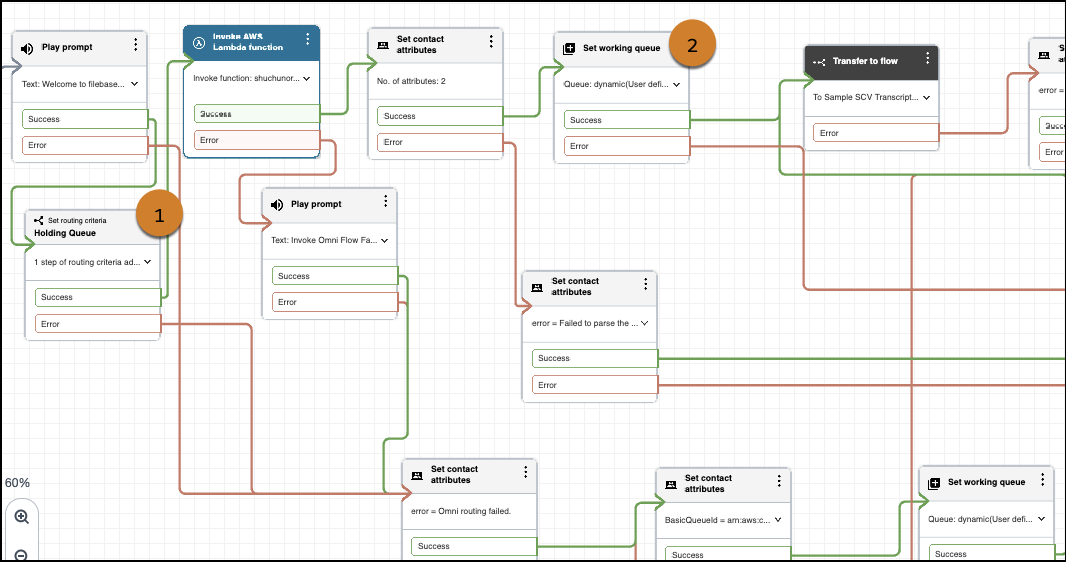
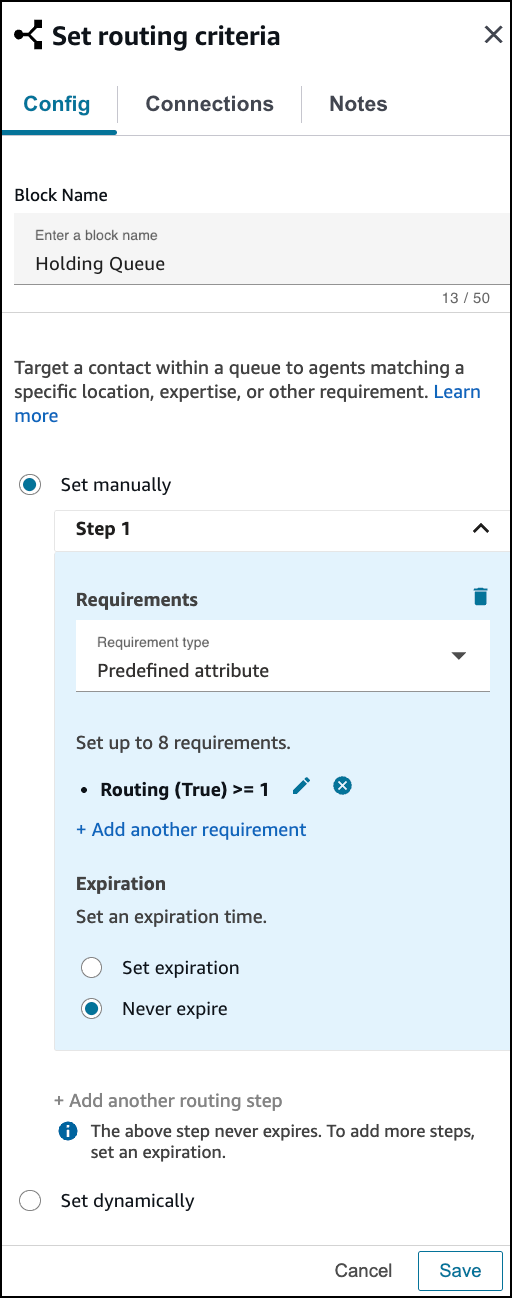
1. Include a **Set Routing criteria** block (1) before the Invoke AWS Lambda function block that invokes the executeOmniFlow method.
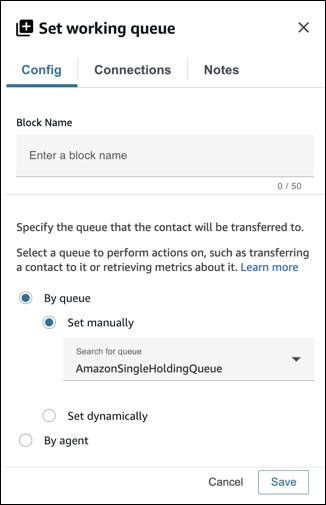
2. If you’re using the holding queue approach that we recommend, the **Set working queue** block (2) should be set **By Queue** manually to the working (holding) queue.
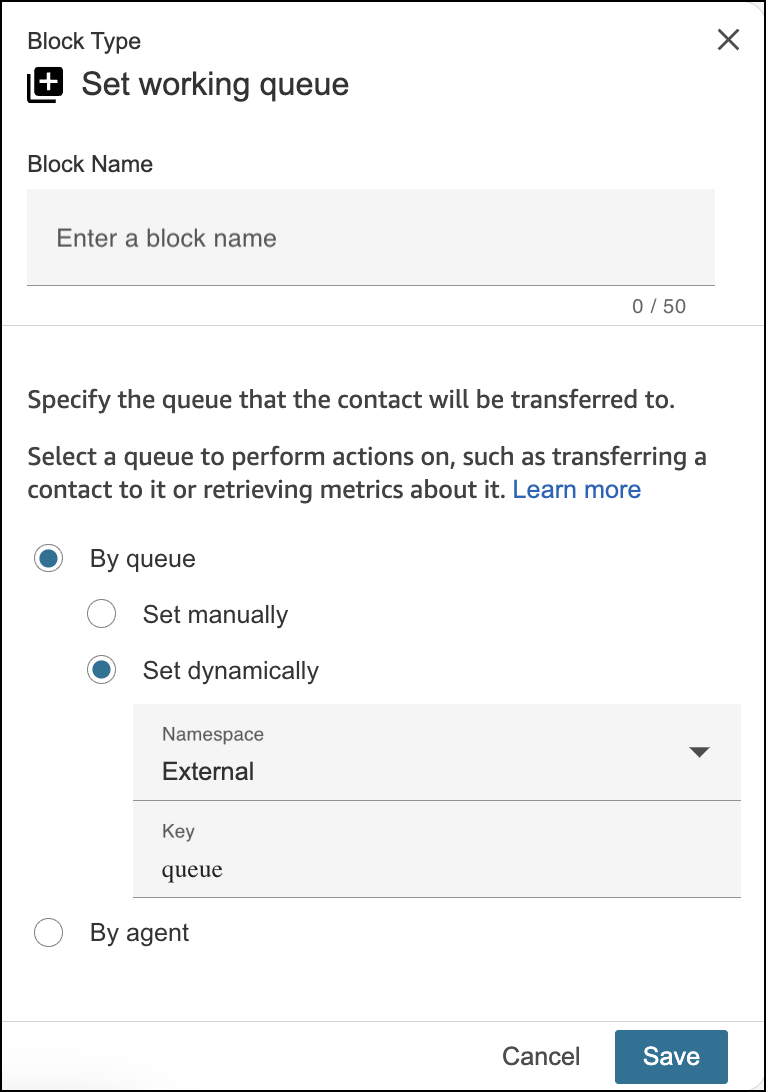
3. If you’re an existing Voice customer migrating to Omni-Channel Unified Routing and you want to maintain your current configuration in Amazon Connect, the **Set working queue** block (2) should be set **By Queue** dynamically to have the queue value returned by executeOmniFlow. This value can be accessed using Namespace as External and Key as queue, as shown in the screenshot. You can also set the queue manually by using a specified queue ARN.
6. Save your work and publish the flow.