---
schema_version: "1"
id: 413e144684fde8a4c0153d0dada156086ebf8fb0867e769fc978c4d20317f174
title: Configure Callbacks for Omni-Channel Unified Routing
collection: admin
version: current
locale: en-us
portal_url: https://docs.salesforce.com/admin/current/en-us/service/264-0-0/voice_omni_unified_routing_callback.md
canonical_url: https://help.salesforce.com/s/articleView?id=service.voice_omni_unified_routing_callback.htm&release=264.0.0&type=5
source_site: help.salesforce.com
content_type: documentation
content_hash: cc74935abea83325788d47641bf0bf11abf45c8218e45df3cbe7487838528fd2
description: Don’t make your customers wait on hold. Give them an option to request a callback from a rep. Salesforce uses contact requests to store callback information for voice calls that are routed with Omni-Channel Unified Routing.
products:
- Service Cloud
- Digital Engagement
release: "264"
---
# Configure Callbacks for Omni-Channel Unified Routing
Don’t make your customers wait on hold. Give them an option to request a callback from a rep. Salesforce uses contact requests to store callback information for voice calls that are routed with Omni-Channel Unified Routing.
### Required Editions
This article applies to:
- Salesforce Voice with Amazon Connect
- Salesforce Voice with Partner Telephony from Amazon Connect
Before you begin, [Configure Omni-Channel Unified Routing](https://help.salesforce.com/s/articleView?id=service.voice_omni_unified_routing_configure.htm&release=264.0.0&type=5 "Configure Omni-Channel Unified Routing for voice calls as part of contact center creation or incorporate it into your preexisting contact center. Omni-Channel Unified Routing uses Salesforce Omni-Channel as the routing engine. This means that you manage reps, queues, routing logic, rep statuses, and Command Center for Service directly in Salesforce. Use Amazon Connect to fulfill certain telephony requirements only.") for your contact center.

Note The status-based capacity model doesn’t support callbacks for Omni-Channel Unified Routing because contact requests aren’t compatible with status-based capacity.
When a rep becomes available, the contact request is pushed to the rep in the Omni-Channel utility. If the rep accepts the request, Omni-Channel either initiates the callback by automatically dialing the customer’s number or the rep has time to preview the contact request before clicking to dial the number. Optionally, if a customer requests a callback for a specific time, routing the contact request to a rep happens after a specified delay.
## Set Up Callbacks in Salesforce
Start by setting up callbacks in Salesforce. Either route to a queue or route to an Omni-Channel flow. With a queue, there is one callback attempt made to the customer. With a flow, optionally configure a delay between attempts and number of retry attempts if the callback call isn’t connected. Also optionally configure whether the rep can preview the callback or whether Omni-Channel dials the customer immediately.
Before you begin:
- [Create a service channel](https://help.salesforce.com/s/articleView?id=service.service_presence_create_service_channel.htm&language=en_US) that supports routing the Contact Request Salesforce Object, or edit an existing service channel to route contact requests.
- [Define a routing configuration](https://help.salesforce.com/s/articleView?id=service.service_presence_create_routing_configuration.htm&language=en_US) or edit an existing routing configuration.
- Set Routing Model to **Most Available** or **Least Active**. The External Routing selection isn’t compatible with Omni-Channel Unified Routing.
- Because the routing configuration is for a queue that handles callbacks as outbound voice calls, set **Percentage of Capacity** to 100%.
- [Create a Salesforce queue](https://help.salesforce.com/s/articleView?id=service.setting_up_queues.htm&language=en_US) or edit an existing queue, and add Contact Request as a Supported Object. Associate the queue with the routing configuration and add contact center users to the queue. Reps that are part of the queue must have access to a presence status where they are available to receive and make voice calls and handle contact requests.
1. To route callbacks using an Omni-Channel flow, [create an Omni-Channel flow](https://help.salesforce.com/s/articleView?id=service.omnichannel_create_a_flow.htm&language=en_US) with an Update Records action and Route Work action.
Skip these flow-related steps if you’re routing with a queue.
2. Add variables for the Omni-Channel flow in the Manager tab.
1. Add a recordId variable and mark it as available for input.
2. Add an input\_record variable for the Contact Request object and mark it as available for input and output.
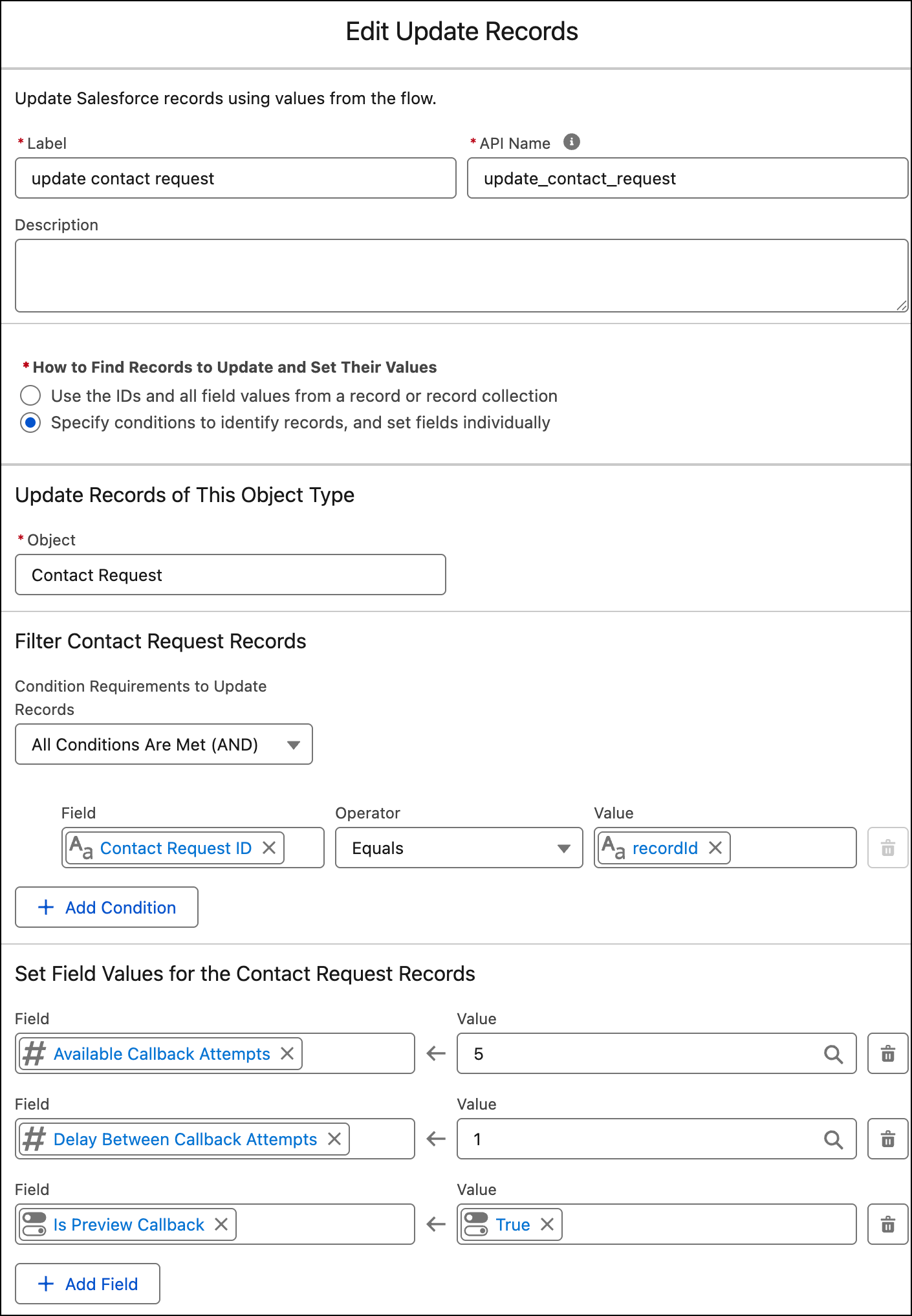
3. To configure the Update Records action:
1. Select **Contact Request** as the object.
2. Add a filter condition where Contact Request ID equals recordId.
3. To specify the number of callback attempts and delays between callback attempts, in the Set Field Values section, add the Available Callback Attempts and Delay Between Callback Attempts fields and set their values. Maximum for callback attempts is 5. Maximum for delays between callback attempts is 10,080 minutes (7 days).
4. To provide reps with the option to review a contact request and then start an outbound call manually, add the Is Preview Callback field, and set it to True. If this field isn’t added or is False, Omni-Channel starts the call as soon as the rep accepts a contact request.
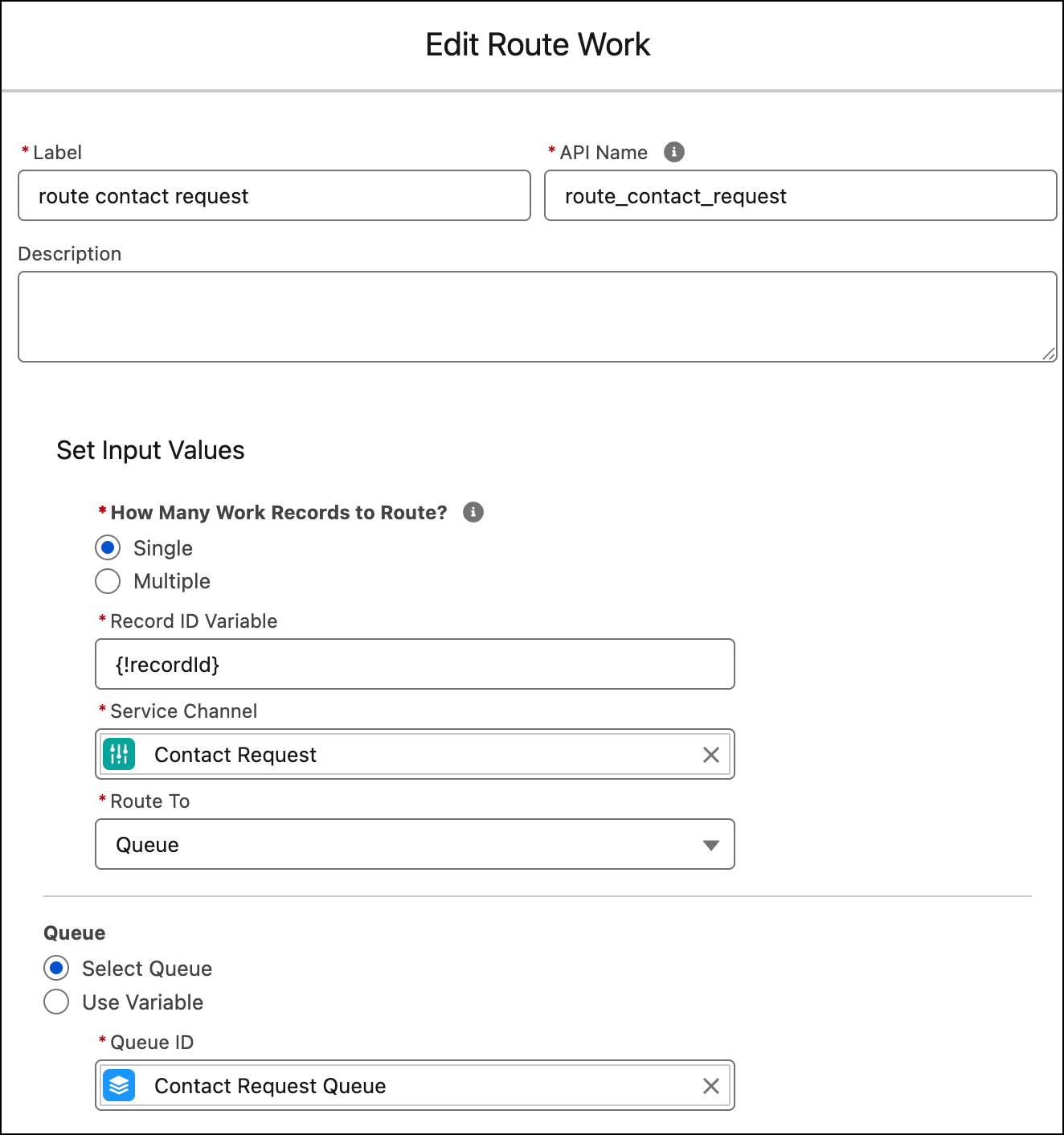
4. To configure the Route Work action:
1. In the How Many Work Records to Route field, select **Single**.
2. In the Record ID Variable field, enter {!recordId}.
3. Select the service channel that routes contact requests.
4. In the Route To field, select a destination.
5. Save and activate the Omni-Channel flow.
6. Return to the Quick Find box in Setup and enter Amazon Contact Centers.
7. Select your Amazon Connect Contact Center.
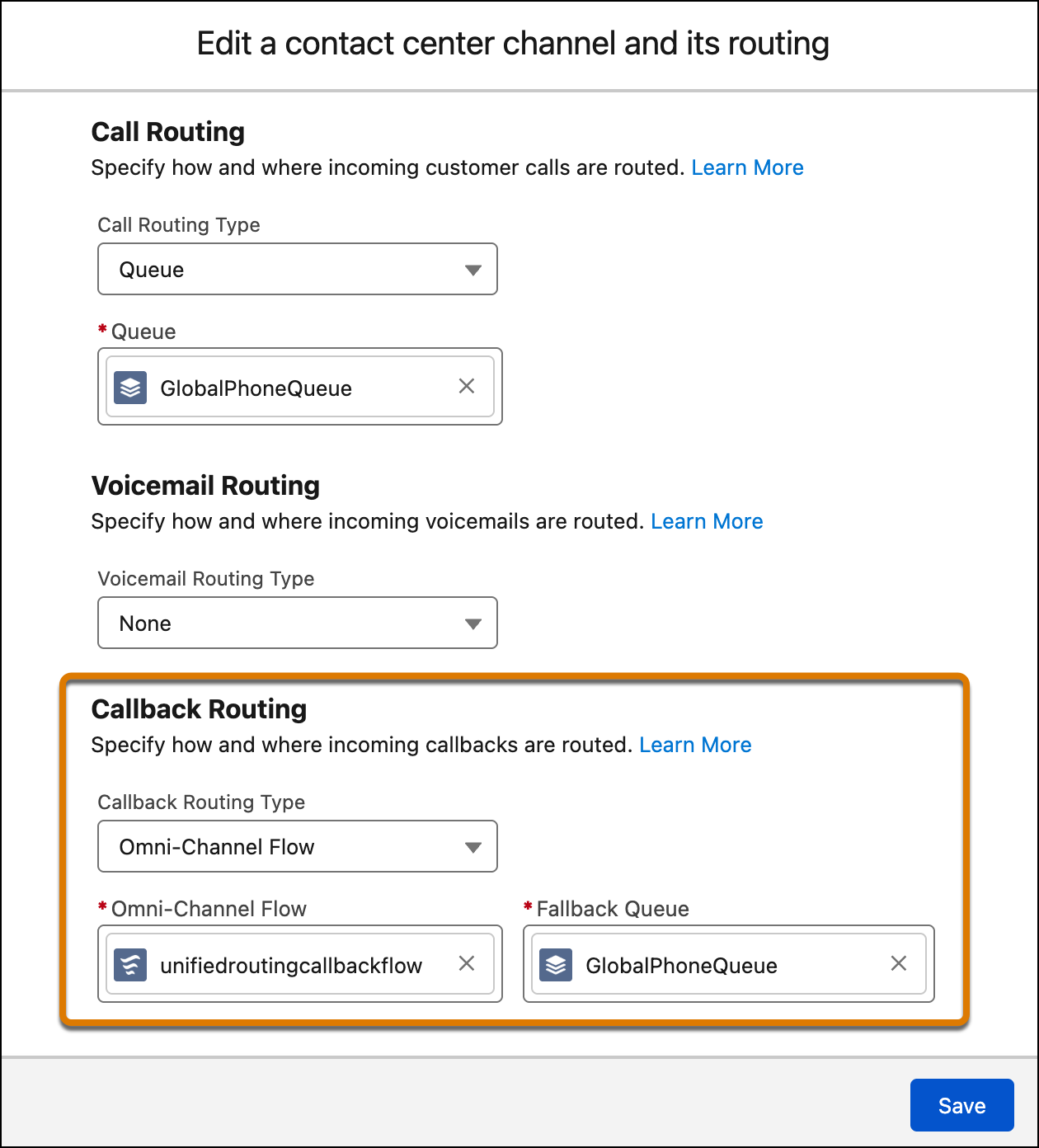
8. Go to the Contact Center Channels section, and [create a Contact Center Channel](https://help.salesforce.com/s/articleView?id=service.voice_create_phone_channel.htm&language=en_US) or edit an existing channel.
1. To route callback requests to a specific queue, select **Queue** in the Callback Routing Type field, and then enter the name of the Salesforce queue that you want to route callback requests to.

Note If you route to a queue, there’s only one callback attempt. You can’t set a delay between attempts or number of retry attempts if the callback call isn’t connected.
2. To route callback requests with an Omni-Channel flow, select **Omni-Channel Flow** in the Callback Routing Type field, and then enter the names of the Omni-Channel flow and fallback queue.
## Set Up Callbacks in Amazon Connect
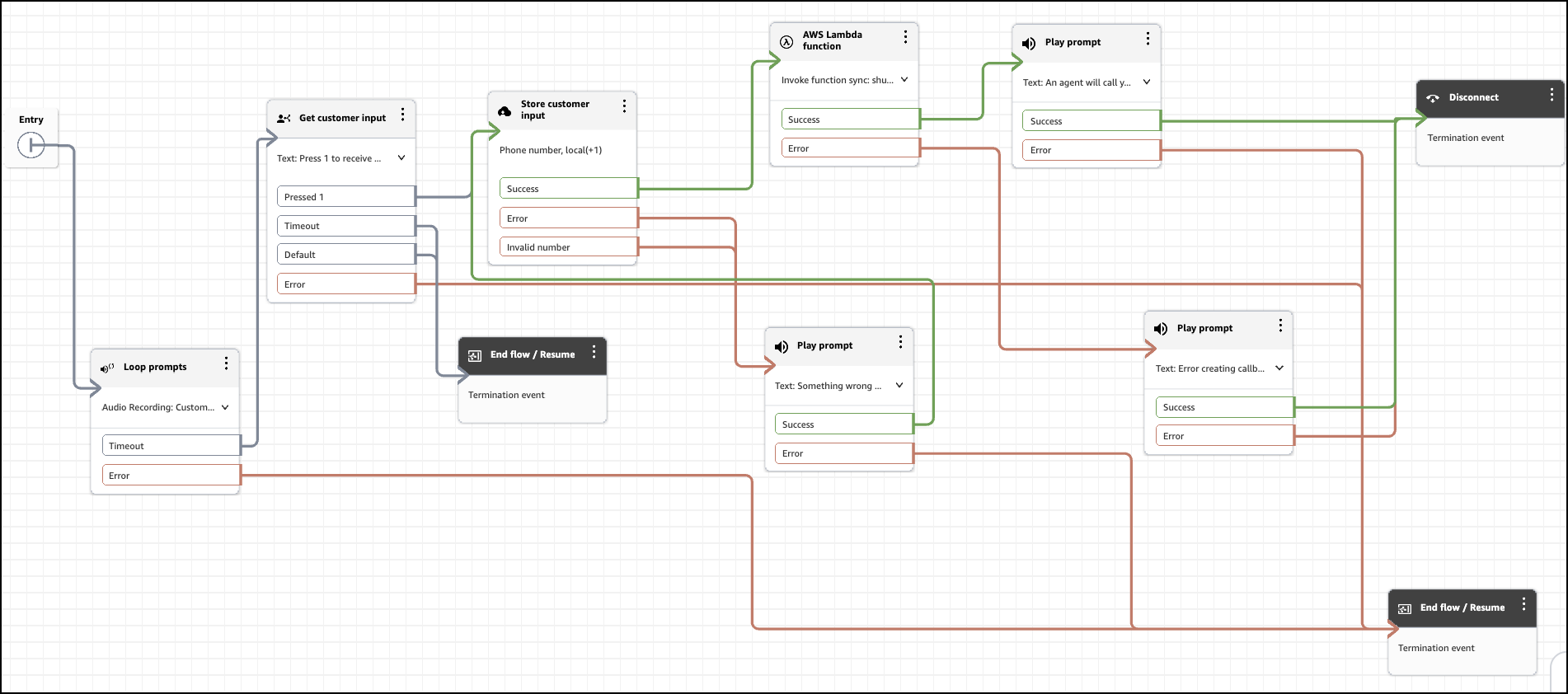
Finish callback setup in Amazon Connect. An Amazon Connect flow defines the interactive voice response (IVR) and asks the caller whether they want a callback after an interruption period has passed. If the caller opts for the callback, the IVR asks the caller to enter a callback phone number. This number gets passed into Salesforce by using the Request a Callback API.
1. To go to the Amazon Connect Admin Dashboard associated with your contact center, navigate to the Contact Center Details section in Salesforce and click **Telephony Provider Settings**.
2. In Amazon Connect, select **Routing**, then **Flows**.
3. Open the **Default Customer Queue** flow or the flow in your setup that contains a Loop Prompts block while a customer is waiting in a queue.
4. To give a customer the option to request a callback, add a Get Customer Input block with a condition that indicates whether a customer wants a callback. For example, call the customer back if they press 1.
5. To request and store the callback phone number, add a Store Customer Input block and select **Phone number** in the Customer Input field.
6. Optionally, to capture a customer’s scheduled callback time preference, use a Store Customer Input block or Get Customer Input block.
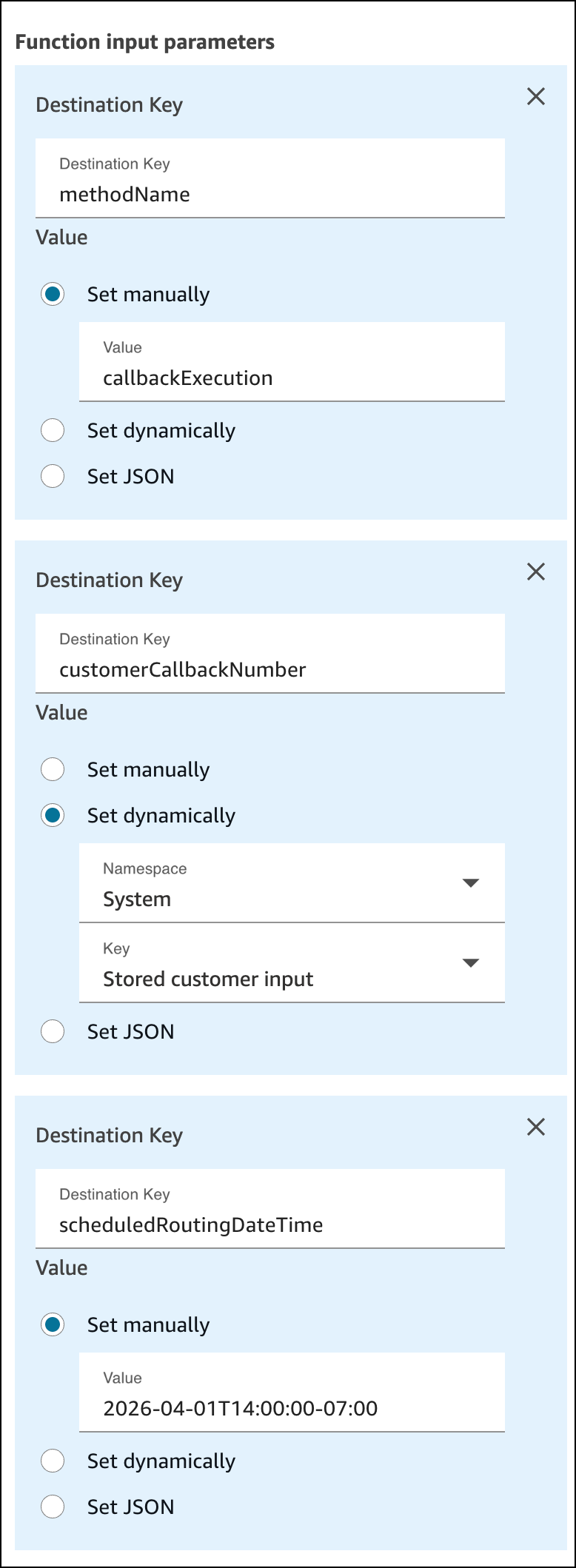
7. In the **AWS Lambda function** block, make these selections.
1. In the Select an Action field, select **Invoke Lambda**.
2. In the Function ARN field, select **Set manually**, and then select the InvokeTelephonyIntegrationAPIFunction for your contact center.
3. In the Execution Mode field, select **Synchronous mode**.
4. Add Function input parameters. Name the first destination key methodName and manually set its value to callbackExecution.
5. Name the second destination key customerCallbackNumber. For the second, select **Set Dynamically**, and then select **System** for the Namespace field and **Stored customer input** for the Key field.
6. Optionally, to schedule the callback, add a third destination key and name it scheduledRoutingDateTime. For production implementation, select **Set Dynamically**, and use the value gathered from the Store Customer Input block or Get Customer Input block earlier in the flow. The value of the scheduled time is a dateTime object in ISO 8601 format. For testing purposes the screenshot example shows selecting **Set Manually** and setting to a specific time.
8. Save and publish the flow.
Here’s an overview of an example flow configuration.
## Configure Related Records
Salesforce creates the outbound callback’s Voice Call record with Contact Request ID set as the RelatedRecord ID. Don’t manually set the RelatedRecord ID to another value.
To allow reps to access the related contact request from an outbound callback voice call record, in Setup, go to Object Manager. Edit the Voice Call object’s page layout to include the Related Record field.
#### See Also
- [_Amazon Connect Administrator Guide:_ Get customer input](https://docs.aws.amazon.com/connect/latest/adminguide/get-customer-input.html)
- [_Amazon Connect Administrator Guide:_ Store customer input](https://docs.aws.amazon.com/connect/latest/adminguide/store-customer-input.html)
- [_Amazon Connect Administrator Guide:_ Default customer queue flow in Amazon Connect: queue message and music](https://docs.aws.amazon.com/connect/latest/adminguide/default-customer-queue.html)