
Create one or more rules that Salesforce Voice can subscribe to and use to trigger real-time recommendations or auto-launched flows in Salesforce. Create a rule using one or more conditions that are based on uttered keywords, sentiments, customer attributes, or other criteria.
Required Editions
| View supported editions. |
After creating the rule in Amazon Connect, you must create a corresponding Conversation Intelligence rule in Salesforce scoped to a specific service channel instance. To apply the same action across multiple channels, create a separate Salesforce Conversation Intelligence rule for each channel and add the rule to your Amazon Connect instance as well.

Tip To perform exact keyword matching without any other conditions,
create a rule that automatically triggers an action based on detected
keywords.
-
In Amazon Connect, click Rules.
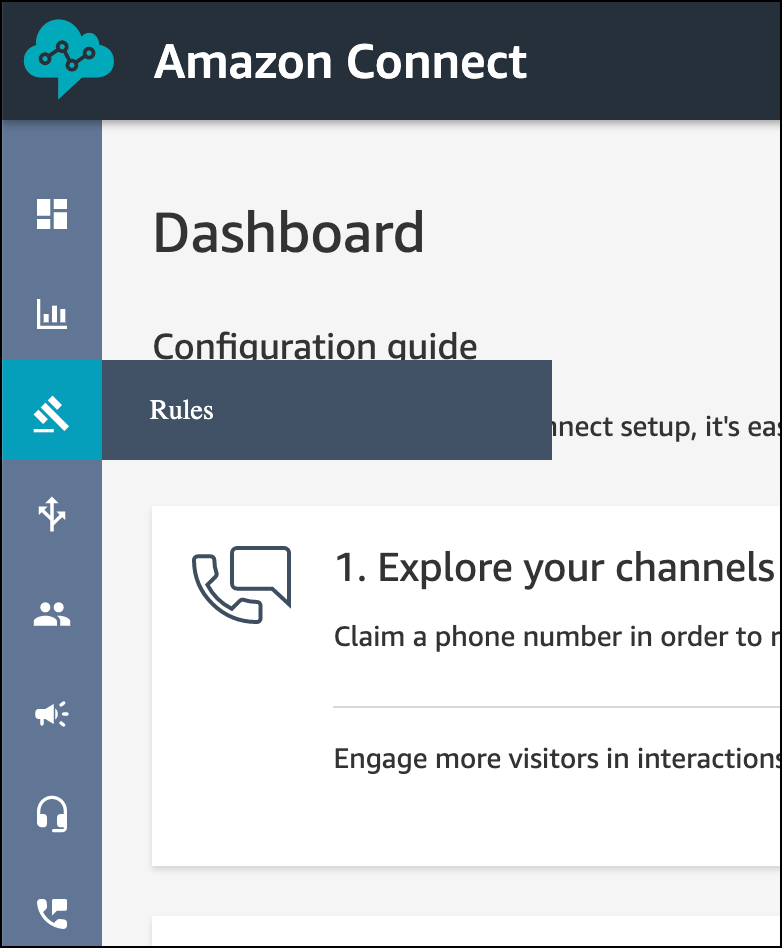
- Click Create a rule | Contact lens.
-
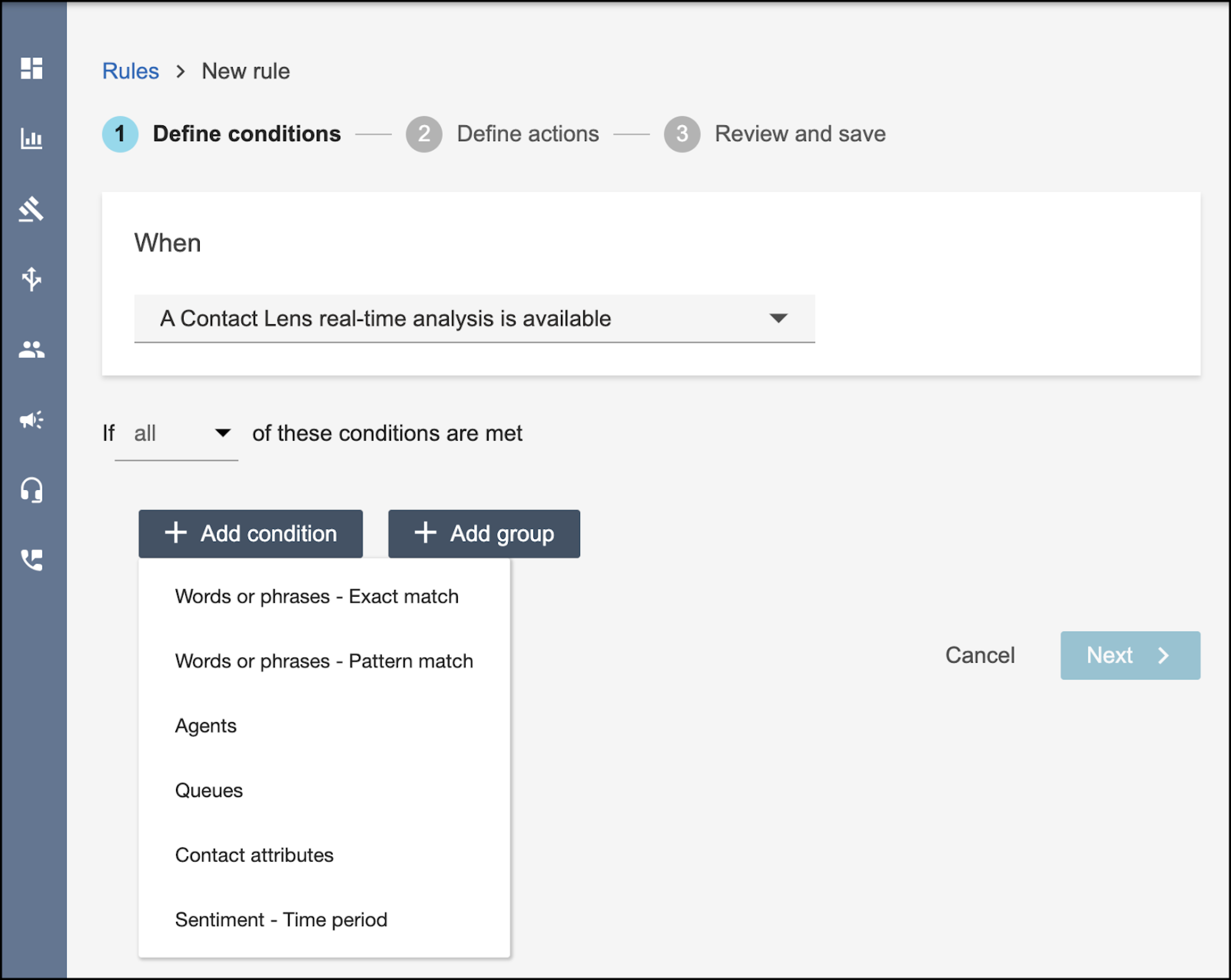
From the When dropdown, select A Contact Lens real-time analysis is
available.
Salesforce Voice with Telephony Providers (formerly Service Cloud Voice) doesn't support Contact Lens Post-Call Analysis.
-
To define a condition, click Add condition, select the condition
type, and then enter the condition.
-
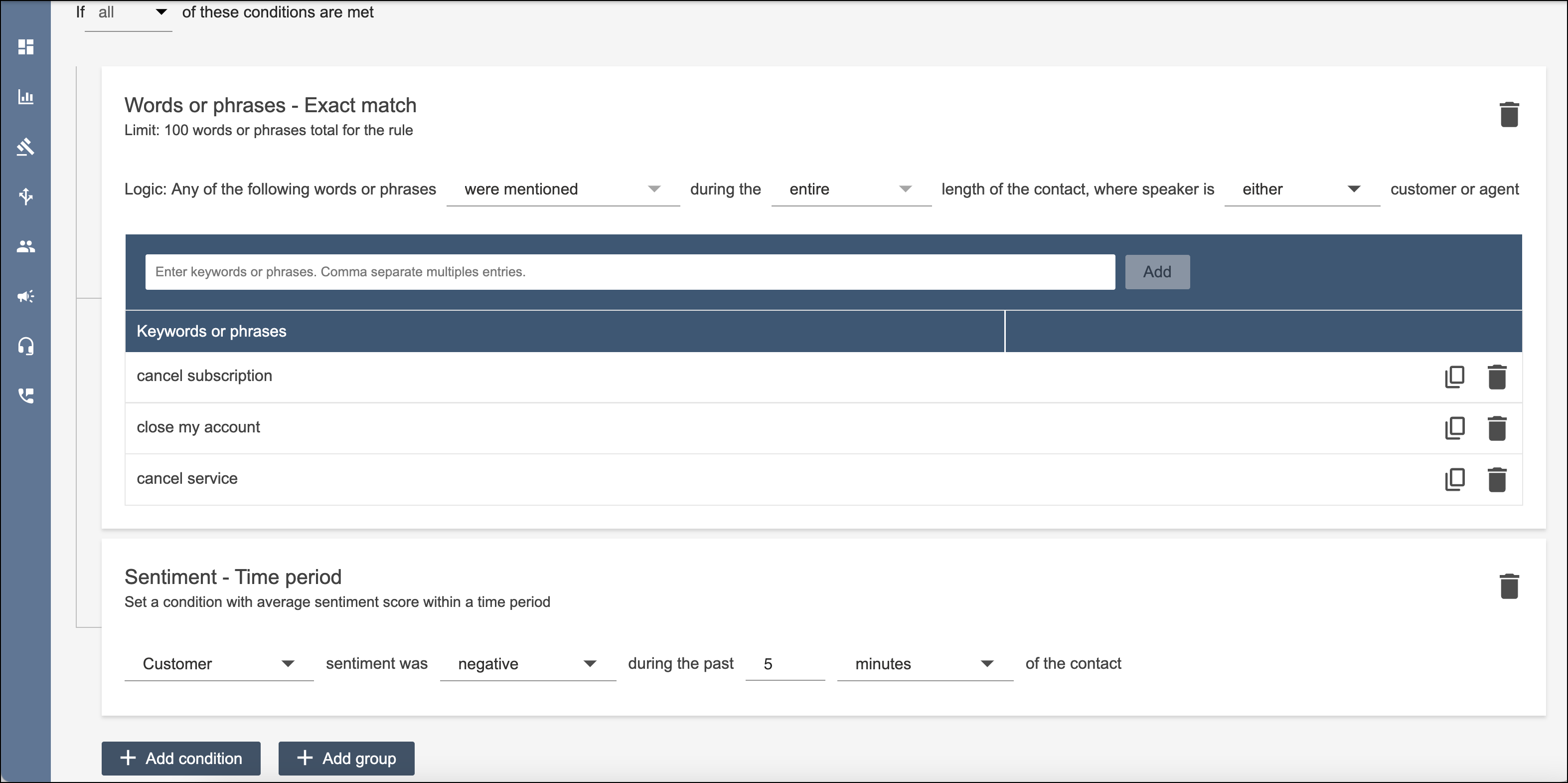
Add more conditions if needed. If you add multiple conditions, specify whether any or all
conditions must be met.
- Click Next.
-
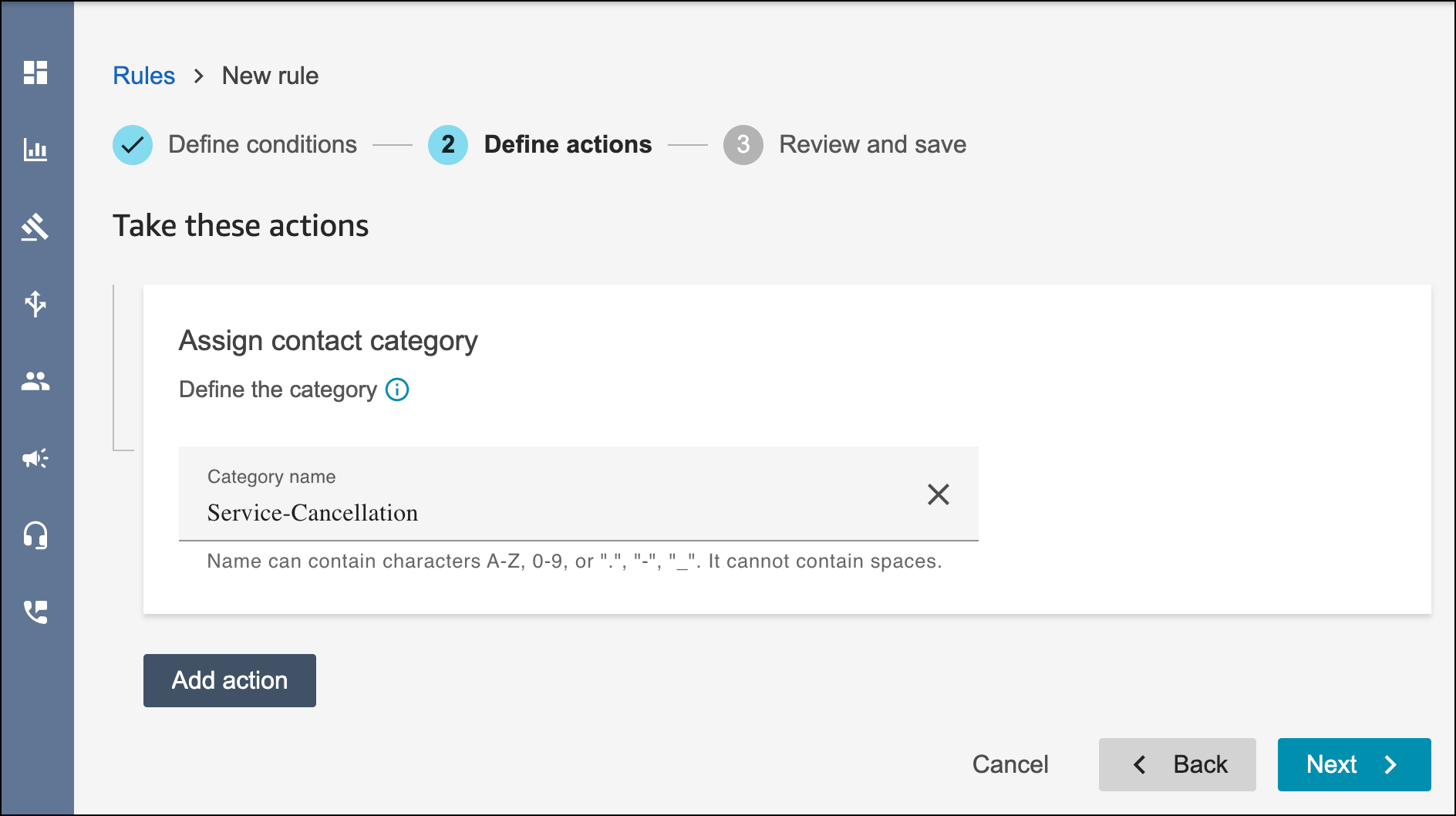
Enter a descriptive name of the category, such as
Service-Cancellation. The category name is the signal value that’s sent
to the custom component when a rule is detected.
Tip Don’t add an action in Amazon Connect. Instead, in a later step, you set up and trigger an action in Salesforce based on this category.
- Click Next.
-
Review the rule, and then click Save and publish.
A new rule applies only to contacts that occur after the rule is added.