---
schema_version: "1"
id: aee58a884b1e19ef59ea5f75ddfbadfb5538f7987f7213798c5e5613e490fd66
title: Route Calls Directly to and from Reps
collection: admin
version: current
locale: en-us
portal_url: https://docs.salesforce.com/admin/current/en-us/service/264-0-0/voice_direct_calling.md
canonical_url: https://help.salesforce.com/s/articleView?id=service.voice_direct_calling.htm&release=264.0.0&type=5
source_site: help.salesforce.com
content_type: documentation
content_hash: 24d4f49da39e5875629b6f3e13bda91e0ad92606122156313cefa11410d01681
description: Assign each rep in your contact center a direct inward dialing (DID) phone number for inbound and outbound calls using Salesforce Voice (formerly Service Cloud Voice). For example, route inbound sales calls from existing customers directly to their account executives. When account executives make outbound sales calls, their phone number appears as the caller ID. This setup is appropriate for use cases where reps need their own number for direct inbound and outbound calls.
products:
- Service Cloud
- Digital Engagement
release: "264"
---
# Route Calls Directly to and from Reps
Assign each rep in your contact center a direct inward dialing (DID) phone number for inbound and outbound calls using Salesforce Voice (formerly Service Cloud Voice). For example, route inbound sales calls from existing customers directly to their account executives. When account executives make outbound sales calls, their phone number appears as the caller ID. This setup is appropriate for use cases where reps need their own number for direct inbound and outbound calls.
### Required Editions
This article applies to:
- Salesforce Voice with Amazon Connect
- Salesforce Voice with Partner Telephony from Amazon Connect
## Before You Start
- Turn on [Salesforce Voice with Amazon Connect](https://help.salesforce.com/s/articleView?id=service.voice_turn_on_parent.htm&release=264.0.0&type=5 "Salesforce Voice with Amazon Connect (formerly Service Cloud Voice with Amazon Connect) leverages the power of Amazon Connect telephony to give reps, supervisors, and customers a seamless service experience. Before you set up your Voice contact center, review the prerequisites, limitations, and planning resources.") or [Salesforce Voice with Partner Telephony from Amazon Connect](https://help.salesforce.com/s/articleView?id=service.voice_pt_amazon_setup.htm&release=264.0.0&type=5 "You may already have an Amazon Connect instance or want to manage your own Amazon Web Services account. Salesforce Voice with Partner Telephony from Amazon Connect (formerly Service Cloud Voice with Partner Telephony from Amazon Connect) lets you integrate your own Amazon Connect instance with Salesforce Voice. Before you start, review the Voice prerequisites, limitations, and planning resources."). Make sure you have an Amazon Contact Center created according to the telephony model specifications.
- This feature is available with Salesforce Voice contact center version 18.0 or later. If needed, [Update Your Contact Center](https://help.salesforce.com/s/articleView?id=service.voice_update_cc.htm&release=264.0.0&type=5 "To access the latest functionality, install an updated version of your Service Cloud Voice contact center. When an update is available, you see a notification when you log in to Salesforce and go to the Amazon Contact Centers page in Setup.").
- [Set up contact center users](https://help.salesforce.com/s/articleView?id=service.voice_manage_access.htm&release=264.0.0&type=5 "Assign users access to Salesforce Voice with Telephony Providers (formerly Service Cloud Voice) features and add users to the contact center. Then, map the user accounts between the contact center and your telephony provider.") by assigning permission sets and adding users to your contact center.
- In Setup, under Omni-Channel Settings, turn on the **Enable Omni-Channel**, **Enhanced Omni Channel Routing**, and **Enable Skills-Based and Direct-to-Agent Routing** settings.
- Most organizations that set up Salesforce Voice to route calls directly to and from reps need to increase [Amazon Connect’s service quota](https://docs.aws.amazon.com/connect/latest/adminguide/amazon-connect-service-limits.html) for phone numbers per instance to support more phone numbers for their contact center. See [Increase Amazon Service Quotas](https://help.salesforce.com/s/articleView?id=service.voice_setup_aws_service_quotas.htm&release=264.0.0&type=5 "Salesforce Voice (formerly Service Cloud Voice) uses Amazon Web Services products, such as Amazon Connect for telephony and Amazon Transcribe for real-time transcription. AWS observes service quotas, or default limits, on Amazon Connect, Amazon Transcribe, and other AWS features. To increase the quota for your Connect instance if you have Salesforce Voice with Amazon Connect (formerly Service Cloud Voice with Amazon Connect), contact Salesforce. To resolve Amazon Connect issues, if needed, Salesforce works with and shares information with AWS Support. To increase the quota for your Connect instance if you have Salesforce Voice with Partner Telephony from Amazon Connect (formerly Service Cloud Voice with Partner Telephony from Amazon Connect), contact AWS.").
- New contact centers include access to required sample flows in Amazon Connect. For preexisting contact centers or those created through importing a contact center definition XML file, download JSON files from the [Sample Salesforce Voice](https://github.com/service-cloud-voice/examples-from-doc/tree/main/ContactFlows) flows page in GitHub and import them into your Amazon Connect instance. This feature requires Sample SCV Inbound Flow for Direct to Rep, Sample SCV Direct to Rep Subflow, and Sample SCV Outbound Flow From Rep With Caller ID Override. For instructions on how to import flows, see the [Import and export flows](https://docs.aws.amazon.com/connect/latest/adminguide/contact-flow-import-export.html) page in the Amazon Connect Administrator Guide.
For pre existing contact centers or those created using an import.xml file, you must update the `LambdaFunctionARN` value in the sample flows with your contact center’s name using this format:
- Sample SCV Inbound Flow for Direct to Rep: "`LambdaFunctionARN`": " -`InvokeTelephonyIntegrationApiFunction:active`"
- Sample SCV Direct to Rep Subflow: "`LambdaFunctionARN`": " -`InvokeTelephonyIntegrationApiFunction:active`"
- Sample SCV Outbound Flow From Rep With Caller ID Override: “`LambdaFunctionARN`": “-`InvokeSalesforceRestApiFunction:active`”
## Set Up a Phone Number for Each Rep for Inbound and Outbound Calls
To associate a unique phone number to each contact center user so they can reach out to customers and hear back from them directly, claim and assign a number in Salesforce. As a Salesforce admin, you can use a phone number you’ve already claimed or claim a new one. To help reps make outbound calls that show the rep’s unique caller ID, set up API authentication for your contact center. We recommend this setup for sales use cases or setups where customers need to contact a specific rep directly.
1. From Setup, in the Quick Find box, enter `Contact Centers`, and then select **Amazon Contact Centers**.
2. Select your contact center.
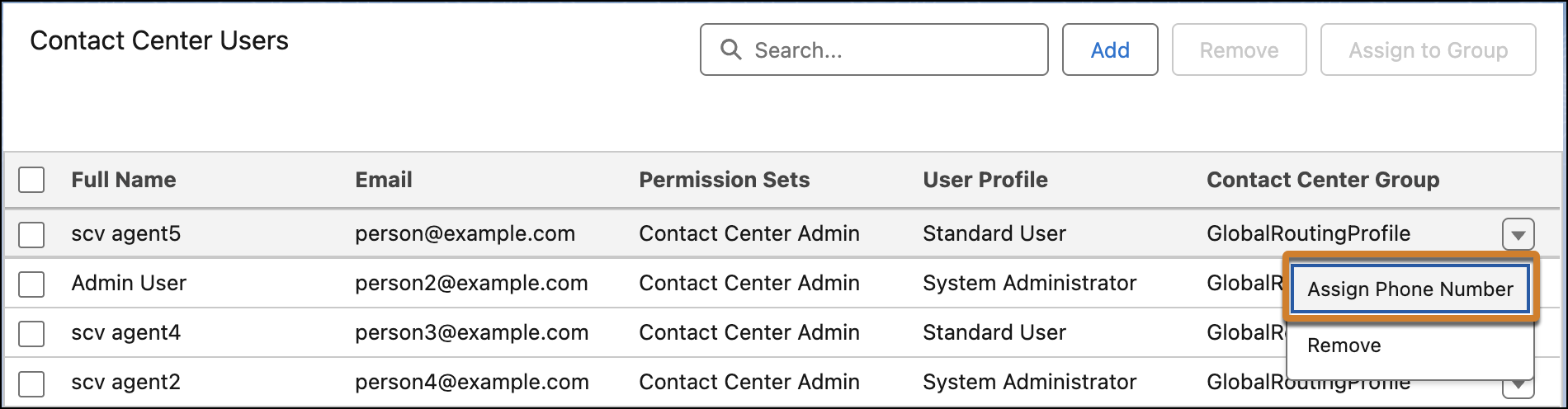
3. Under Contact Center Users, find the user you want to associate with a phone number.
4. From the action menu for that user, select **Assign Phone Number**.
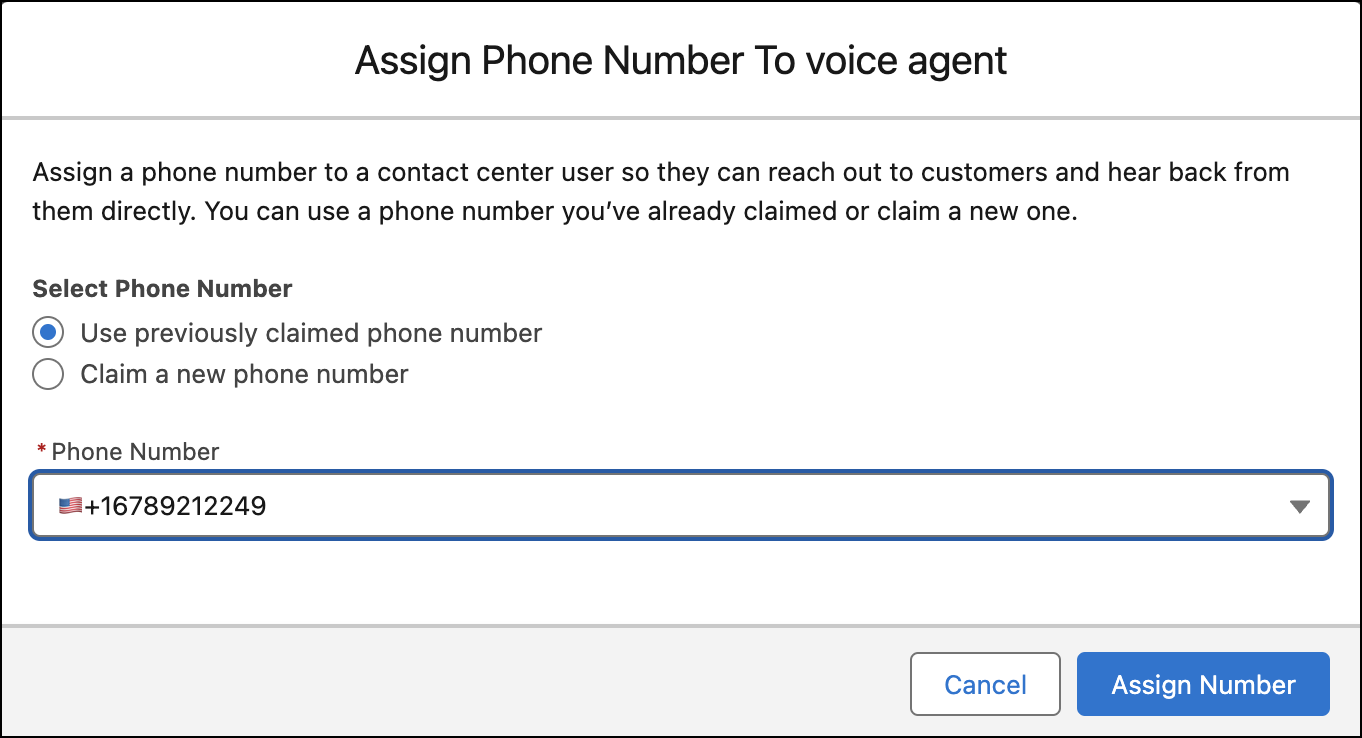
5. Use a previously claimed number or claim a new one.
- To use a previously claimed number, select it from the Phone Number list, and click **Assign Number**.
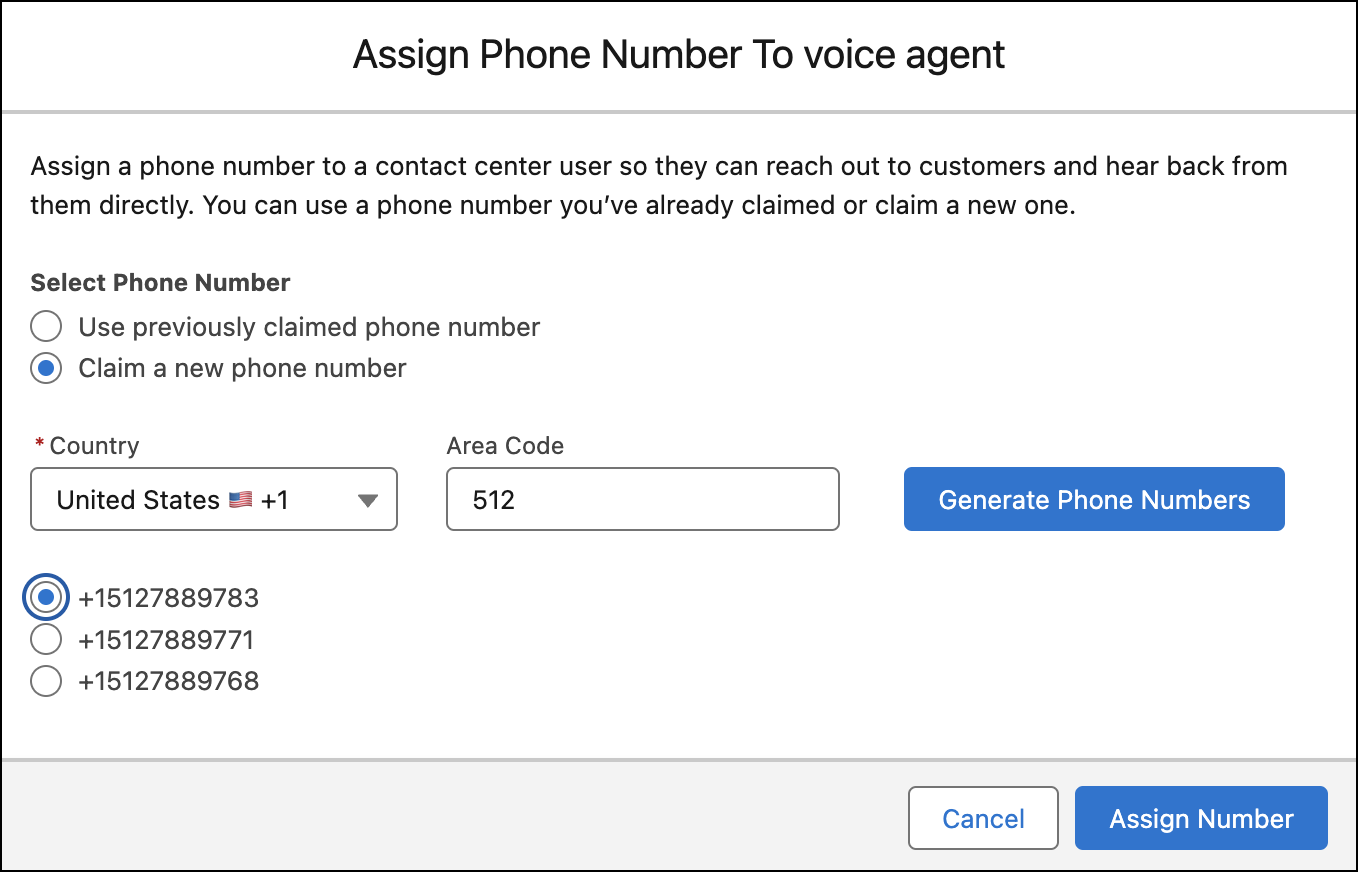
- To claim a number, select a country and enter an area code, and then click **Generate Phone Numbers**. Select a number and click **Assign Number**.
6. Repeat these steps for each contact center user, as needed. After processing your request, Salesforce sends you an email to confirm whether the number has been successfully assigned.
Assigning a phone number to a contact center user in Salesforce automatically creates a Contact Center Channel with a Call Routing Type of User. If a customer dials the assigned number, Amazon Connect uses the Sample SCV Inbound Flow for Direct to Rep and Sample SCV Direct to Rep Subflow to create a voice call record in Salesforce for the inbound call and route the call to a specific rep associated with the dialed number.
7. To help reps make outbound calls that show the rep’s unique caller ID, set up API authentication for your contact center. When you create a Salesforce Voice contact center with Amazon Connect, Salesforce creates an external client app for you and assigns a permission set to your contact center admins. Salesforce also provides a set of Lambda functions, which are available within your Amazon Connect instance after provisioning the instance with Salesforce Voice. To set up outbound calls directly from reps, update the REST API OAuth external client app and set up OAuth for the InvokeSalesforceRestApiFunction AWS Lambda Function.
1. [Create a private key and self-signed certificate](https://developer.salesforce.com/docs/atlas.en-us.sfdx_dev.meta/sfdx_dev/sfdx_dev_auth_key_and_cert.htm). You don’t need to create a custom app. It’s already been created for you when you turned on Salesforce Voice.
2. [Create an external client app](https://help.salesforce.com/s/articleView?id=xcloud.create_a_local_external_client_app.htm&type=5&language=en_US) and [enable the OAuth plugin](https://help.salesforce.com/s/articleView?id=xcloud.enable_oauth_plugin.htm&language=en_US&type=5).
3. [Set Up OAuth in the AWS Lambda Function](https://developer.salesforce.com/docs/atlas.en-us.voice_developer_guide.meta/voice_developer_guide/voice_lambda_aws_oauth.htm).
4. Optionally, [test OAuth with Salesforce Voice Lambda Function](https://developer.salesforce.com/docs/atlas.en-us.voice_developer_guide.meta/voice_developer_guide/voice_lambda_oauth_test.htm).
After completing these steps, when a rep makes an outbound call to a customer, the Sample SCV Outbound Flow From Rep With Caller ID Override whisper flow in Amazon Connect causes the Caller ID to show the phone number associated with the rep.

Warning This setup automatically updates and uses the BasicQueue, Basic Routing Profile, and sample flows in Amazon Connect without any required Amazon Connect configuration. Any changes to the BasicQueue configuration; Basic Routing Profile; or the Sample SCV Inbound Flow for Direct to Rep, Sample SCV Direct to Rep Subflow, and Sample SCV Outbound Flow From Rep With Caller ID Override Amazon Connect sample flows interfere with direct to rep routing behavior. Because BasicQueue and Basic Routing Profile are updated when a phone number is provisioned to support direct to rep routing, we recommend using separate queues, routing profiles, and phone number in Amazon Connect for additional contact center use cases that don’t require direct to rep routing.
## Release a Phone Number
If you no longer need a phone number for your contact center, you can release the claimed number from your telephony provider instance by unassigning it from a contact center user.

Tip If you use Salesforce Voice with Amazon Connect, your telephony minutes invoice from Salesforce includes government fees and taxes. For US-based customers, these may include emergency calling (911/988) fees, billed monthly in arrears. Emergency calling fee calculations vary by jurisdiction but are generally charged for each phone number. For implementations with hundreds or thousands of claimed numbers, these fees can add up. Releasing numbers that aren’t in use helps lower fees. See [Frequently Asked Billing Questions for Salesforce Voice with Amazon Connect](https://help.salesforce.com/s/articleView?id=service.voice_amazon_faqs.htm&release=264.0.0&type=5 "To learn more about billing for Salesforce Voice with Amazon Connect (formerly Service Cloud Voice with Amazon Connect), review these frequently asked questions.") for more information.
1. From Setup, in the Quick Find box, enter `Contact Centers`, and then select **Amazon Contact Centers**.
2. Select your contact center.
3. Under Contact Center Users, find the user who no longer needs a phone number.
4. From the action menu for that user, select **Release Phone Number**.
After processing your request, Salesforce sends you an email to confirm whether the number has been successfully unassigned from the user and is being released from your telephony provider instance.
Releasing a phone number from a contact center user in Salesforce automatically deletes the associated contact center channel and removes any associated routing assignments. The phone number isn’t associated with your contact center and is released back to your telephony provider’s inventory.
## Update Phone Number Assignments
To remove a phone number from a rep so you can assign it to another rep, delete the contact center channel that’s associated with a user from the contact center.
1. From Setup, in the Quick Find box, enter `Contact Centers`, and then select **Amazon Contact Centers**.
2. Select your contact center.
3. Under Contact Center Channels, find the channel associated with the user who no longer needs the phone number.
4. From the action menu for that channel, select **Remove**.
Removing a contact center channel removes any associated routing assignments. The phone number is available to be assigned to a different contact center user.

Note When assigning a previously removed phone number to a rep, verify that it wasn't assigned to a flow-based queue before removal. The reassignment won't work if the number was assigned to a queue using Omni-Channel routing.