
To subscribe to intelligence signals defined in your telephony system and trigger actions based on those signals, create a rule based on a Next Best Action or autolaunched flow. For example, create an action that recommends that the support rep offer a discount if the customer asks to cancel the service due to a poor customer experience. To create the rule for this example, pass the detected signal to a Recommendation Strategy flow and link the flow to the Einstein Next Best Action component in a Lightning page.
Required Editions
| View supported editions. |
| User Permissions Needed | |
|---|---|
| To create a Conversation Intelligence rule | Customize Application |
You can also create a rule triggered by matching keywords detected in a conversation. This is useful for messaging channels where keywords spoken or typed by the agent or customer trigger a Next Best Action recommendation. Configure one rule per NBA recommendation per service channel.
-
From Setup, in the Quick Find box, enter Conversation Intelligence
Rules, and then select Conversation Intelligence
Rules.
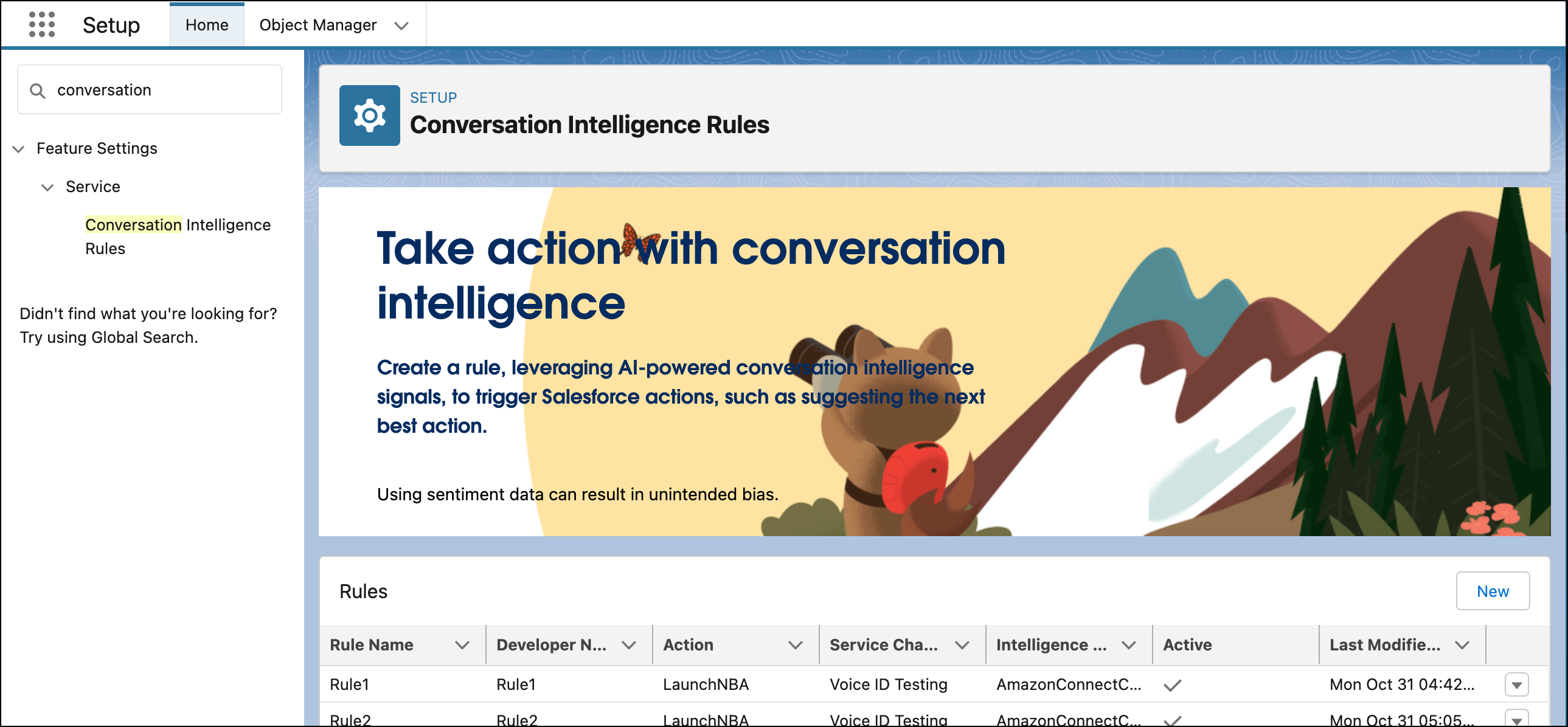
- To create a rule, click New.
-
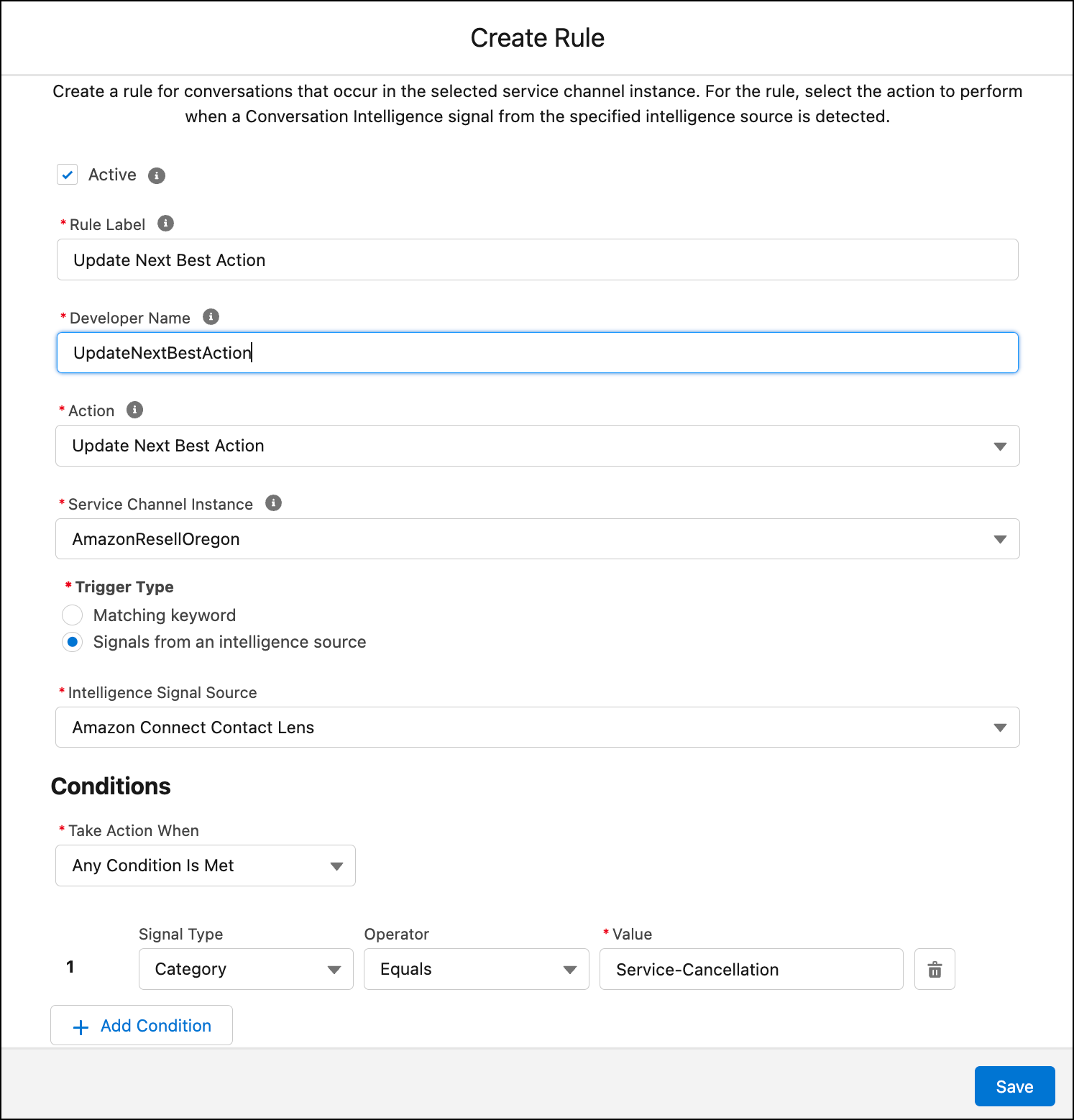
Enter the rule details.
 Note To auto-populate the Developer Name, tab through the Rule Label field. You will reference both the Rule Label and the Developer Name when you configure the Recommendation Strategy flow. You’ll use the Developer Name as the condition value in the Decision element of the flow.
 -
Select one of these actions.
Action Description Update Next Best Action Recommend the next best action to the service rep. When triggered, the rule passes signal data to a Recommendation Strategy flow, which retrieves and displays the appropriate recommendation in the Einstein Next Best Action component on the record page. You must configure one rule per NBA recommendation per service channel. See Set Up a Next Best Action. Run Autolaunched Flow If you choose Run Autolaunched Flow, you must select an autolaunched flow. Only active autolaunched flows appear in the selection dropdown. If an autolaunched flow is deactivated or deleted after creating the rule, the flow is removed from the rule. No action will be taken until you update the rule with another flow. See Set Up an Autolaunched Flow. Alert Supervisor Send an alert to the supervisor. Alert Support Rep and Supervisor Send an alert to the support rep and the supervisor. -
In the Service Channel Instance field, select the service channel.
 Tip This rule applies to this service channel instance only. To use the same NBA recommendation across multiple channels (for example, both voice and web chat), create a separate conversation intelligence rule for each channel pointing to the same Recommendation Strategy flow.
 -
To trigger the rules based on a signal:
- In the Trigger Type field, select Signals from an intelligence source.
-
Select the intelligence signal source.
-
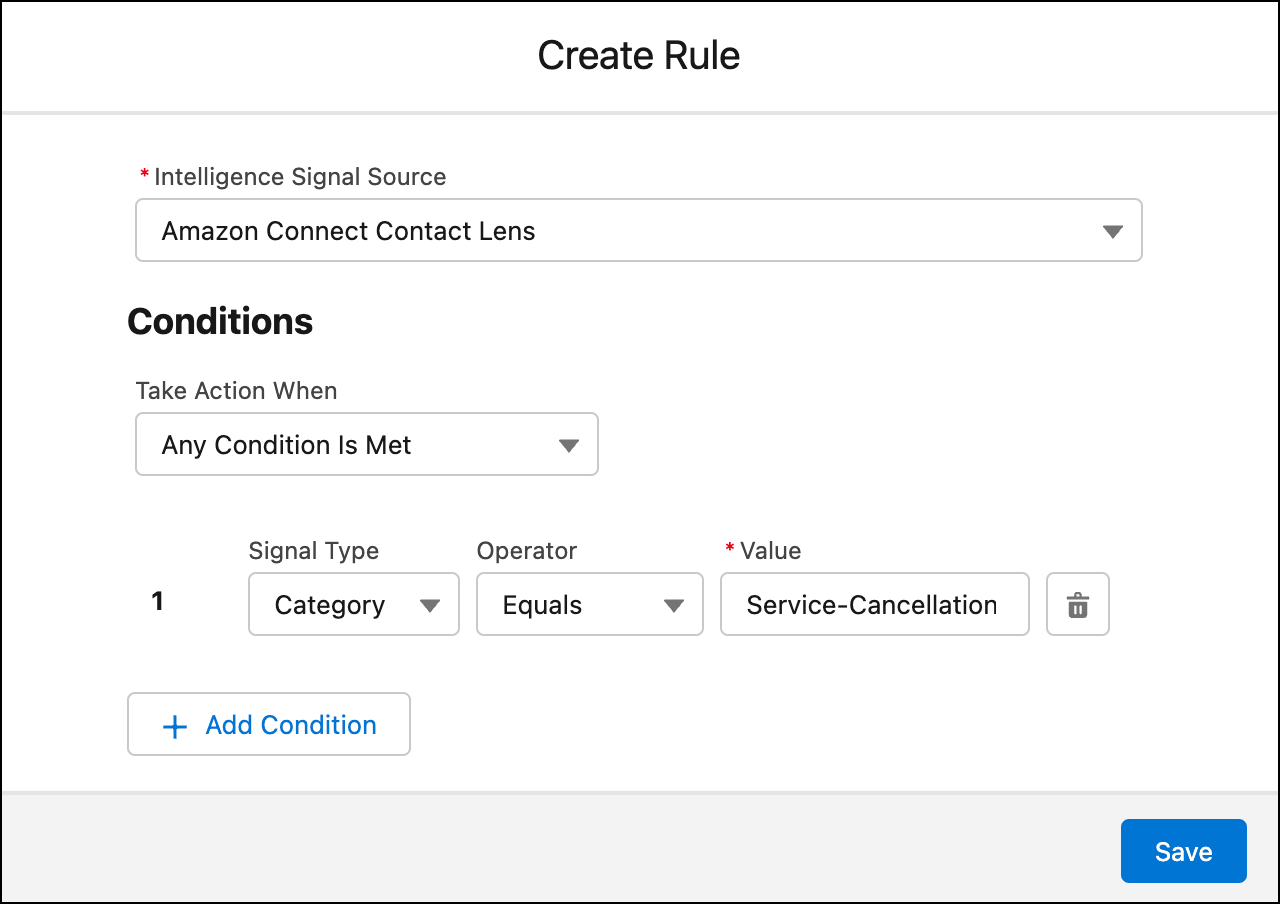
Create a condition for each signal value.
The signal value must match the category name that you defined in your telephony system. You can add up to 5 conditions.
-
To trigger the rule using keywords:
- In the Trigger Type field, select Matching keyword.
- In the Detect Keywords Mentioned By field, select the person to monitor: Agent, Customer, or Either.
-
Enter the keywords that should trigger the NBA.
Use words specific to the NBA that you want to display. Avoid overly general terms that could trigger recommendations in unintended contexts.
- Repeat this process to create one rule per NBA per channel.
Whenever the signal or matched keyword is detected during a phone conversation, the action defined in the rule is triggered. In this example, the signal triggers the next best action if the category name is Service-Cancellation.