
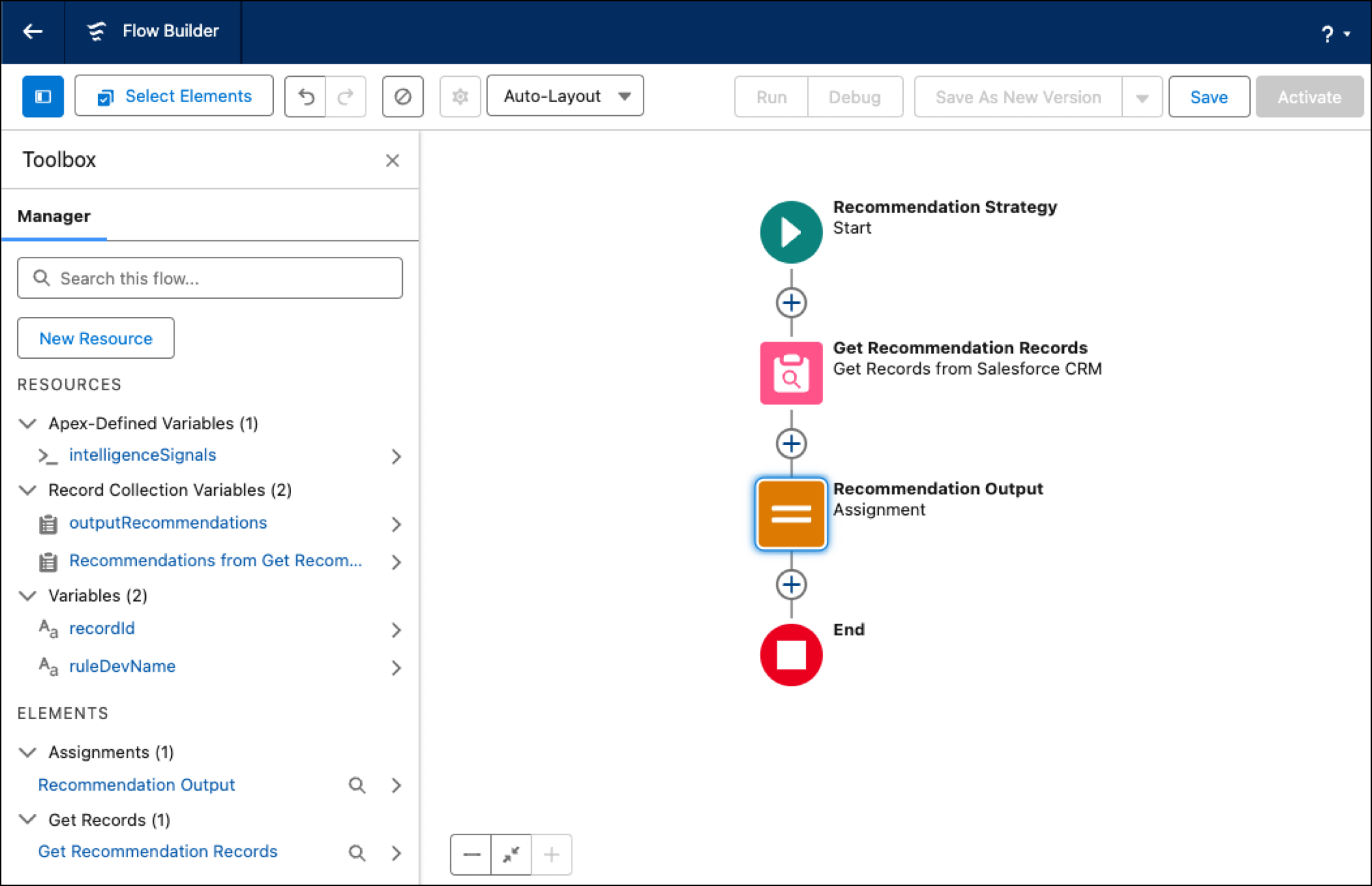
To determine how and when to present the Einstein Next Best Action recommendation on a Lightning page, create a Recommendation Strategy flow with Flow Builder. In the flow, use the keywords or signals to show the right recommendations.
Required Editions
| View supported editions. |
Flow Builder offers more flexibility and power than Strategy Builder. Flow Builder can also better integrate with customer data in Salesforce. To understand the Flow Builder limitations, review the flow limits.
When you create a Recommendation Strategy flow, it comes preconfigured with a recordId and outputRecommendations variables. To pass input to the flow, add variables to the flow. For details, see Input Variables for the Recommendation Strategy Flow.
- From Setup, in the Quick Find box, enter Flows, and then select Flows.
- To create a Recommendation Strategy flow, click New Flow, select Start from Scratch, and then click Next.
- Select Recommendation Strategy and click Create.
-
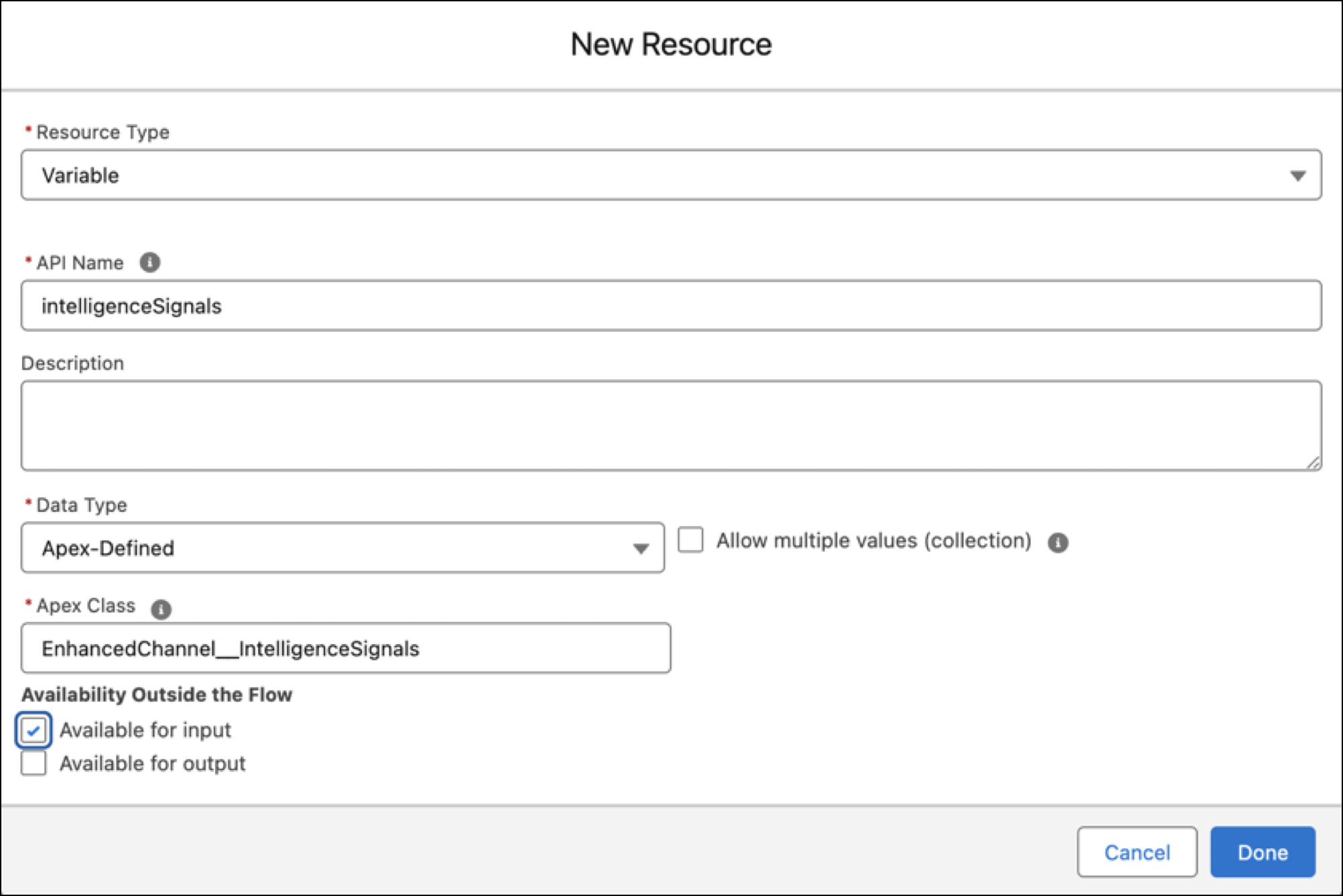
To add the other required variables, intelligenceSignals and
ruleDevName, open the Toolbox. For each additional variable, click
New Resource, and select Variable as the
resource type.
For variable settings, see Input Variables for the Recommendation Strategy Flow.
-
To check which Conversation Intelligence rule was triggered and route the call to the
appropriate NBA, add a Decision element to the flow. For each NBA that you want to
display, add an outcome branch with these settings.
- In the Label field, enter a name that identifies the NBA.
- In the Condition Requirements field, select All Conditions Are Met (AND).
- In the Resource field, select ruleDevName.
- In the Operator field, select Equals.
- In the Value field, enter the developer name of your Conversation Intelligence rule.
If the flow suggests an auto-complete value matching your Decision path name, do not select it. It points to the Decision Outcome, not the developer name of the rule. -
To get the Recommendation records, add a Get Records element below each decision
branch. To filter what recommendations are retrieved, add conditions.
For example, add a condition based on intelligenceSignals fields, such as intelligenceSignals.category or intelligenceSignals.matchedKeywords.
 Tip To find the Recommendation record name, go to App Launcher, search for Recommendations, and copy the name from the record.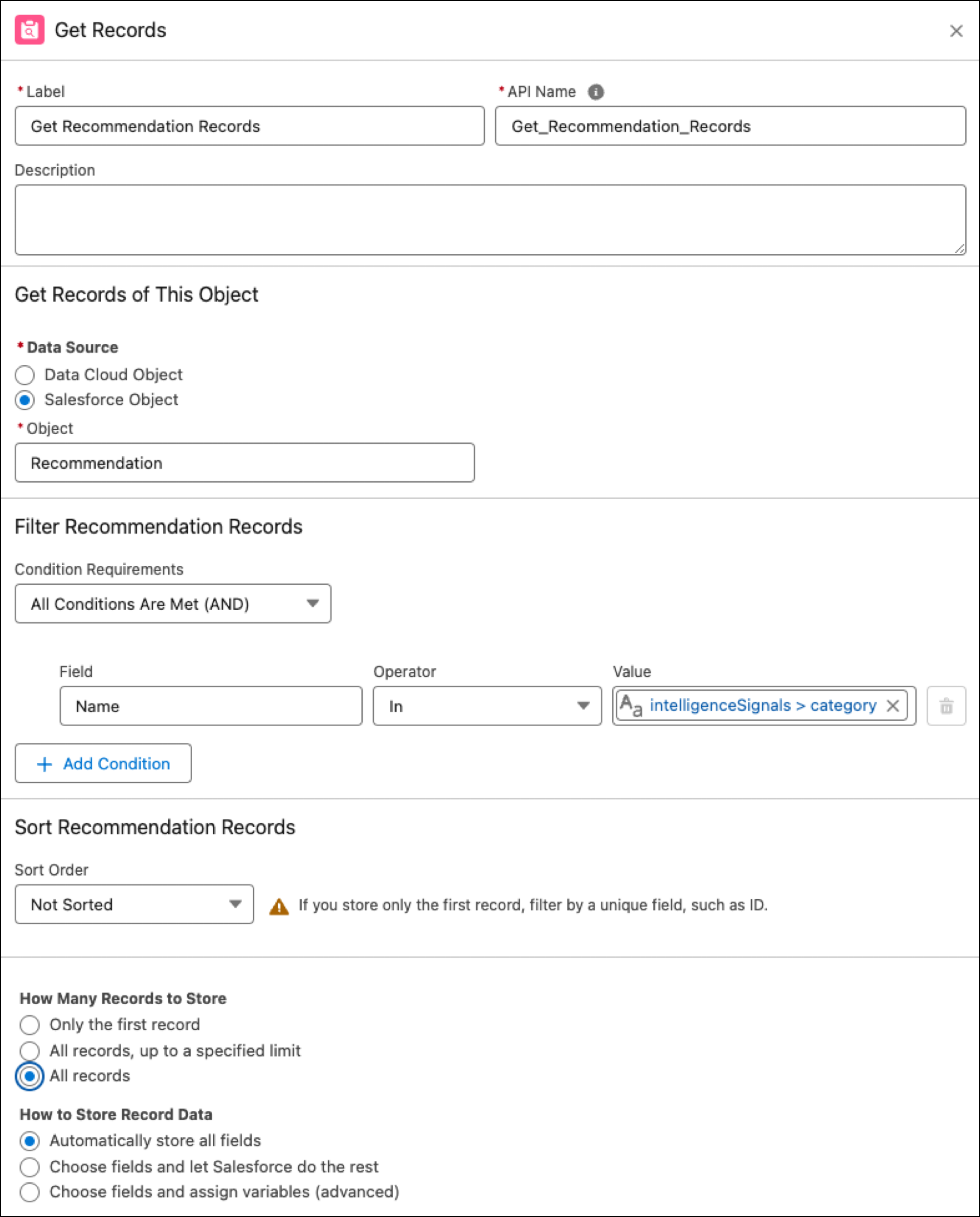
-
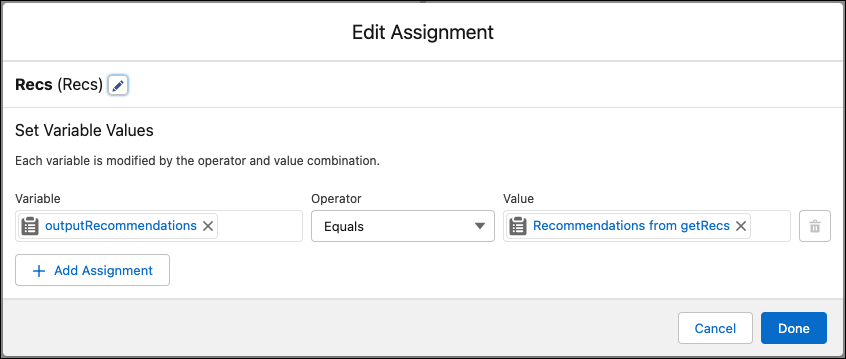
To assign the retrieved recommendation records to the
outputRecommendations record variable, add an Assignment element to
the flow.
-
Save and activate the flow.
- Input Variables for the Recommendation Strategy Flow
To pass input to the Recommendation Strategy flow, add variables to the flow. Creating a Recommendation Strategy flow adds the recordId and outputRecommendations variables, by default.