To configure call routing for voice calls, including Omni-Channel flows and queue
routing, and to determine when to create an End User record, create a phone channel. After you
create a phone channel, you can set up a caller ID tool to create or reuse an End User record
and choose whether to associate the End User record with the number dialed.
Required Editions
This article applies to:
- Salesforce Voice with Partner Telephony from Amazon Connect
| User Permissions Needed |
| To view the Amazon Contact Centers page: |
Customize Application AND Manage Call Centers |
| To create and manage a contact center: |
Salesforce Voice Contact Center Admin |
| To view the Partner Telephony Contact Centers page: |
Customize Application AND Manage Call Centers |
| To create and manage a contact center: |
Salesforce Voice Contact Center Admin (Partner Telephony) |
-
From Setup, in the Quick Find box, enter Partner Telephony Contact
Centers, then select Partner Telephony Contact
Centers.
-
Select the contact center you want to create a phone channel for.
-
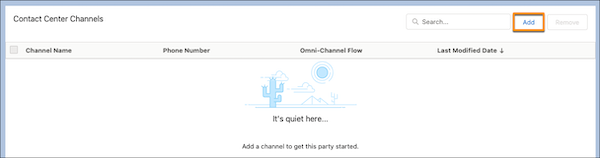
In the Contact Center Channels section, click Add.
-
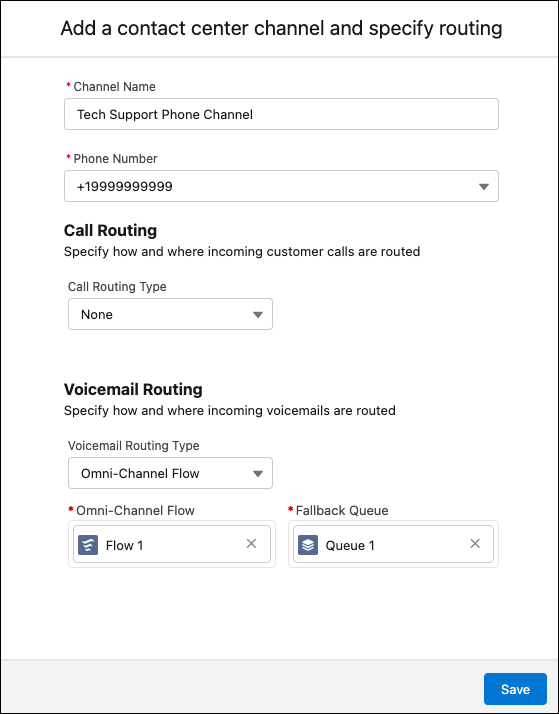
Enter a channel name and the contact center phone number.
- Optional:
Set up routing configurations for your contact center.
-
To route this phone channel’s calls to a specific queue, select
Queue in the Routing Type field, and then enter the name of
the Salesforce queue you want to route calls to.
-
To route this phone channel’s calls with an Omni-Channel flow, select
Omni-Channel Flow in the Routing Type field, and then enter
the names of the Omni-Channel flow and fallback queue.
-
Save your changes.
To make it easier to identify callers, configure your End User record settings for your
phone channel. You can choose to either match callers to End User records or override your
phone channel number settings.
