
Add callers to a call, or transfer calls to another rep, queue, Omni flow, or phone number so customers are connected to the right person who can help. To have a multiparty call, add another caller to the call and merge the calls. To transfer a call to another rep, add a caller to the call, merge the calls, and then leave the call. If your Salesforce Voice with Partner Telephony setup supports it, add multiple participants to a multiparty call and make a consult call.
Required Editions
This article applies to:
- Salesforce Voice with Amazon Connect
- Salesforce Voice with Partner Telephony
- Salesforce Voice with Partner Telephony from Amazon Connect
| View supported editions. |
| User Permissions Needed | |
|---|---|
| To answer and make calls and to view Voice records: | Salesforce Voice Contact Center Rep permission set |
To see each rep's availability when you add callers or transfer calls, your admin must first set up mapping.
Rep availability naming conventions may not match the Omni presence status name.
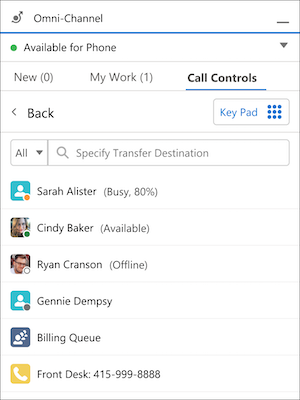
When you add callers or transfer calls, the following availability statuses are shown:
- Available—A rep is available when their Omni-Channel presence status is set to Available for Voice and they have 0% capacity.
- Busy—A rep is busy when their Omni-Channel presence status isn’t set to Available for Voice or they are assigned to one or more cases or calls. The consumed percent (%) capacity helps you decide whether the rep can take the call. A consumed capacity of 100% means the rep is at full capacity.
- Offline—A rep is offline when their Omni-Channel presence status is set to Offline.
- Add a Caller
Conference in a single caller to an ongoing voice call. - Make a Blind Transfer
Transfer a call to another contact center rep, queue, or flow without giving context to the next rep. - Make a Warm Transfer
Transfer a call to another contact center rep, queue, or flow. Discuss the situation with another rep before connecting them with the customer, and then leave the call. - Add Multiple Callers to a Call
If multiparty calls with more than three people are enabled for your Service Cloud Voice with Partner Telephony setup, use the Phone controls in the Omni-Channel utility to add up to four participants to an ongoing call between yourself and a customer. - Make a Consult Call
If consult calls and multiparty calls are enabled for your Salesforce Voice with Partner Telephony setup, start a consult call during an active multiparty call to discuss the ongoing situation in a separate conversation. End the consult call or merge the consult call with the multiparty call.
Add a Caller
Conference in a single caller to an ongoing voice call.
To add a rep to an ongoing call, your administrator must have set up a quick connect when they added that rep to the contact center.
-
While on a call, click Add Caller from the Phone tab in the
Omni-Channel utility.
 Tip You can also add a caller to an ongoing call with click-to-dial. From a record in Salesforce, click the number you want to bring into the call.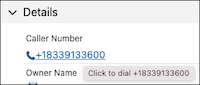
-
To use the keypad to dial an external number, click Keypad and
enter the number. To add another rep or queue to the call, enter a name or scroll through
the list of reps (agents) to see who’s available, and click
Call.
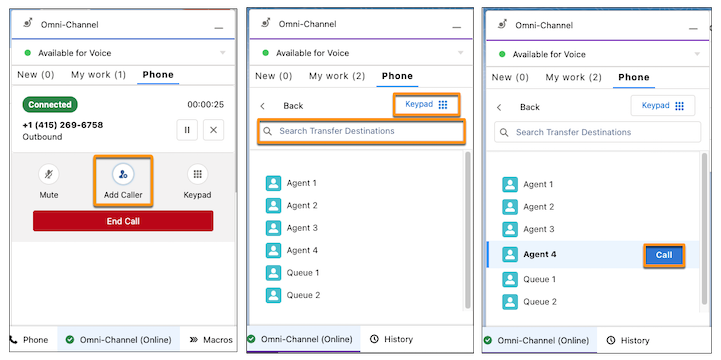 After the second caller is connected, the Merge button is displayed on the Phone tab in the Omni-Channel utility.
 - To combine both calls into a single call, click Merge. Continue the call as needed with three participants.
- To switch from one call to another, click Swap. When you swap a call, one call is active and the other call is on hold.
- To exit a call, click Leave Call. You’re disconnected, but the call continues with the remaining participants.
Make a Blind Transfer
Transfer a call to another contact center rep, queue, or flow without giving context to the next rep.
To transfer a call to a rep, your administrator must have set up a quick connect when they added that rep to the contact center.

-
While on a call, select an action based on your telephony model.
- To perform a blind transfer for reps with Salesforce Voice with Partner Telephony, click Blind Transfer.
- To perform a blind transfer for reps with Salesforce Voice with Amazon Connect or Salesforce Voice with Partner Telephony from Amazon Connect, click Add Caller.
-
Enter or select your transfer destination.
- To use the keypad to dial an external number, click Keypad and enter the number.
- To transfer the caller to another rep, flow, or queue, use the filter dropdown to
filter your results or scroll through the list of reps (agents) to see who’s
available.
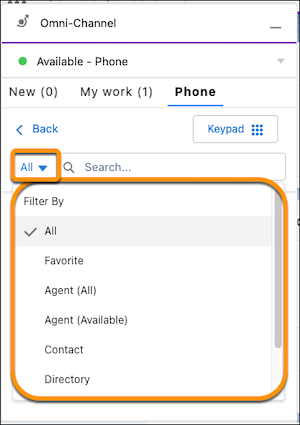
After the second caller is connected, the Swap and Merge buttons are displayed on the Phone tab in the Omni-Channel utility. - For reps with Salesforce Voice with Amazon Connect, exit without providing context by clicking Leave Call. You’re disconnected, but the call continues with the remaining participants. For reps with Salesforce Voice with Partner Telephony, you are removed from the call automatically after the blind transfer is initiated.
You can also transfer a call with click-to-dial. From a record in Salesforce, click the number you want to bring into the call.
See Also
Make a Warm Transfer
Transfer a call to another contact center rep, queue, or flow. Discuss the situation with another rep before connecting them with the customer, and then leave the call.
To transfer a call to a rep, your administrator must have set up a quick connect when they added that rep to the contact center.
- While on a call, click Add Caller.
-
To use the keypad to dial an external number, click Keypad and enter
the number. To add another rep or queue to the call, enter a name or scroll through the list of
reps (agents) to see who’s available, and click Call.
After the second caller is connected, the Merge button is displayed on the Phone tab in the Omni-Channel utility.
- Share necessary information with the second caller before combining the calls.
- To combine both calls into a single call, click Merge. Continue the call as needed with three participants.
- To switch from one call to another, click Swap. When you swap a call, one call is active and the other call is on hold.
- To complete the warm transfer and exit the call, click Leave Call. You’re disconnected, but the call continues with the remaining participants.
You can also transfer a call with click-to-dial. From a record in Salesforce, click the number you want to bring into the call.
Add Multiple Callers to a Call
If multiparty calls with more than three people are enabled for your Service Cloud Voice with Partner Telephony setup, use the Phone controls in the Omni-Channel utility to add up to four participants to an ongoing call between yourself and a customer.
-
To add a caller to an ongoing voice call, click the Add User
button.
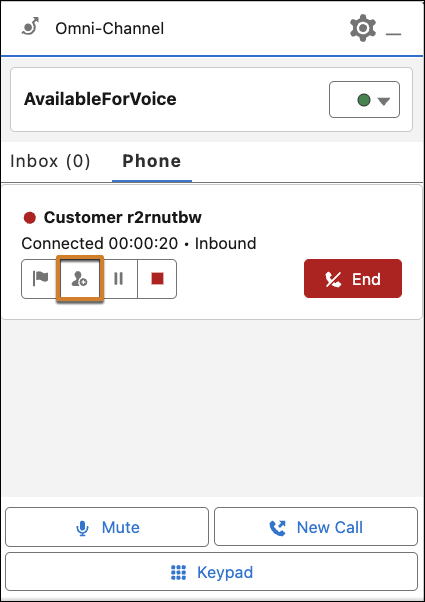
- Select a call participant from the Phone contacts list, and click Call. Or to use the keypad to dial an external contact, click Keypad and enter the number.
-
To add more participants to an ongoing voice call, click the Add
User button in the Call Group.
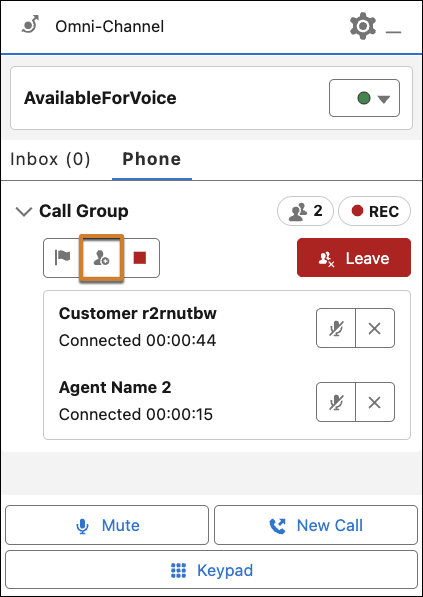
- Select a call participant from the Phone contacts list, and click Call. Or to use the keypad to dial an external contact, click Keypad and enter the number.
-
To manage an ongoing multiparty call, use the Phone controls in the Omni-Channel
utility.
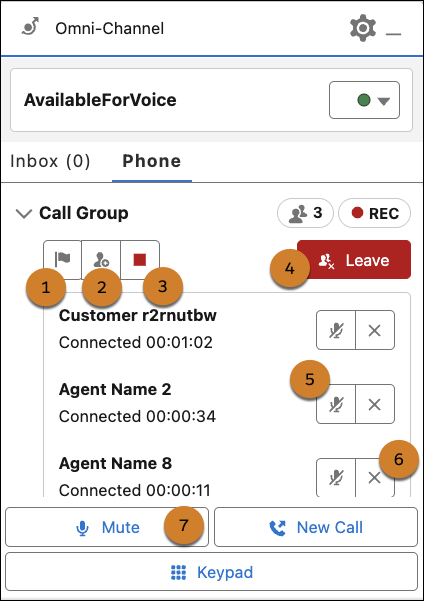 Raise a flag to get help from a supervisor (1), add a call participant (2), pause or resume recording (3), leave the call (4) while it continues for other participants, mute a participant (5), remove a participant from the call (6), or mute yourself (7).Note Hold isn’t supported for multiparty calls.
Make a Consult Call
If consult calls and multiparty calls are enabled for your Salesforce Voice with Partner Telephony setup, start a consult call during an active multiparty call to discuss the ongoing situation in a separate conversation. End the consult call or merge the consult call with the multiparty call.
-
During an active multiparty call, click New Call to start a
separate consult call.
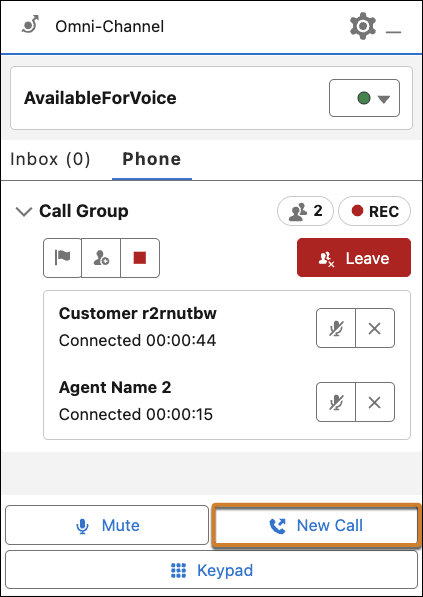 During the consult call, multiparty call participants in a call group are on a type of hold. Telephony partners can specify whether there is music so that call participants can continue their conversation.
 -
Use the Phone controls in the Omni-Channel utility to manage the consult call.
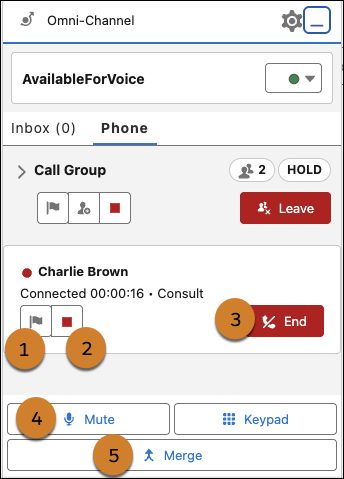 Raise a flag to get help from a supervisor (1), pause or resume recording (2), end a consult call to return to a multiparty call (3), mute yourself (4), or merge a consult call and a multiparty call (5).