---
schema_version: "1"
id: 1992e9f98b2b74587096a546666390ebd192d90b1c83106edbd212d065569ec5
title: Pause Call Recording to Honor Customer Privacy
collection: admin
version: current
locale: en-us
portal_url: https://docs.salesforce.com/admin/current/en-us/service/264-0-0/voice_agents_record_calls.md
canonical_url: https://help.salesforce.com/s/articleView?id=service.voice_agents_record_calls.htm&release=264.0.0&type=5
source_site: help.salesforce.com
content_type: documentation
content_hash: 3adc3d709cc6ea01d7f3cebd4dfdbafb781819fa9aa17e265a05912a34dcad60
description: Some companies automatically record calls for training and quality purposes. Your customers and your company sometimes prefer not to record certain information for privacy and legal compliance reasons. Honor your customer’s privacy and protect your company when a call is recorded by pausing the recording when sensitive information is exchanged. Resume the recording when it’s appropriate.
products:
- Service Cloud
- Digital Engagement
release: "264"
---
# Pause Call Recording to Honor Customer Privacy
Some companies automatically record calls for training and quality purposes. Your customers and your company sometimes prefer not to record certain information for privacy and legal compliance reasons. Honor your customer’s privacy and protect your company when a call is recorded by pausing the recording when sensitive information is exchanged. Resume the recording when it’s appropriate.
### Required Editions
This article applies to:
- Salesforce Voice with Amazon Connect
- Salesforce Voice with Partner Telephony
- Salesforce Voice with Partner Telephony from Amazon Connect
The default setting for call recording depends on your telephony provider and its configuration. For Amazon Connect, call recording is turned on by default. If your company is using the sample Amazon Connect contact flows that Salesforce provides, then call recording begins when the call is connected to a rep. An administrator can configure when calls are recorded in the contact flows in Amazon Connect.

Important For data protection reasons, all users with access to Salesforce Voice call recordings must agree to being recorded. The first time a user tries to listen to a call recording or make or receive a call, they see a message asking them to agree to being recorded. If the user doesn’t agree, they can’t make or receive calls or listen to call recordings, and they’re prompted again the next time they log in.
1. To pause the recording, click **Recording** in the Omni-Channel utility or the **Recording** radio button in the Phone component.
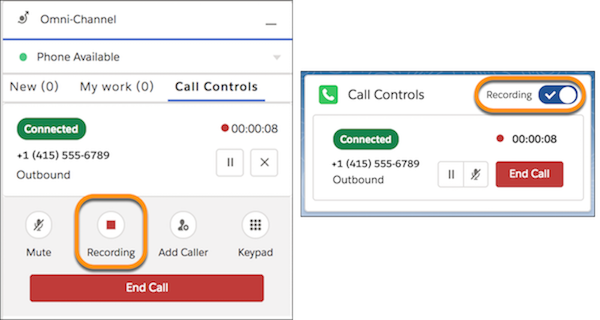
2. To resume recording, click the button again.
#### See Also
- [Listen to and Collaborate on Voice Call Recordings](https://help.salesforce.com/s/articleView?id=service.voice_agents_listen_call_recordings.htm&release=264.0.0&type=5 "To review a voice call, ensure compliance, and collaborate on customer issues, listen to call recordings in the Call Audio Player. To share information, ask questions, like and reply to comment threads, and mention colleagues and groups, comment directly on the recording. After a comment is created, you can respond in the Call Audio Player component or Chatter Feed.")