---
schema_version: "1"
id: d55648ed49d69ee74da382e3b851e61294d360fe8e2665ca72902e4041562e6b
title: Use a Desk Phone
collection: admin
version: current
locale: en-us
portal_url: https://docs.salesforce.com/admin/current/en-us/service/264-0-0/use_desk_phone.md
canonical_url: https://help.salesforce.com/s/articleView?id=service.use_desk_phone.htm&release=264.0.0&type=5
source_site: help.salesforce.com
content_type: documentation
content_hash: cd037aee2e5b3ce51a9c0b442932c9b7de53474d191faf627e720c428b26d74c
description: Answer and make voice calls from the Omni-Channel utility with a desk phone. By default, the softphone is enabled for all reps. To use a deskphone, you should enable the deskphone from the Omni-Channel settings.
products:
- Service Cloud
- Digital Engagement
release: "264"
---
# Use a Desk Phone
Answer and make voice calls from the Omni-Channel utility with a desk phone. By default, the softphone is enabled for all reps. To use a deskphone, you should enable the deskphone from the Omni-Channel settings.
### Required Editions
This article applies to:
- Salesforce Voice with Amazon Connect
- Salesforce Voice with Partner Telephony
- Salesforce Voice with Partner Telephony from Amazon Connect
To answer and make calls and to view Voice records:
Salesforce Voice Contact Center Rep permission set
Your admin must first [set up desk phone functionality](https://help.salesforce.com/s/articleView?id=service.voice_setup_desk_phone.htm&release=264.0.0&type=5 "You can set up desk phones or headphones in your telephony system so that your reps can use them to answer and make calls.") for your user profile in Amazon Connect.
The Phone component must be added to the Voice Call page layout. The Phone component is displayed on the page only when the rep is on a call.
Voice is supported only on the latest stable browser version of Google Chrome, Mozilla Firefox, and Microsoft Edge (Chromium). Cookies must be enabled to allow single sign-on (SSO).
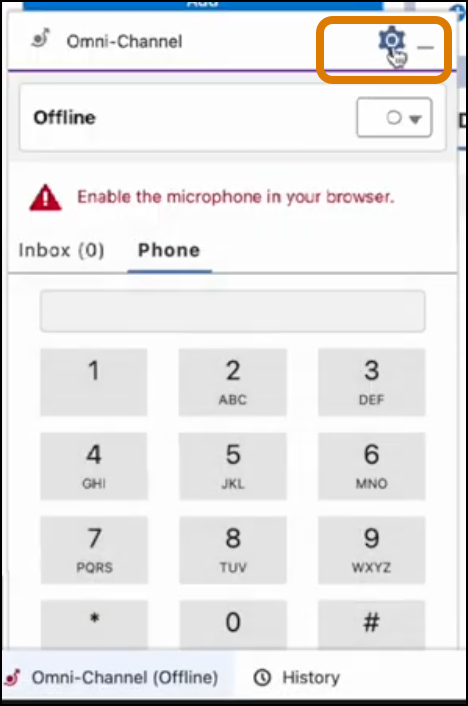
1. In the Omni-Channel utility, open the Settings.
2. For Phone Type, select **Desk Phone** and enter the desk phone number in the format \[+\] \[country code\] \[ subscriber number including area code\]. For example, +12345678901.
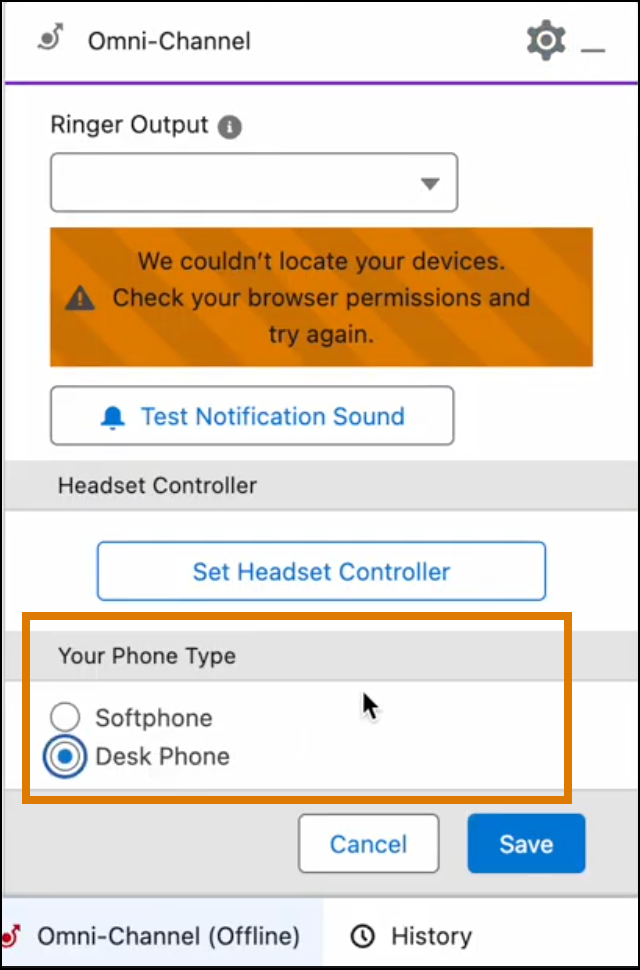
3. Save your changes.
Now you can make and receive voice calls with your desk phone.
You can use desk phones for voice calls even if the microphone settings are disabled in your browser. After saving the phone type as desk phone, if you get the microphone disabled error, refresh the browser to use the desk phone.